(Compatible article number 25991)
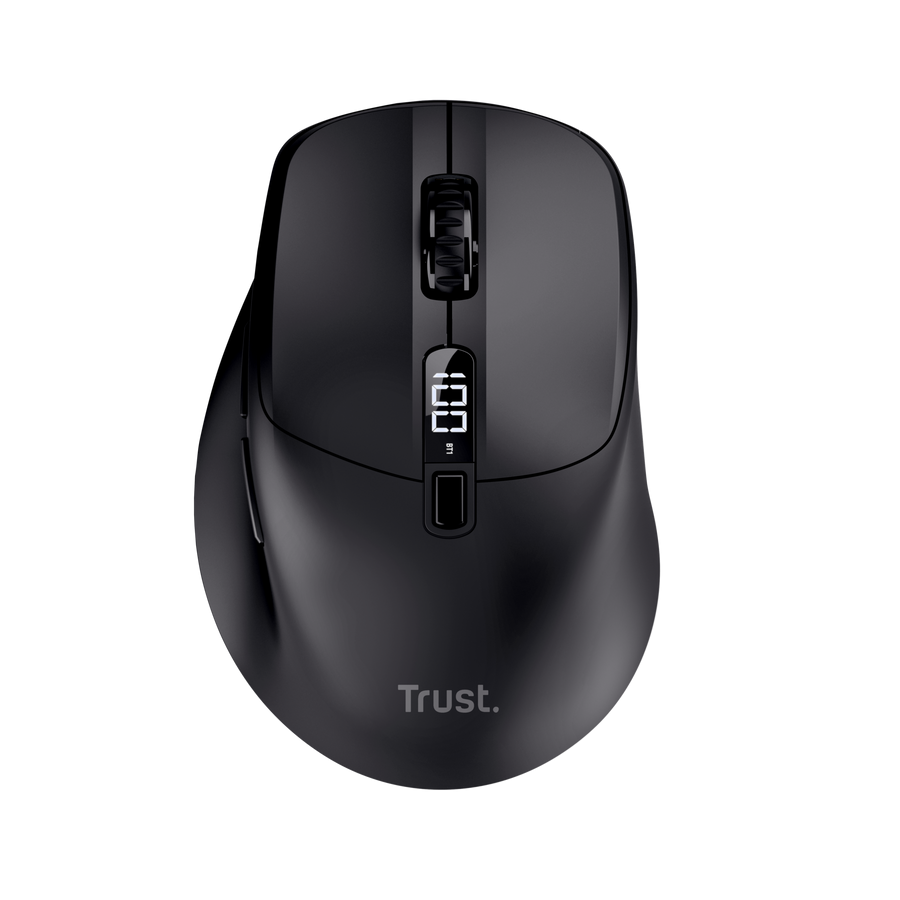
How to set up and use your ZEVO Ultra-Fast Charging Wireless Mouse
This guide explains how to set up, charge, connect and use your ZEVO Ultra-Fast Charging Wireless Mouse. The mouse supports wireless connectivity, high-precision tracking and ultra-fast charging technology for everyday use at home, in the office and while travelling.
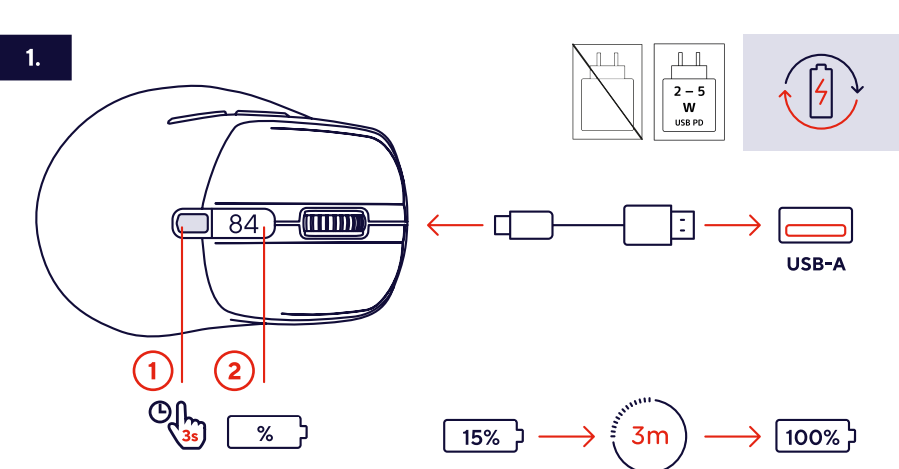
1. Charging the Mouse
1. Connect the supplied USB charging cable to the charging port of the mouse.
2. Connect the USB connector to a powered USB port or USB charger.
3. Allow the battery to charge before first use.
4. During charging, the LED indicator will show the charging status.
5. Wait until charging is complete for maximum battery performance.
6. Disconnect the cable once charging is completed.
7. The ultra-fast charging function provides extended usage time after a short charging session.
✅ The mouse battery is charged and ready for wireless operation.
------------------------------------------------------------------------------------------------------------------------------------------
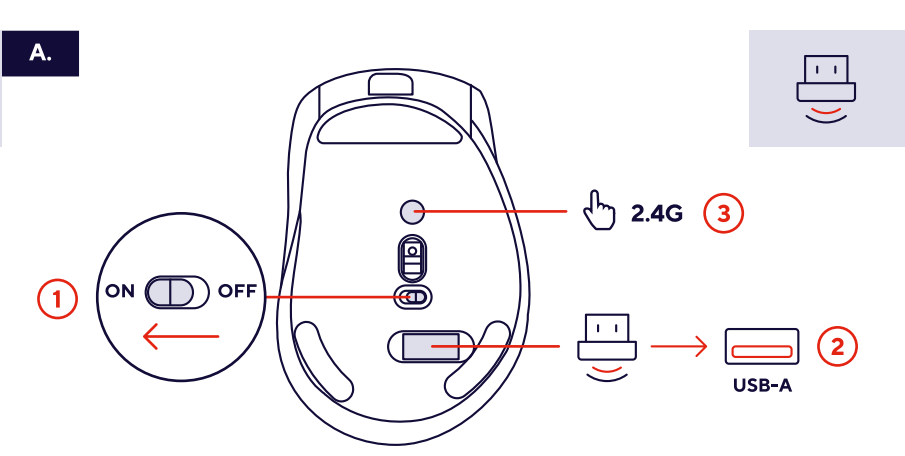
2. Turning the Mouse On and Connecting Using the USB Receiver
1. Locate the power switch on the bottom of the mouse.
2. Slide the switch to the ON position.
3. Remove the USB receiver from the mouse receiver compartment if applicable.
4. Insert the USB receiver into an available USB port on your computer.
5. Wait for your operating system to detect the device automatically.
6. Move the mouse to confirm that the cursor responds correctly.
7. No additional software is required for basic operation.
✅ The mouse is powered on and ready for use.
✅ The wireless receiver connection has been established successfully.
------------------------------------------------------------------------------------------------------------------------------------------
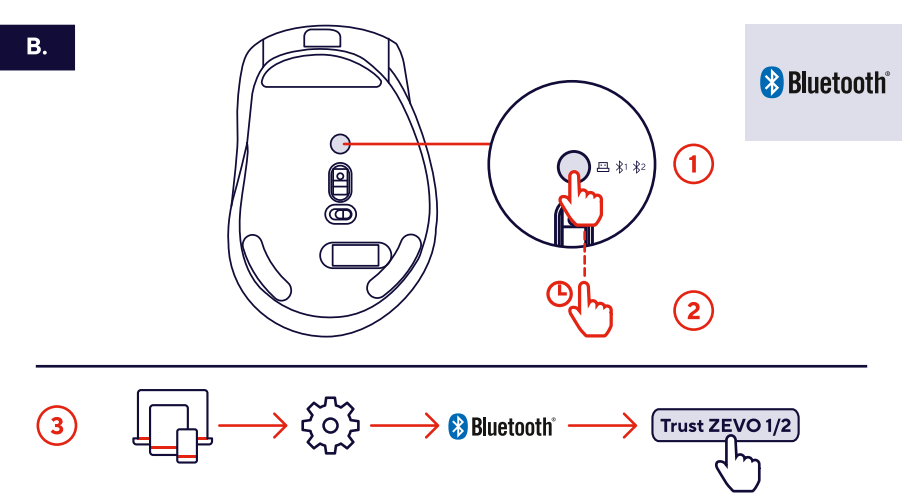
4. Bluetooth Pairing
1. Turn the mouse ON.
2. Activate Bluetooth pairing mode according to the pairing button instructions.
3. Open the Bluetooth settings on your device.
4. Search for nearby Bluetooth devices.
5. Select the ZEVO mouse from the available device list.
6. Confirm any pairing request if prompted.
7. Wait until the connection has been completed.
✅ The Bluetooth connection is active and ready for use.
------------------------------------------------------------------------------------------------------------------------------------------
5. Selecting a Connection Mode
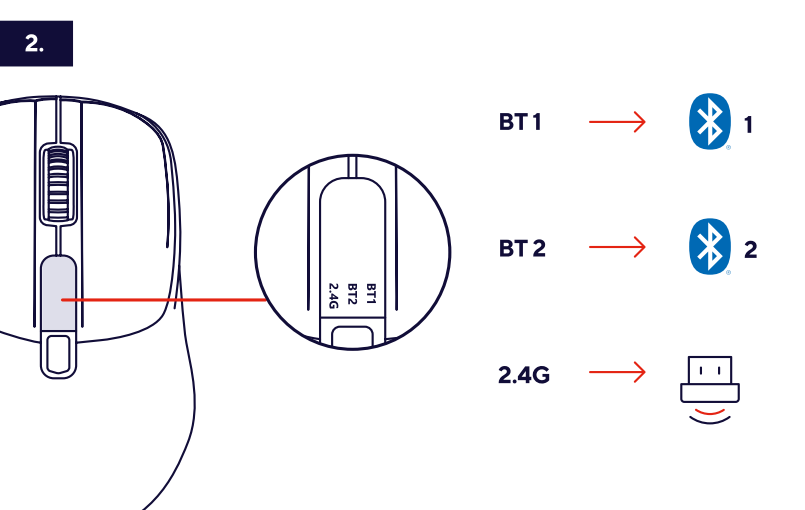
The ZEVO mouse supports three wireless connection modes. Use the connection selector located on the bottom of the mouse to choose the desired connection type.
1. Turn the mouse over to access the connection selector switch.
2. Slide the selector to the desired position.
3. Choose one of the following connection modes:
BT1
• Connects to Bluetooth Device 1.
• Use this profile for your primary computer, laptop or tablet.
• The mouse remembers the pairing information for this device.
BT2
• Connects to Bluetooth Device 2.
• Use this profile for a second computer, tablet or smartphone.
• The mouse stores a separate Bluetooth pairing for this device.
2.4G
• Connects using the supplied USB wireless receiver.
• Provides a fast and reliable wireless connection.
• Recommended for the lowest latency and best overall performance.
✅ Switch instantly between three previously connected devices without repeating the pairing process.
------------------------------------------------------------------------------------------------------------------------------------------
6. DPI Sensitivity Adjustment
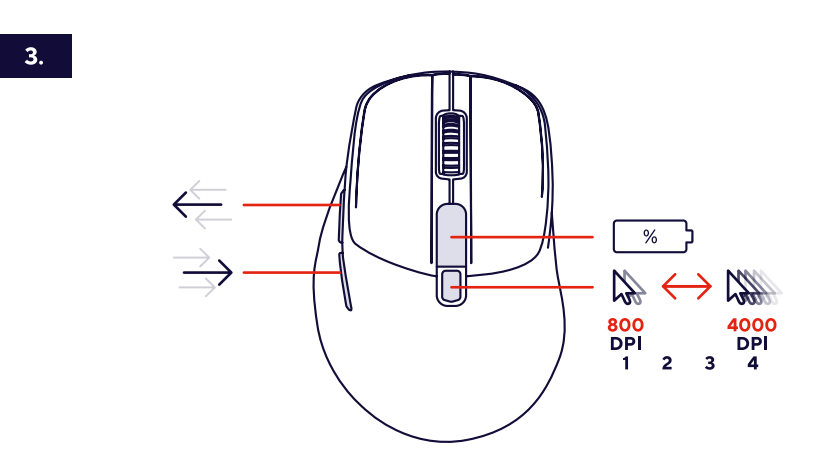
Press the DPI button to switch between predefined sensitivity levels.
• Low DPI for accurate cursor control.
• Medium DPI for office and productivity tasks.
• High DPI for faster navigation.
• Use different DPI settings to match your personal preference and screen resolution.
? Lower DPI settings provide higher precision while higher settings increase cursor speed.
------------------------------------------------------------------------------------------------------------------------------------------
7. Mouse Controls and Buttons
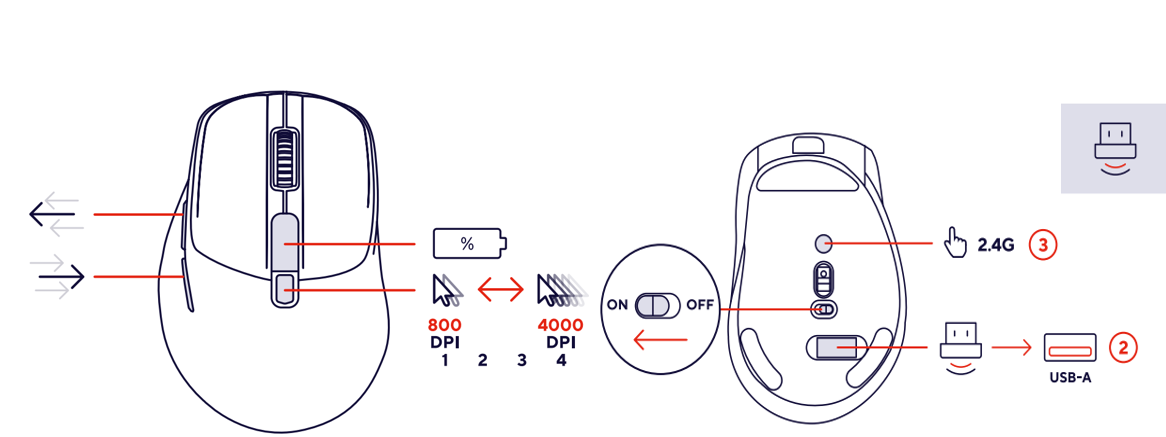
The ZEVO wireless mouse includes the following controls:
1. Left mouse button
2. Right mouse button
3. Scroll wheel
4. Middle-click function
5. DPI button
6. Side function buttons
7. Pairing/connection controls
8. Power switch
? Several buttons may support additional functions through software customization.
------------------------------------------------------------------------------------------------------------------------------------------
8. Battery Management
To maximize battery life:
• Recharge the mouse regularly.
• Switch the mouse off during long periods of inactivity.
• Store the product in a dry environment.
• Avoid exposure to excessive heat and direct sunlight.
• Use only suitable charging equipment.
✅ Proper battery care helps maintain optimal long-term performance.
------------------------------------------------------------------------------------------------------------------------------------------
9. Usage Recommendations
• Keep the sensor clean for accurate tracking.
• Use the mouse on a smooth and stable surface.
• Recharge the battery before it becomes completely empty.
• Store the USB receiver safely when travelling.
• Install the Trust software for additional customization options.
------------------------------------------------------------------------------------------------------------------------------------------
10. Troubleshooting
Mouse does not respond
• Verify the mouse is switched ON.
• Recharge the battery.
• Reinsert the USB receiver.
• Restart the computer.
Wireless connection lost
• Move closer to the receiver.
• Remove sources of wireless interference.
• Reconnect the receiver.
Bluetooth pairing fails
• Remove previous pairings.
• Activate pairing mode again.
• Verify that Bluetooth is enabled.
• Move the mouse closer to the device.
Cursor movement is inaccurate
• Clean the optical sensor.
• Adjust the DPI settings.
• Use another working surface.
Battery life is shorter than expected
• Fully recharge the battery.
• Turn the mouse off when not in use.
• Avoid charging with unsuitable chargers.
⚠️
Was this article helpful?
That’s Great!
Thank you for your feedback
Sorry! We couldn't be helpful
Thank you for your feedback
Feedback sent
We appreciate your effort and will try to fix the article