(Compatible article number 25748)
How do I set up the GXT 122 Felox+?
The GXT 122 Felox+ supports a low-latency 2.4 GHz connection through the supplied USB-A receiver and two Bluetooth connections.
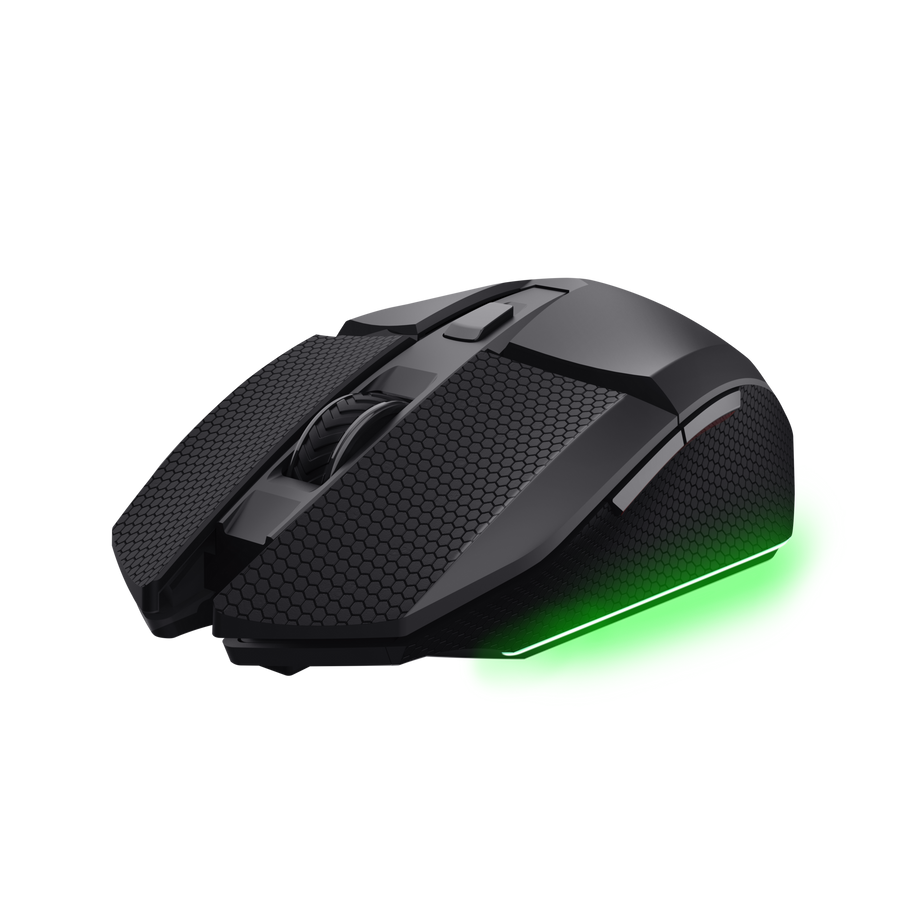
Charge the mouse
- Connect the supplied USB charging cable to the mouse.
- Connect the USB-A end to a suitable USB power source.
- A complete charge takes approximately 3 hours.
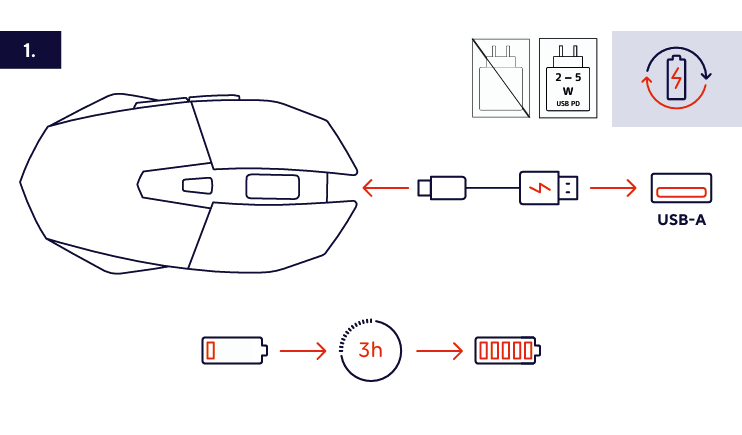
Connect using the 2.4 GHz USB receiver
- Switch the mouse on.
- Remove the USB receiver from its storage compartment on the underside of the mouse.
- Connect the receiver to an available USB-A port.
Connect using Bluetooth
- Switch the mouse on.
- Select one of the two Bluetooth connection slots.
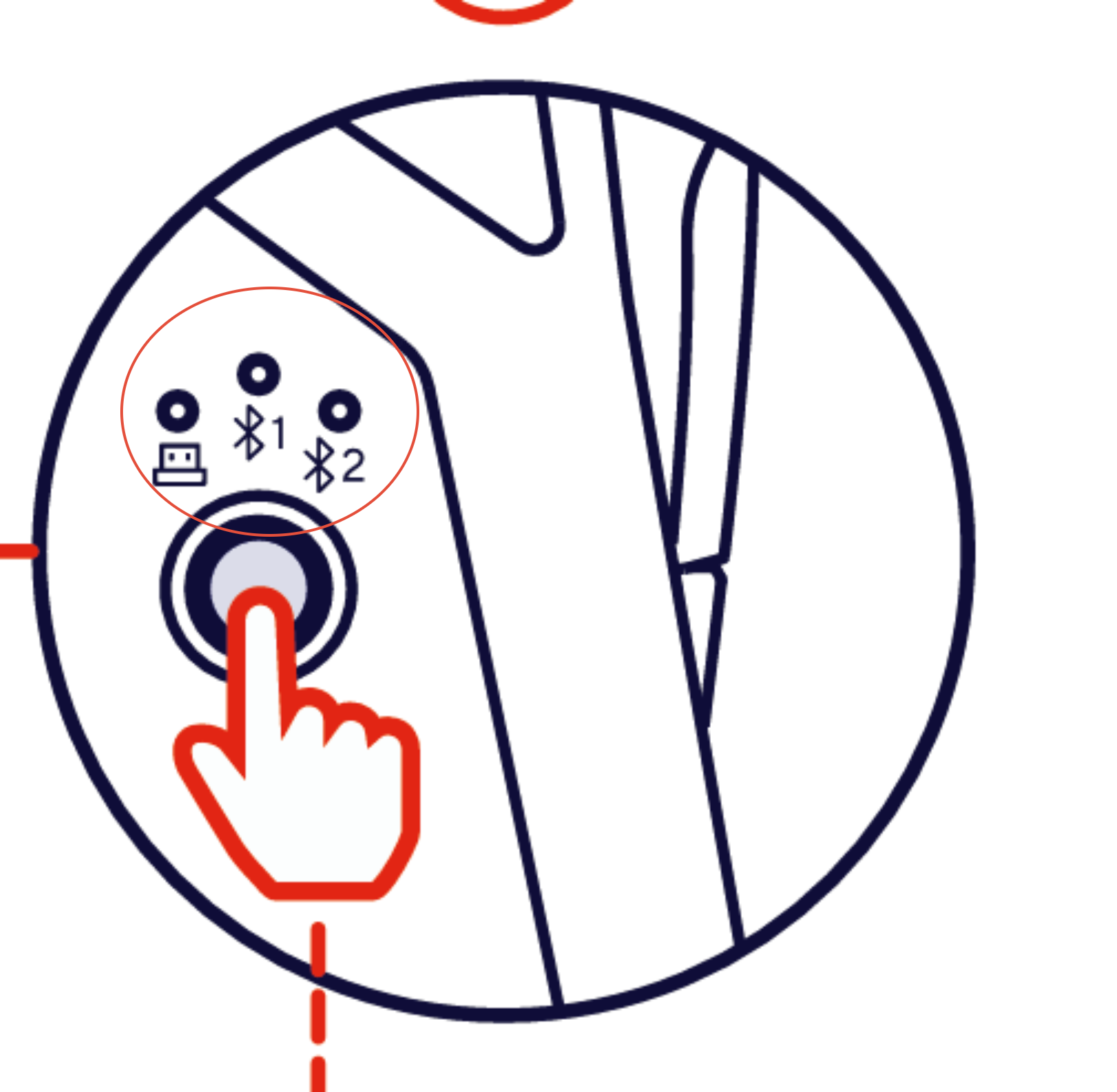
- Press and hold the Bluetooth pairing button for approximately 3 seconds.
- Open the Bluetooth settings on your device.
- Select Felox BT1 or Felox BT2, depending on the selected Bluetooth slot.
---------------------------------------------------------------------------------------------------------------------------------------------
Mouse overview
- Low-latency 2.4 GHz wireless connection through the supplied USB-A receiver.
- Two Bluetooth connection slots.
- Optical sensor with adjustable sensitivity up to 12,000 DPI.
- Six buttons.
- Programmable buttons.
- Multicolour LED lighting with six settings.
- Rechargeable built-in battery with up to 40 hours of use.
- Detachable 1 m charging cable.
- Grip sticker sheet included.
---------------------------------------------------------------------------------------------------------------------------------------------
Controls and DPI
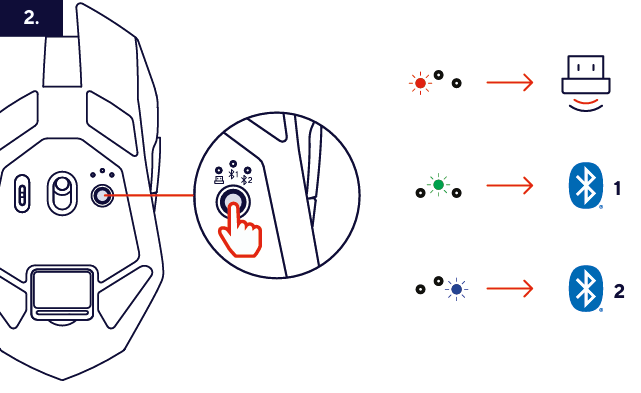
The mouse provides six controls for standard mouse functions, navigation and DPI adjustment.
- Left button - primary click.
- Right button - secondary click.
- Scroll wheel - scrolling and middle-click function.
- Side buttons - forward and back navigation.
- DPI button - change the mouse sensitivity.
The available sensitivity range extends from 200 DPI up to 12,000 DPI.
---------------------------------------------------------------------------------------------------------------------------------------------
Grip stickers
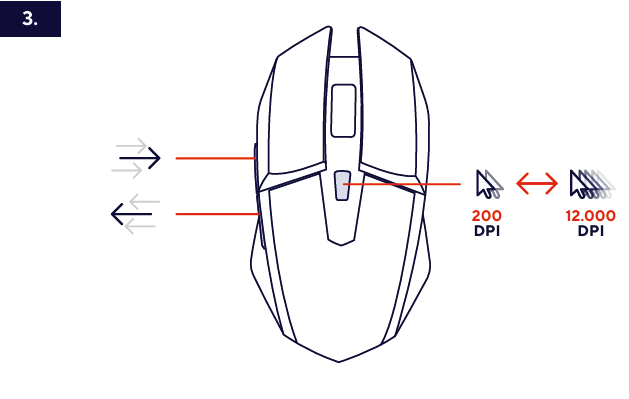
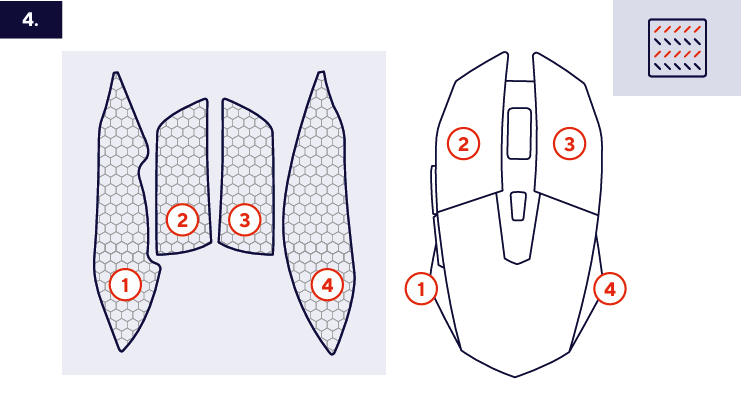
The supplied grip stickers can be applied to the corresponding areas of the mouse for additional grip and personalisation.
---------------------------------------------------------------------------------------------------------------------------------------------
Software
Software is available for the GXT 122 Felox+ on Windows.
- Download the software from www.trust.com/25748/download.
- Install and open the software.
---------------------------------------------------------------------------------------------------------------------------------------------
Battery and charging
The built-in rechargeable battery provides up to approximately 40 hours of use.
Actual battery runtime depends on usage and operating conditions.The mouse can also be used while connected with the supplied charging cable.
For charging instructions, refer to Charge the mouse above.
---------------------------------------------------------------------------------------------------------------------------------------------
Compatibility
The GXT 122 Felox+ supports:
- Windows 11.
- USB-A connection through the supplied 2.4 GHz receiver.
- Bluetooth connectivity.
Software personalization it's not available when the mouse is used with a console.---------------------------------------------------------------------------------------------------------------------------------------------
Troubleshooting
The mouse does not connect through the USB receiver
- Make sure the mouse is switched on.
- Make sure the USB receiver is connected to an available USB-A port.
- Try another USB-A port.
- Repeat the Connect using the 2.4 GHz USB receiver procedure above.
The mouse does not appear in the Bluetooth device list
- Make sure the mouse is switched on.
- Check that the correct Bluetooth slot is selected.
- Repeat the Connect using Bluetooth procedure above.
- Make sure Bluetooth is enabled on the device you want to connect.
The mouse does not respond
- Check that the mouse is switched on.
- Charge the mouse if the battery is empty.
- Reconnect the USB receiver or reconnect the mouse through Bluetooth, depending on the connection currently in use.
The software does not detect the mouse
- Make sure the mouse is connected to the computer.
- Restart the software.
- Reconnect the mouse and open the software again.
---------------------------------------------------------------------------------------------------------------------------------------------
Frequently asked questions
Connectivity
-How many wireless connections can I use?
The mouse supports the supplied 2.4 GHz USB receiver and two Bluetooth connection slots.
-What Bluetooth names should I select?
Select Felox BT1 or Felox BT2, depending on the Bluetooth slot in use for reference image below and Image 2
Compatibility
-Which operating system is supported by the software?
Refer to the Compatibility section above.
Battery and charging
-How long does the battery last?
The rechargeable battery provides up to approximately 40 hours of use, depending on usage and operating conditions.
-Can I use the mouse while it is charging?
Yes. The mouse can be used while connected with the supplied charging cable.
DPI and controls
-What is the DPI range?
The sensitivity can be adjusted from 200 DPI up to 12,000 DPI. See Controls and DPI above.
-Are the buttons programmable?
Yes. Use the supported Windows software to configure programmable buttons.
Software and customisation
-Where do the grip stickers go?
Refer to [IMAGE 4] and the Grip stickers section above.
Was this article helpful?
That’s Great!
Thank you for your feedback
Sorry! We couldn't be helpful
Thank you for your feedback
Feedback sent
We appreciate your effort and will try to fix the article