(Compatible article number 26024)
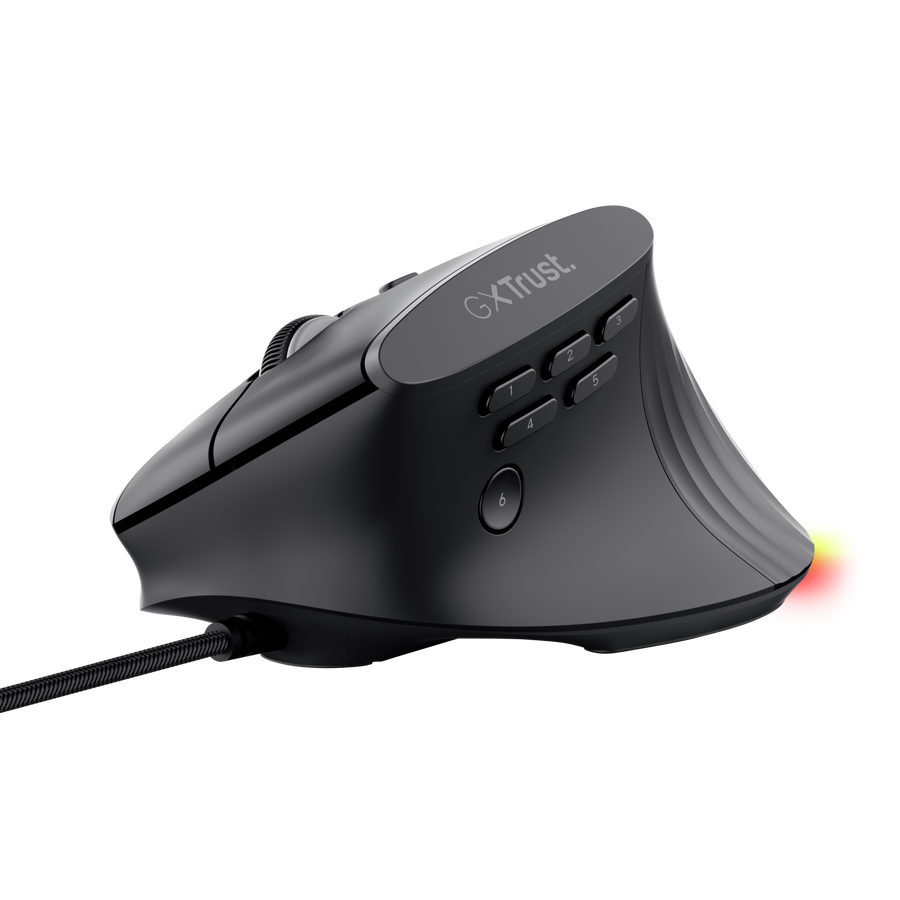
How do I set up the GXT 145 Rexxa ergonomic illuminated gaming mouse?
Connect the mouse USB-A cable to an available USB-A port on your computer.
The mouse is ready for normal use as soon as it is detected. Install the Rexxa software to customise button assignments, macros and RGB lighting.
System requirements: Windows 11 and an available USB-A port.
---------------------------------------------------------------------------------------------------------------------------------------------
Mouse overview
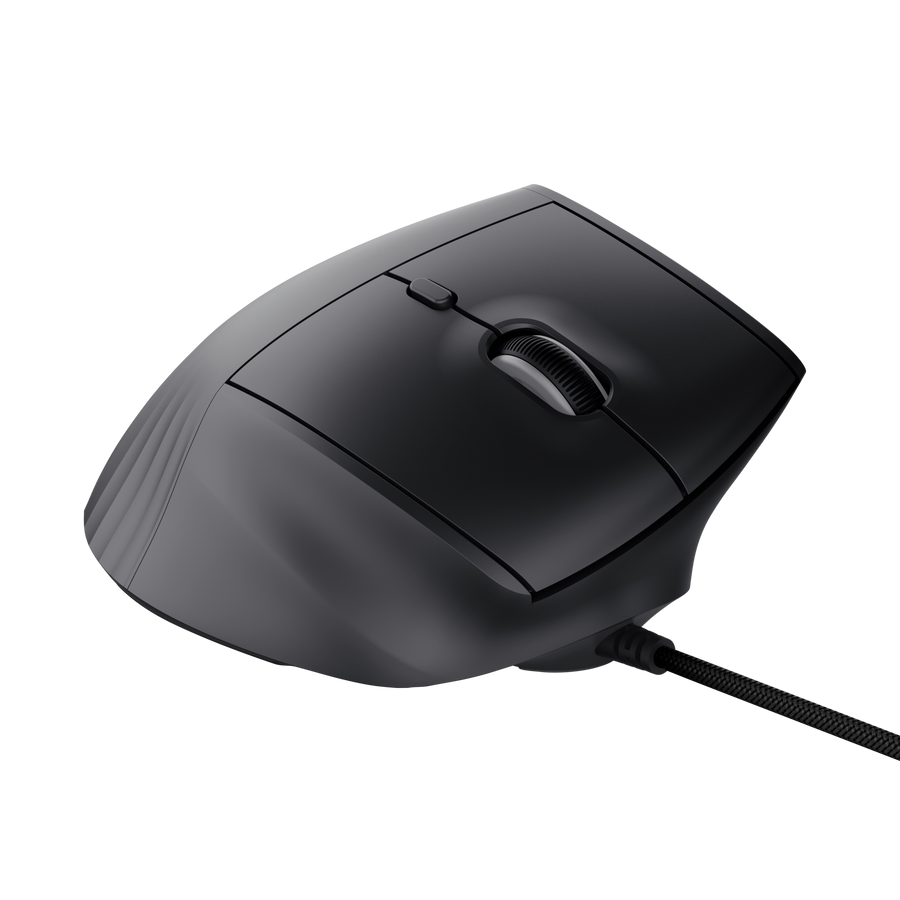
The GXT 145 Rexxa is a wired vertical gaming mouse.
- 45-degree ergonomic vertical design with integrated thumb rest.
- Adjustable DPI sensitivity with a dedicated DPI button.
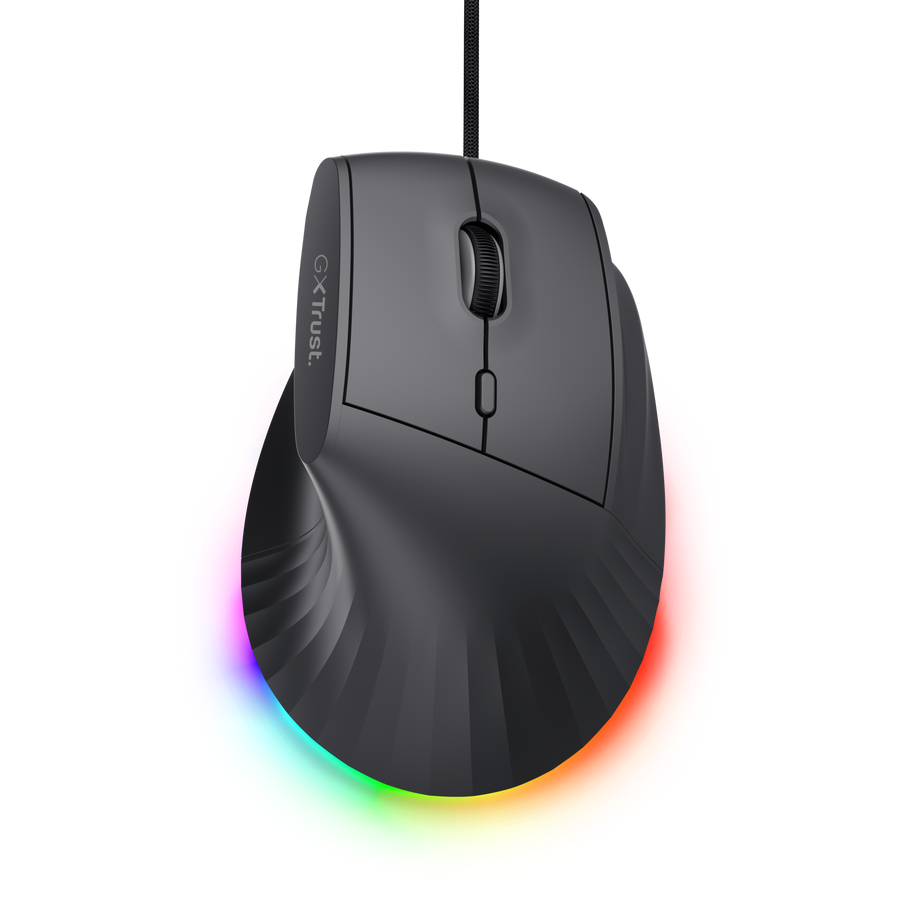
- RGB lighting.
- Programmable controls and macro support through the Rexxa software.
- 1.7 m USB-A cable.
- Scroll wheel.
---------------------------------------------------------------------------------------------------------------------------------------------
Button functions
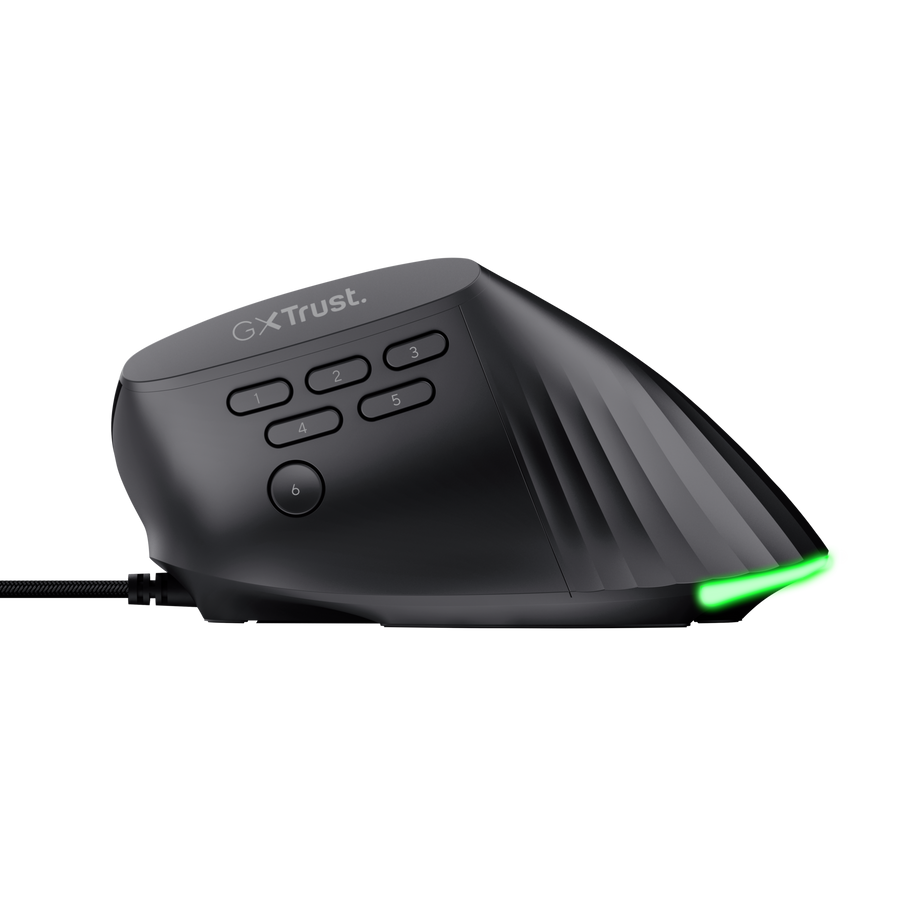
The numbered controls have the following default functions:
- Button 1 - Desktop.
- Button 2 - Print Screen.
- Button 3 - Lock PC.
- Button 4 - Forward.
- Button 5 - Backward.
- Button 6 - Browser.
---------------------------------------------------------------------------------------------------------------------------------------------
DPI control
Use the DPI button to adjust cursor sensitivity between 200 and 12,800 DPI.
- Lower DPI values provide slower, more precise cursor movement.
- Higher DPI values provide faster cursor movement.
---------------------------------------------------------------------------------------------------------------------------------------------
RGB lighting
Use the Rexxa software to configure the available RGB lighting modes and colours.
---------------------------------------------------------------------------------------------------------------------------------------------
Software installation
- Connect the mouse to the computer.
- Download the Rexxa software package.
- Extract the downloaded ZIP file if required.
- Run the installer and follow the on-screen instructions.
- Open the software when installation is complete.
ℹ️ Download the software from www.trust.com/26024/download.---------------------------------------------------------------------------------------------------------------------------------------------
Button assignments and macros
Button assignments
Use the software to change the function assigned to programmable controls.
Macros
Create macros in the software and assign them to programmable controls.
---------------------------------------------------------------------------------------------------------------------------------------------
Console compatibility
Compatible with:
- PlayStation 4
- PlayStation 5
- Xbox Series S
- Xbox Series X
---------------------------------------------------------------------------------------------------------------------------------------------
Troubleshooting
The mouse is not detected
- Disconnect and reconnect the USB-A connector.
- Try another USB-A port.
- Connect the mouse directly to the computer instead of through a USB hub.
- Restart the computer.
Programmable buttons do not perform the expected function
- Open the Rexxa software and check the current button assignments.
- Restore or reassign the required function and save the configuration.
The software does not detect the mouse
- Connect the mouse before opening the software.
- Connect the mouse directly to the computer.
- Close and reopen the software.
- Reinstall the latest available Rexxa software.
The DPI feels too high or too low
Use the DPI button to select a more suitable sensitivity setting.
---------------------------------------------------------------------------------------------------------------------------------------------
Frequently asked questions
Can I use the mouse without installing the software?
Yes. Standard mouse operation and the default button functions work without the software. Install the software only if you want to customise button assignments, macros or RGB lighting.
Where can I download the software?
Download the latest available Rexxa software from www.trust.com/26024/download.
Was this article helpful?
That’s Great!
Thank you for your feedback
Sorry! We couldn't be helpful
Thank you for your feedback
Feedback sent
We appreciate your effort and will try to fix the article