(Compatible article number 26065)
How to set up and use your GXT 932 Volyx Ultra-lightweight Dual Wireless Gaming Mouse
This guide explains how to set up, connect, configure and use your GXT 932 Volyx Ultra-lightweight Dual Wireless Gaming Mouse. The mouse supports wired USB, 2.4 GHz wireless and Bluetooth connectivity for gaming and productivity across multiple devices.
1. Charging the Mouse
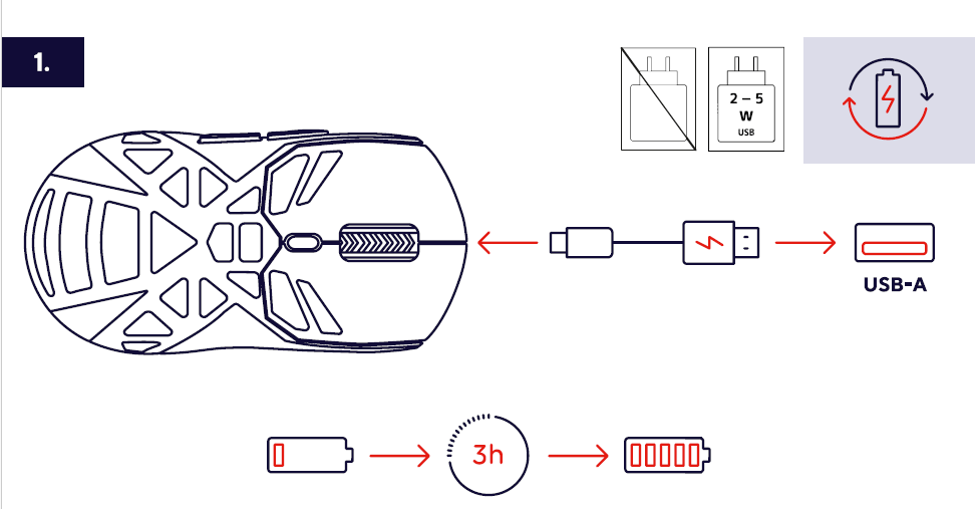
1. Connect the supplied USB-C cable to the mouse.
2. Connect the USB-A connector to a computer or USB charger.
3. Allow the battery to charge before first use.
4. The mouse can be used while charging.
5. Disconnect the cable once charging is complete.
--------------------------------------------------------------------------------------------------------------------------------------------------
2. Connecting via USB Receiver (2.4 GHz Wireless)
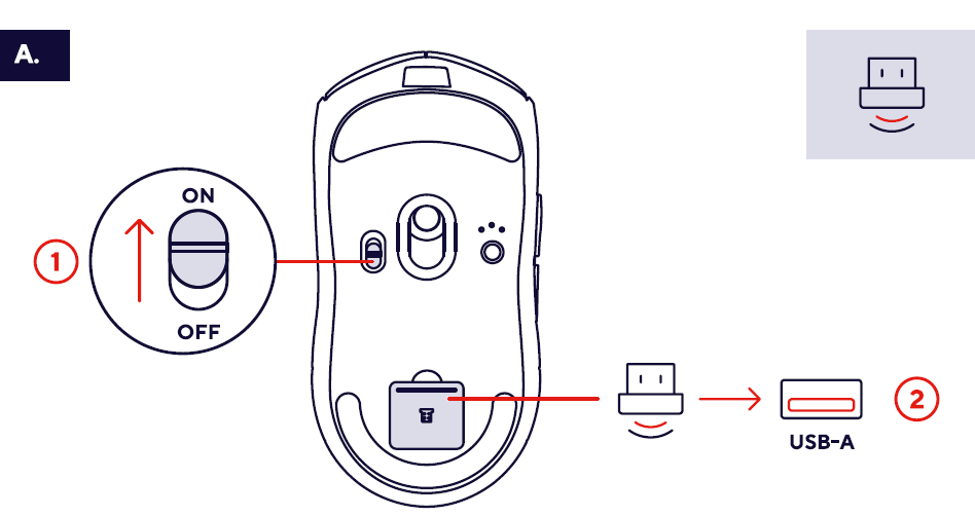
1. Turn the mouse ON using the bottom power switch.
2. Open the receiver storage compartment underneath the mouse.
3. Remove the USB receiver.
4. Insert the receiver into an available USB port.
5. Wait for the computer to detect the mouse automatically.
✅ The mouse is connected and ready for use.
-----------------------------------------------------------------------------------------------------------------------------------------------
3. Connecting via Bluetooth
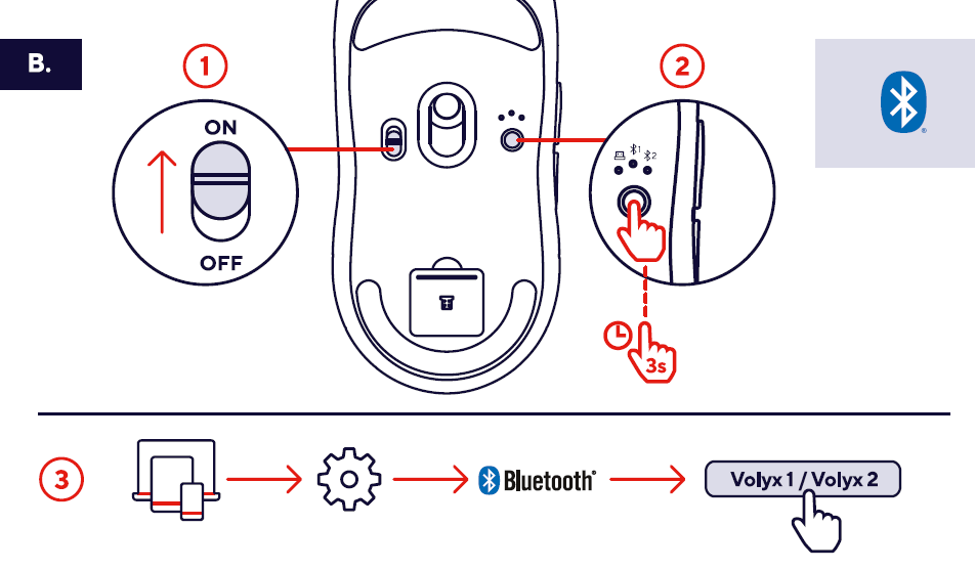
1. Turn the mouse ON.
2. Select a Bluetooth profile.
3. Press and hold the Bluetooth pairing button until the indicator starts flashing.
4. Open Bluetooth settings on your PC, laptop, tablet or smartphone.
5. Search for available Bluetooth devices.
6. Select Volyx 1 or Volyx 2 from the device list.
7. Complete the pairing process.
✅ The Bluetooth connection has been established.
----------------------------------------------------------------------------------------------------------------------------------------------
4. Switching Between Devices
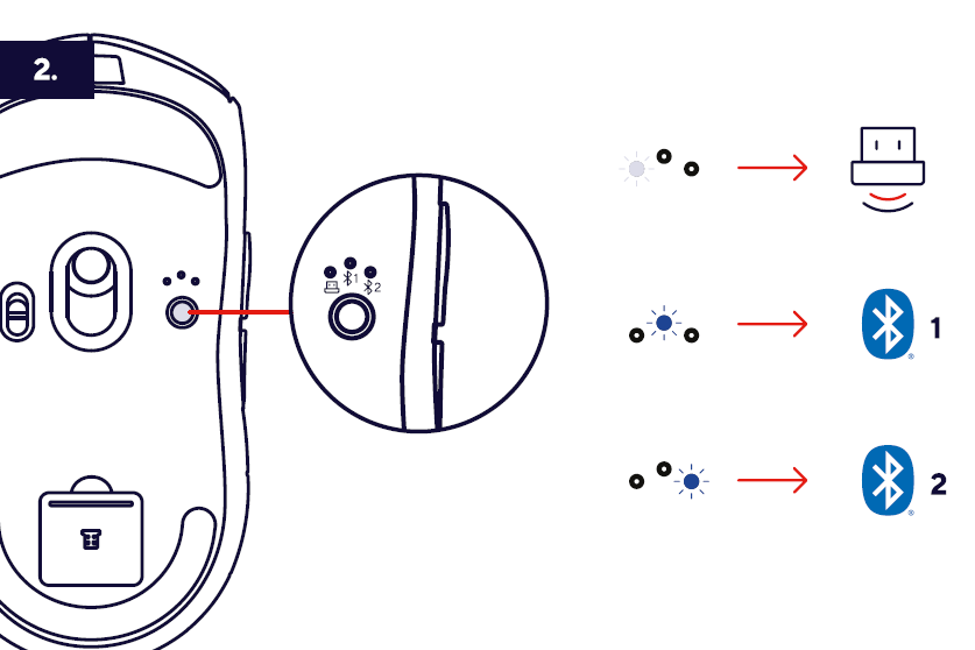
The Volyx mouse supports multiple wireless connections.
Use the connection selector to switch between:
• 2.4 GHz USB Receiver
• Bluetooth Device 1 (Volyx 1)
• Bluetooth Device 2 (Volyx 2)
✅ Switch instantly between connected devices without repeating the pairing process.
----------------------------------------------------------------------------------------------------------------------------------------------
5. DPI Settings
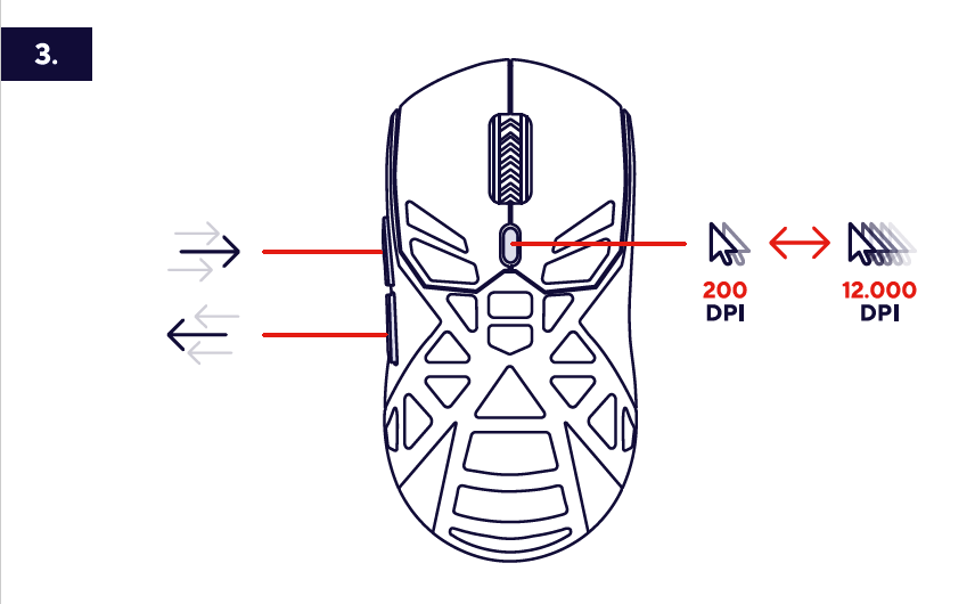
Press the DPI button to adjust cursor sensitivity according to your preference.
• Low DPI for precise movements
• Medium DPI for everyday use
• High DPI for fast gaming movements
• Maximum DPI up to 12,000 DPI
? Lower DPI improves precision while higher DPI allows faster cursor movement.
----------------------------------------------------------------------------------------------------------------------------------------------
6. Applying the Included Grip Stickers
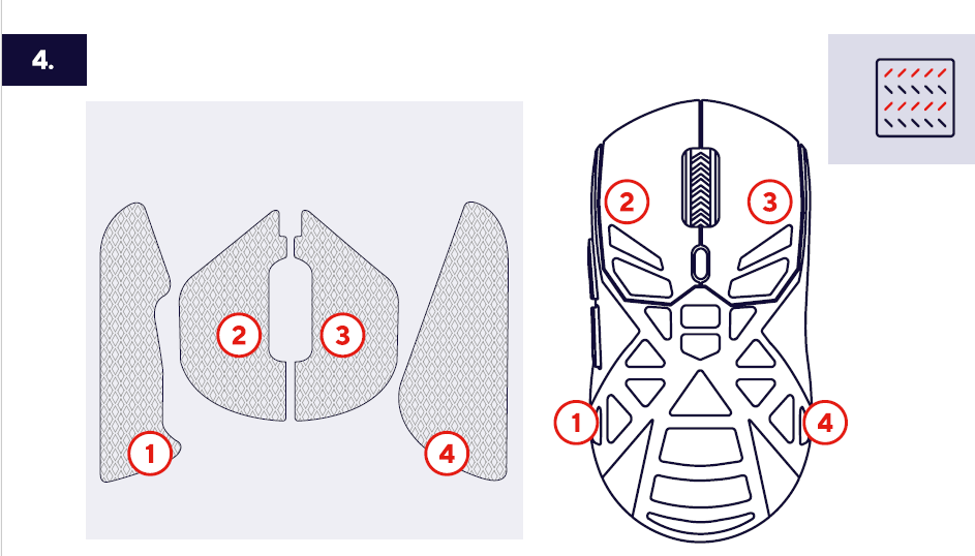
The included grip stickers provide additional comfort and control during gaming sessions.
1. Clean the mouse surface before installation.
2. Remove the backing from each grip sticker.
3. Align the sticker with the corresponding side panel.
4. Press firmly to secure adhesion.
5. Repeat for all included grip sections.
✅ The grip stickers are installed and ready for use.
----------------------------------------------------------------------------------------------------------------------------------------------
7. Mouse Button Layout
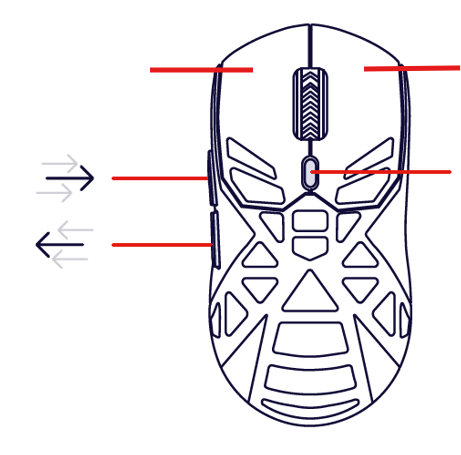
The Volyx gaming mouse includes the following controls:
1. Left Mouse Button
2. Right Mouse Button
3. Scroll Wheel / Middle Click
4. DPI Adjustment Button
5. Side Function Buttons
? Button functions may be customized using the Volyx software.
----------------------------------------------------------------------------------------------------------------------------------------------
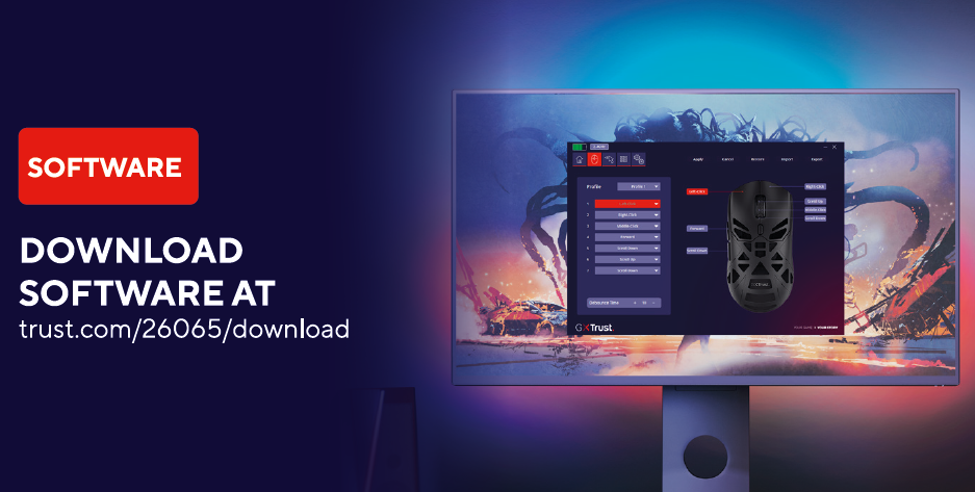
8. Software Installation
Install the dedicated Volyx software to unlock advanced features:
• Button assignment customization
• DPI configuration
• Macro creation
• Gaming profiles
• Performance settings
Download the latest software from:
trust.com/26065/download
----------------------------------------------------------------------------------------------------------------------------------------------
9. Usage Recommendations
• Use the USB receiver mode for the lowest latency gaming experience.
• Keep the optical sensor clean for accurate tracking.
• Store the USB receiver inside the mouse during transport.
• Recharge the mouse regularly to maximize battery life.
• Install the software for full customization capabilities.
----------------------------------------------------------------------------------------------------------------------------------------------
10. Troubleshooting
Mouse not detected
• Verify the mouse is powered ON.
• Reinsert the USB receiver.
• Try another USB port.
• Restart the computer.
Bluetooth connection fails
• Remove previous pairings.
• Activate pairing mode again.
• Move closer to the device.
• Confirm Bluetooth is enabled.
Cursor movement is irregular
• Clean the sensor.
• Use a proper mouse surface.
• Adjust DPI settings.
Battery drains quickly
• Fully recharge the battery.
• Disconnect the mouse during extended storage periods.
⚠️ Recharge the mouse whenever battery capacity becomes low to prevent interruptions during use.
Was this article helpful?
That’s Great!
Thank you for your feedback
Sorry! We couldn't be helpful
Thank you for your feedback
Feedback sent
We appreciate your effort and will try to fix the article