(Compatible article number 26052)
How can I set up my GXT 873 Acira 60% Mini Tri-mode Wireless Mechanical Gaming Keyboard?
The GXT 873 Acira 60% Mini Tri-mode Wireless Mechanical Gaming Keyboard is a compact mechanical gaming keyboard that supports USB receiver, Bluetooth and wired charging connectivity. The keyboard combines responsive mechanical switches, RGB lighting effects and wireless connectivity in a compact 60% layout.
The keyboard can be connected using the included USB receiver or through Bluetooth. Before first use, it is recommended to fully charge the internal battery to ensure the best wireless performance and battery life.
Follow the instructions below to charge the battery, connect the keyboard and configure the available lighting functions.
The available functions may depend on the connected device, operating system and software being used.
-------------------------------------------------------------------------------------------------------------------------------------------------
Charge the keyboard battery
Before using the keyboard wirelessly for the first time, fully charge the internal battery.
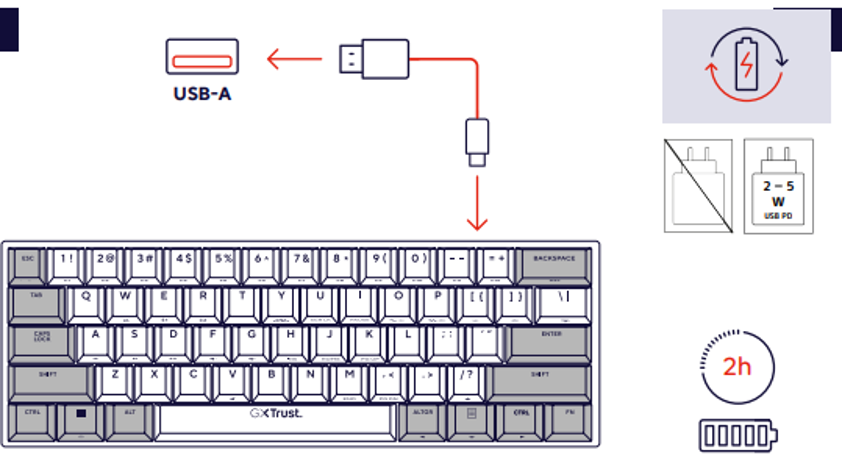
- Connect the supplied charging cable to the charging port of the keyboard.
- Connect the other end of the cable to a free USB-A port on a computer or a compatible USB charging source.
- Verify that the charging indicator illuminates, confirming that the charging process has started.
- Allow the keyboard to charge completely. Charging normally takes approximately two hours.
- When charging is complete, the charging indicator switches off.
- Disconnect the charging cable if wireless operation is required.
ℹ️ Fully charging the battery before first use helps maximise battery performance and operating time.
-------------------------------------------------------------------------------------------------------------------------------------------------
Connect using the USB receiver
Use the included USB receiver for a stable low-latency wireless connection.
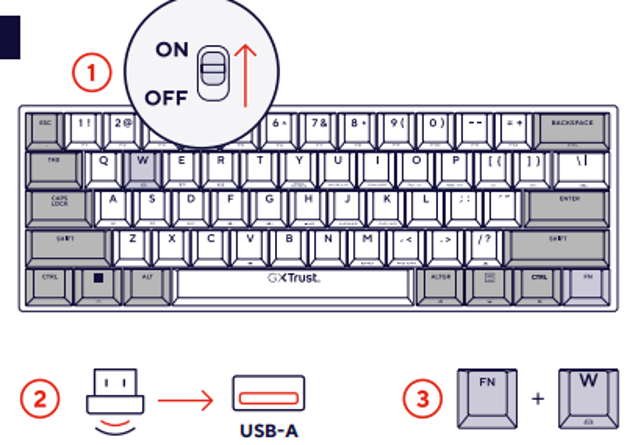
- Insert the included USB receiver into a free USB-A port on the computer.
- Switch on the keyboard using the power switch.
- Wait for the operating system to detect the USB receiver.
- Press FN + W on the keyboard.
- Wait for the connection between the keyboard and USB receiver to be established.
- Open a text editor and test several keys to verify that the connection is working correctly.
ℹ️ The USB receiver connection is recommended for gaming because it provides a fast and reliable wireless connection.
-------------------------------------------------------------------------------------------------------------------------------------------------
Connect using Bluetooth
The keyboard can also be connected wirelessly to compatible computers, tablets and smartphones using Bluetooth.
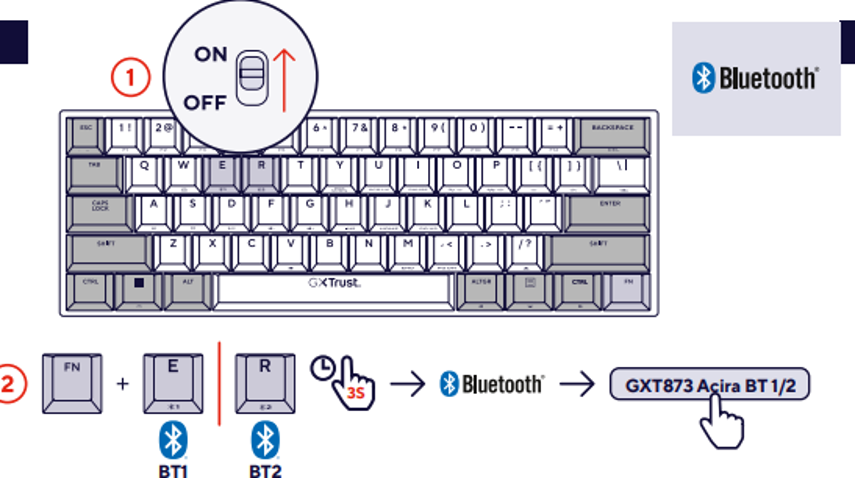
- Switch on the keyboard.
- Press and hold FN + E or FN + R for approximately 3 seconds to enter Bluetooth pairing mode.
- Open the Bluetooth settings menu on the device you want to pair with.
- Ensure that Bluetooth is enabled.
- Wait until GXT873 Acira BT 1 or GXT873 Acira BT 2 appears in the list of available devices.
- Select the keyboard from the device list.
- Confirm the pairing request if prompted.
- Wait until the Bluetooth connection has been established successfully.
ℹ️ The keyboard can store Bluetooth pairing information for multiple devices using the Bluetooth profiles.
If the keyboard does not appear in the Bluetooth device list, repeat the pairing procedure and ensure Bluetooth is enabled on the device.
-------------------------------------------------------------------------------------------------------------------------------------------------
RGB lighting settings
The keyboard supports multiple RGB lighting effects and colour modes that can be adjusted directly from the keyboard.
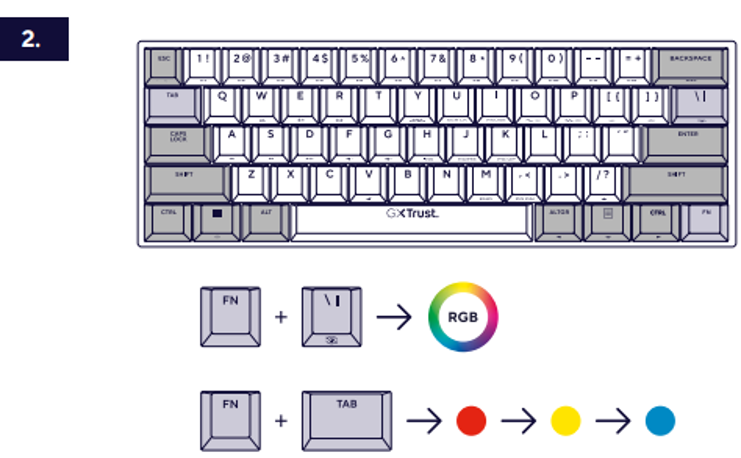
Change the RGB lighting effect
Use the following key combination to switch between available RGB lighting effects.
- Press and hold the FN key.
- Press the \| key.
- Release both keys.
- Repeat the combination to cycle through the available RGB effects.
Change the RGB lighting colour
- Press and hold the FN key.
- Press the Tab key.
- Release both keys.
- Repeat the key combination to cycle through available colours.
ℹ️ RGB lighting effects and colours can be changed without installing additional software.
-------------------------------------------------------------------------------------------------------------------------------------------------
Backlight brightness and lighting speed
Adjust the keyboard lighting brightness and animation speed according to your preference.
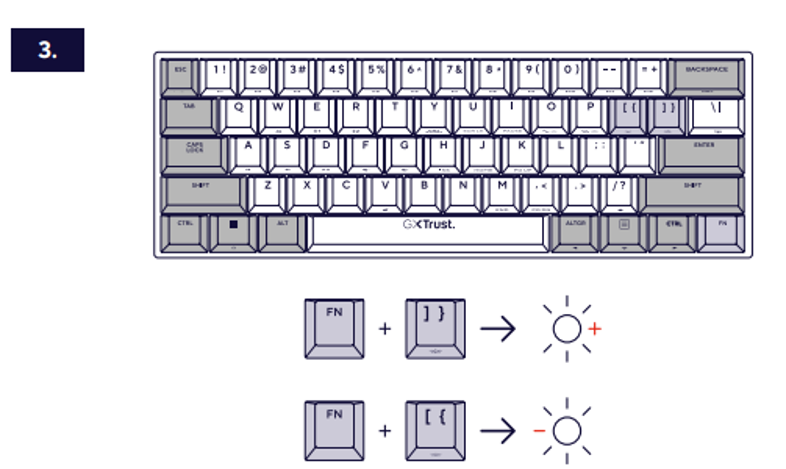
Adjust backlight brightness
- FN + ] } : Increase backlight brightness.
- FN + [ { : Decrease backlight brightness.
Brightness and animation speed settings apply to compatible RGB lighting effects.
-------------------------------------------------------------------------------------------------------------------------------------------------
Arrow key functions
Because of the compact 60% keyboard layout, arrow functions are accessed through FN key combinations.
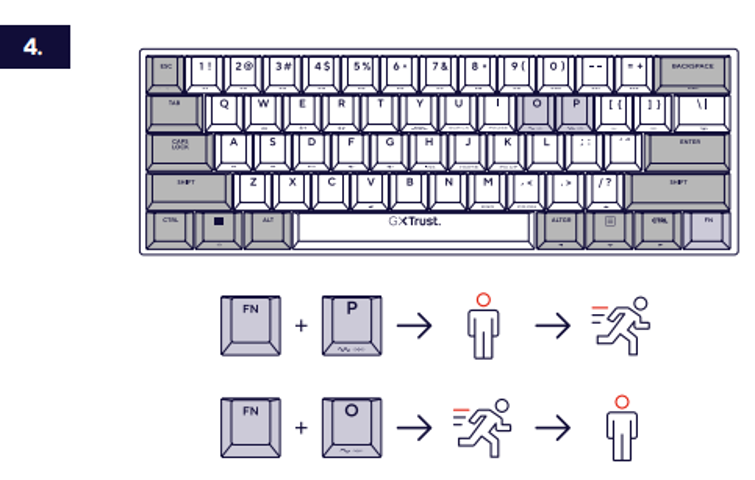
Adjust lighting effect speed
- FN + P : Increase the animation speed.
- FN + O : Decrease the animation speed.
These shortcuts allow access to cursor navigation functions while maintaining the compact keyboard design.
-------------------------------------------------------------------------------------------------------------------------------------------------
Usage recommendations
- Fully charge the keyboard before first wireless use.
- Use the USB receiver connection for the best gaming performance.
- Keep the keyboard firmware and operating system updated where applicable.
- Lower the RGB brightness to extend battery life during wireless use.
- Keep liquids away from the keyboard.
- Clean the keyboard regularly using a soft dry cloth.
- Store the USB receiver in a safe location when travelling.
ℹ️ Reducing RGB brightness can significantly increase wireless battery operating time.
-------------------------------------------------------------------------------------------------------------------------------------------------
Troubleshooting
The keyboard is not responding
- Verify that the keyboard is switched on.
- Charge the keyboard battery.
- Reconnect the USB receiver.
- Restart the computer.
The keyboard does not connect through Bluetooth
- Verify that Bluetooth is enabled.
- Repeat the Bluetooth pairing procedure.
- Move the device closer to the keyboard.
- Remove old pairings and connect again.
RGB lighting is not working
- Verify that the brightness level is not set to minimum.
- Cycle through RGB effects using the appropriate key combination.
- Charge the battery if the battery level is low.
-------------------------------------------------------------------------------------------------------------------------------------------------
Notes:
ℹ️ The available functions may depend on the connected device and operating system being used.
Charge the keyboard fully before first wireless use.
For additional information and frequently
Was this article helpful?
That’s Great!
Thank you for your feedback
Sorry! We couldn't be helpful
Thank you for your feedback
Feedback sent
We appreciate your effort and will try to fix the article