(Compatible article number 26052)
How can I set up my GXT 873 Acira 60% Mini Tri-mode Wireless Mechanical Gaming Keyboard?
Before using the keyboard for the first time, it is recommended to fully charge the internal battery. The Acira keyboard supports connection using either the included 2.4 GHz USB receiver or Bluetooth and can remain paired to multiple devices.
Charging the Keyboard
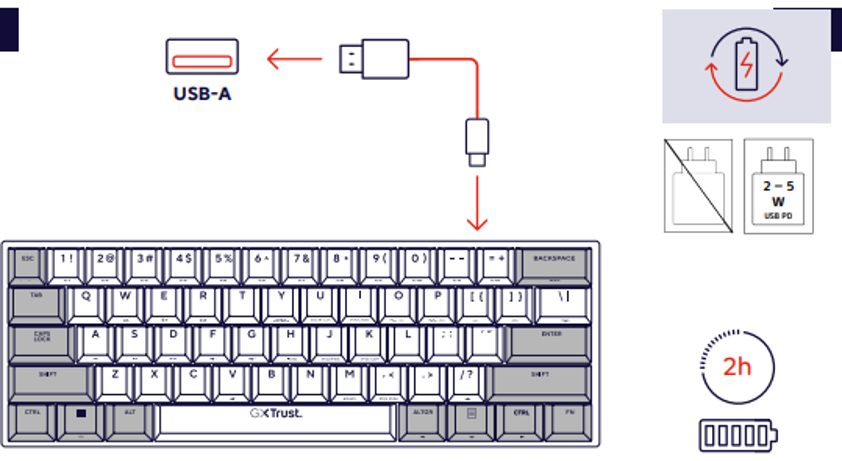
Connect the supplied USB-C charging cable to the charging port on the keyboard.
- Connect the USB-C cable to the keyboard.
- Connect the other end to a USB-A port on a computer or USB charger.
- A charging power of 2–5 W is recommended.
- Allow approximately 2 hours for a full charge.
During charging, the charging indicator illuminates. When charging is complete, the indicator turns off.
---------------------------------------------------------------------------------------------------------------------------------------------
Keyboard Controls Overview
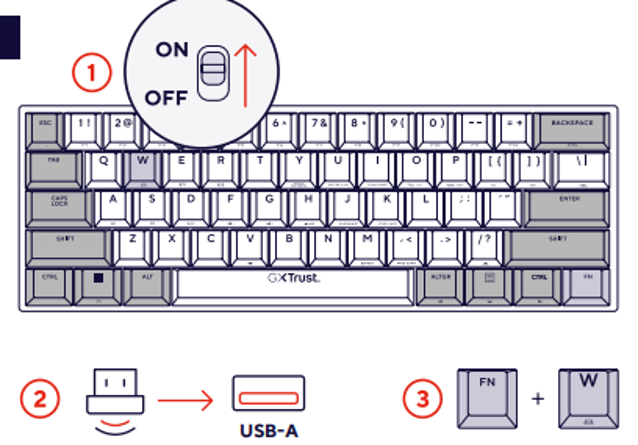
1. Wireless Connection Controls
The Acira keyboard supports three wireless connection modes.
- FN + W – 2.4 GHz USB Receiver connection.
- FN + E – Bluetooth Profile 1.
- FN + R – Bluetooth Profile 2.
This allows the keyboard to remain paired to multiple devices and switch quickly between them.
2. RGB Lighting Effect Control
The keyboard includes multiple RGB lighting effects.
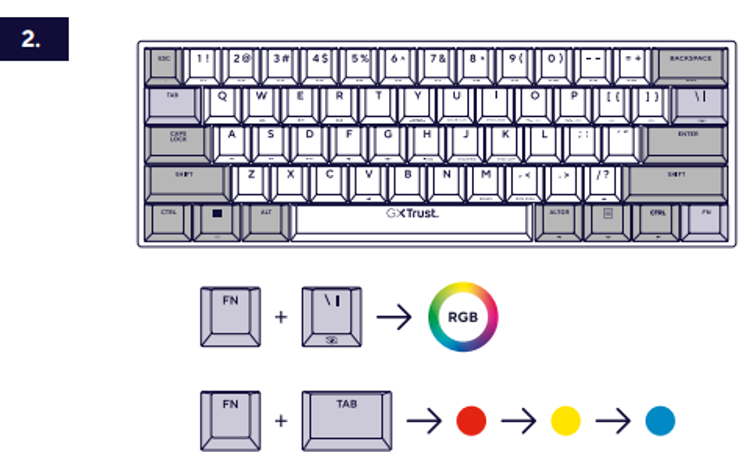
Key Combination: FN + \|
- Press and hold the FN key.
- Press the \| key.
- Release both keys.
- Repeat to cycle through available lighting effects.
The keyboard switches to the next RGB lighting mode each time the key combination is pressed.
Key Combination: FN + TAB
- Press and hold the FN key.
- Press the TAB key.
- Release both keys.
- Repeat to cycle through the available RGB colors.
3. Keyboard Backlight Brightness Control
Use the following shortcuts to adjust the brightness of the keyboard backlight.
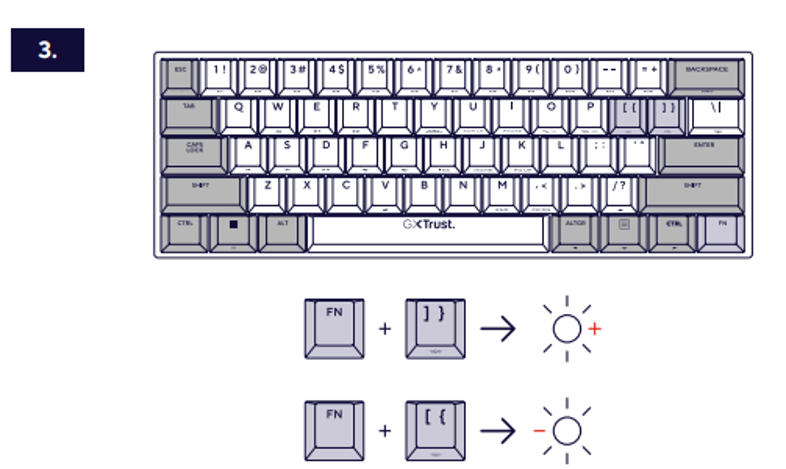
- FN + ] – Increase brightness.
- FN + [ – Decrease brightness.
Use these key combinations to make the keyboard lighting brighter or dimmer according to your preference.
4. Lighting Effect Speed Adjustment
Use the following shortcuts to adjust the speed of RGB lighting animations.
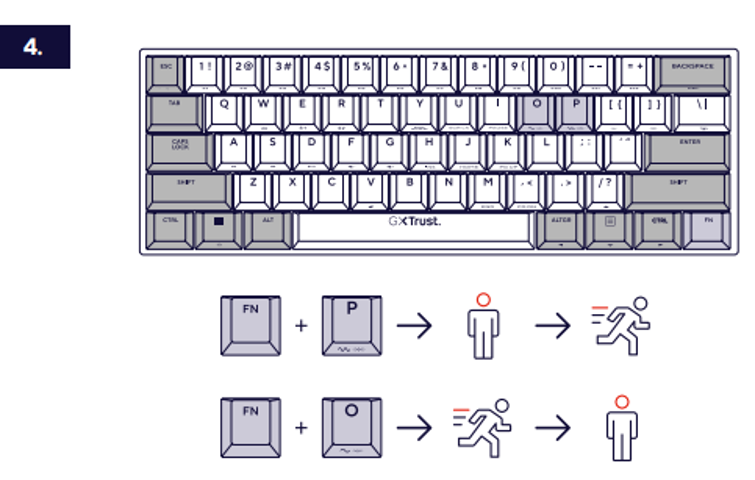
- FN + P – Increase animation speed.
- FN + O – Decrease animation speed.
Use these shortcuts to make lighting effects flash or transition faster or slower.
5. Arrow Key Function
The compact 60% layout provides arrow key functionality through FN key combinations.
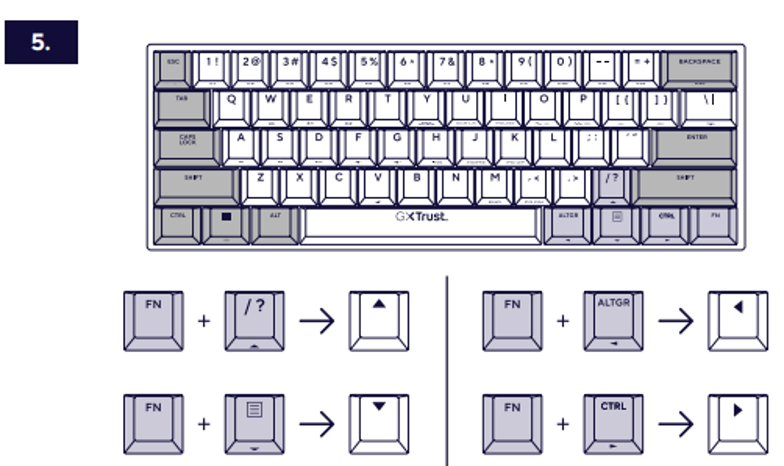
- FN + ? / – Up Arrow (↑)
- FN + Menu Key – Down Arrow (↓)
- FN + AltGr – Left Arrow (←)
- FN + Ctrl – Right Arrow (→)
Use these key combinations to access arrow functions while maintaining the compact keyboard layout.
---------------------------------------------------------------------------------------------------------------------------------------------
Connecting Using the USB Receiver (2.4 GHz Wireless)
The Acira keyboard includes a USB receiver that provides a stable and low-latency wireless connection.
[Insert USB Receiver Illustration Here]
- Connect the included USB receiver to an available USB-A port.
- Turn the keyboard on using the power switch.
- Press FN + W to activate the 2.4 GHz receiver mode.
- Wait a few seconds for the connection to be established automatically.
The connection should be established automatically without requiring additional drivers.
Power Switch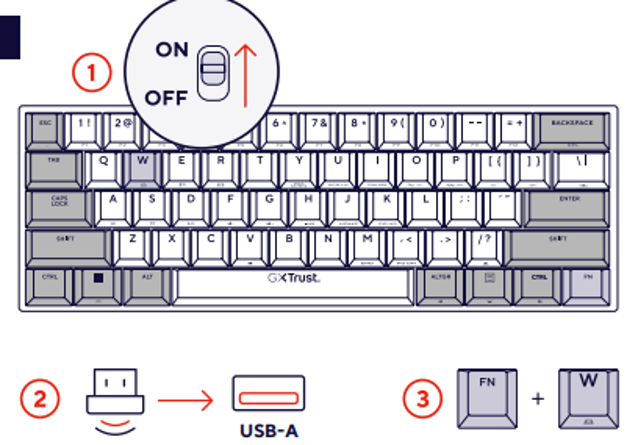
The power switch is located on the keyboard.
- Slide to ON to power the keyboard.
- Slide to OFF when transporting or storing the keyboard to conserve battery life.
---------------------------------------------------------------------------------------------------------------------------------------------
Connecting Using Bluetooth
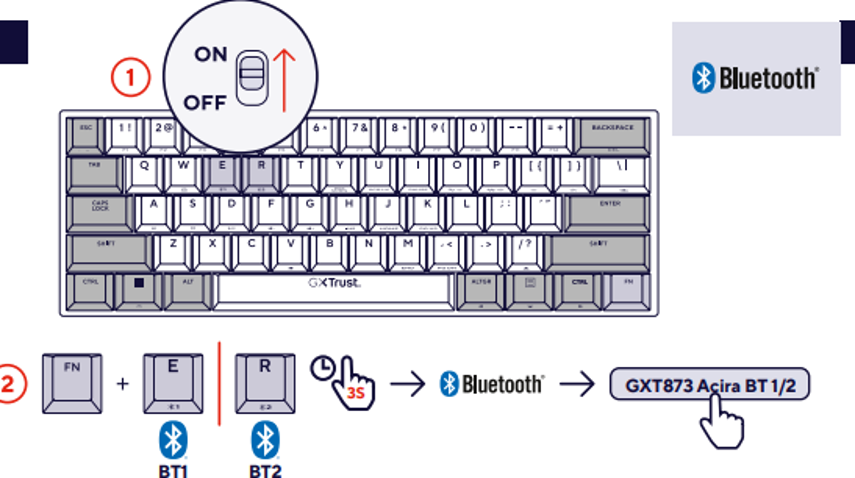
The keyboard supports two separate Bluetooth profiles, allowing quick switching between multiple devices.
- Press and hold FN + E for 3 seconds to enter Bluetooth Profile 1 pairing mode.
- Press and hold FN + R for 3 seconds to enter Bluetooth Profile 2 pairing mode.
- Open Bluetooth settings on your computer, tablet or smartphone.
- Select GXT873 Acira BT 1 or GXT873 Acira BT 2 from the list of available devices.
- Wait for the pairing process to complete.
The keyboard will automatically reconnect to previously paired devices when the corresponding Bluetooth profile is selected.
---------------------------------------------------------------------------------------------------------------------------------------------
---------------------------------------------------------------------------------------------------------------------------------------------
Acira Software Download
The GXT 873 Acira supports dedicated configuration software, allowing you to customize keyboard functions, lighting effects, macros, and other advanced settings.
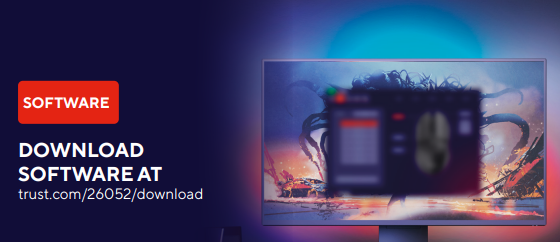
Download the latest software version from:
Customize RGB lighting effects and colors.
For best compatibility, download and install the latest version of the Acira software from the official Trust website before configuring advanced keyboard features.
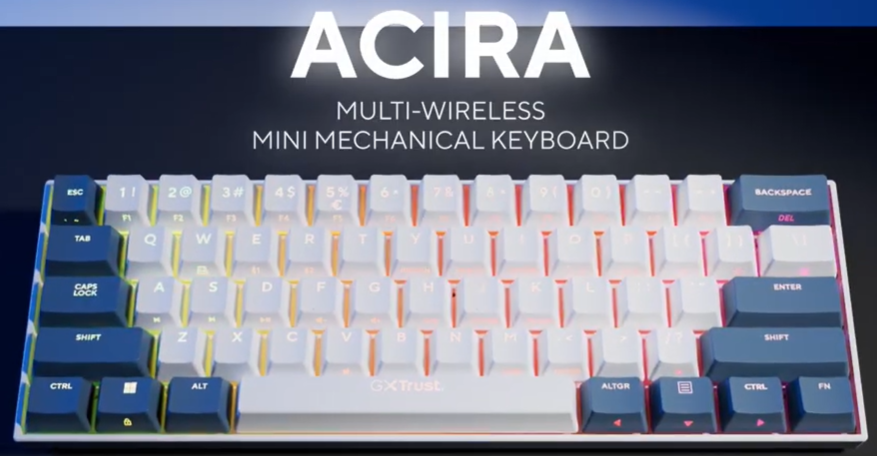
The GXT Logo displays battery and charging status.
For the best battery performance, fully charge the keyboard before first use and turn it off when not in use for extended periods.
Always ensure that the selected connection mode matches the connection method currently being used. If the keyboard does not respond, verify that the correct Bluetooth profile or USB receiver mode has been selected.
Was this article helpful?
That’s Great!
Thank you for your feedback
Sorry! We couldn't be helpful
Thank you for your feedback
Feedback sent
We appreciate your effort and will try to fix the article