(Compatible article number 26018/26019/26020/26206)
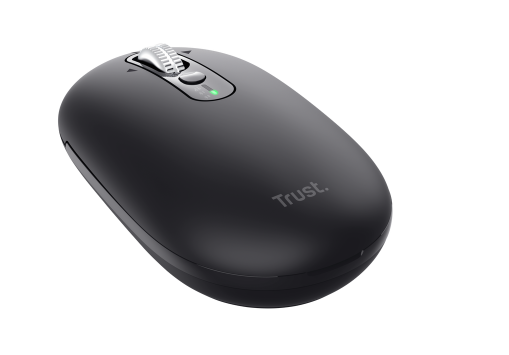
How can I set up my Seron Slim Multi-Wireless Hyperscroll Mouse?
First, fully charge the built-in battery of your Seron mouse. Connect the included charging cable to the USB-C charging port on the mouse and to a suitable USB power source.
A full initial charge takes approximately 2 hours. You can continue using the mouse while it is charging.
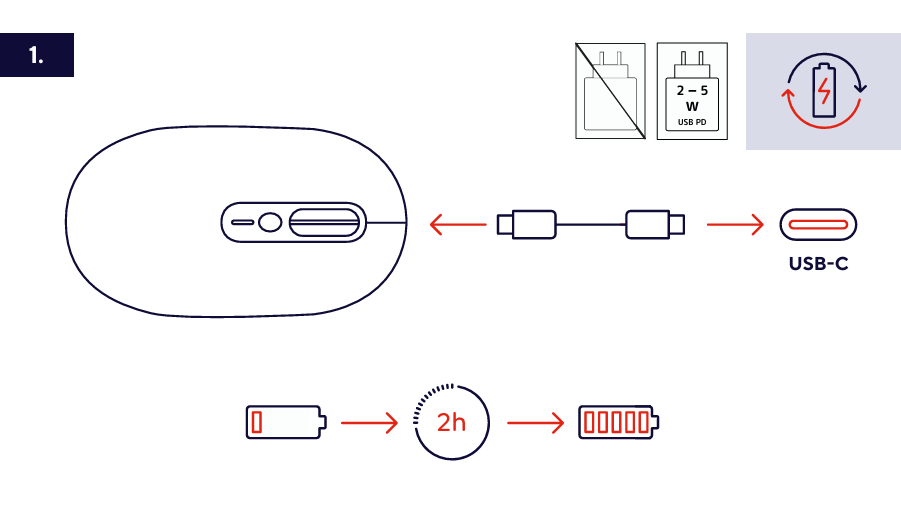
The Seron has a built-in rechargeable battery. Replaceable batteries are not required.---------------------------------------------------------------------------------------------------------------------------------------------------
Wireless connection using the USB receiver
The Seron includes a compact USB-C wireless receiver. The receiver can be stored inside the mouse when it is not being used.
Remove the USB-C receiver from its storage compartment.
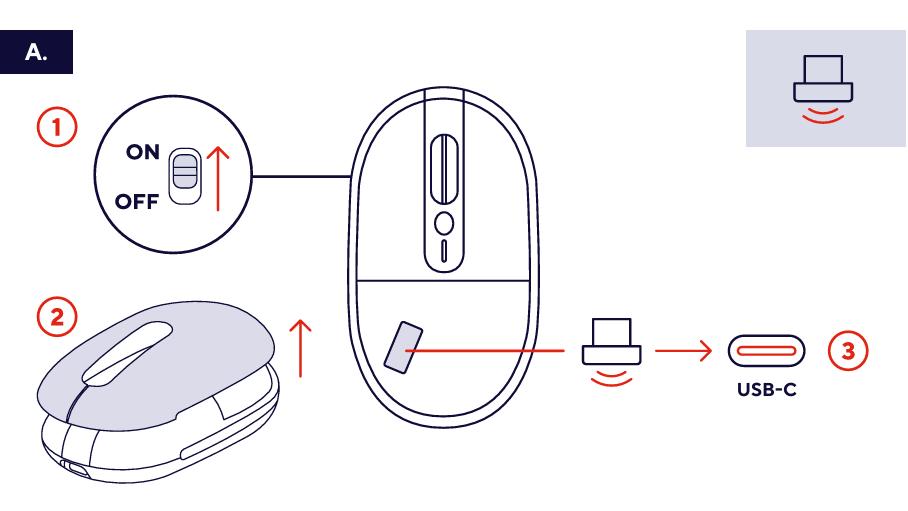
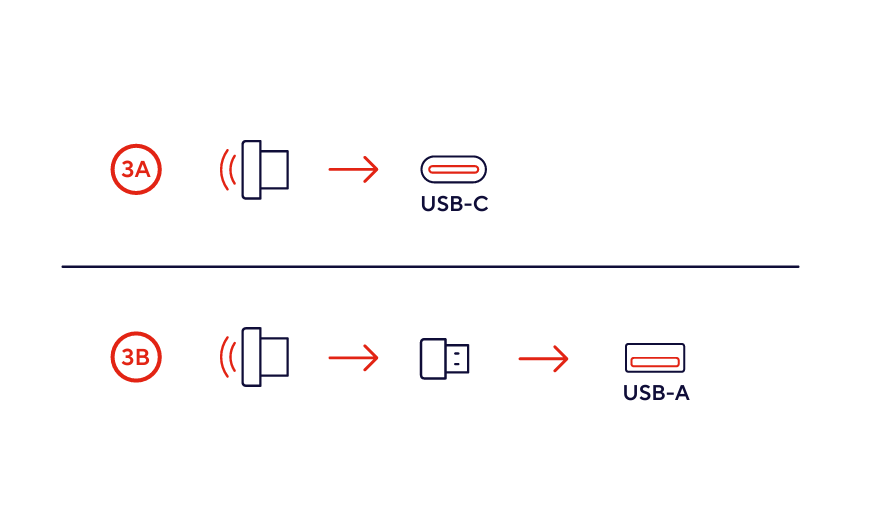
Insert the receiver directly into an available USB-C port on your computer or other compatible device.
If your device does not have a USB-C port, connect the receiver to the included USB-C-to-USB-A adapter. Insert the adapter into an available USB-A port.
Move the power switch on the underside of the mouse to the ON position.
Press the connection button until the LED indicator for the USB receiver connection is selected.
The mouse will connect automatically. Wait a few seconds until the connection has been established.
ℹ️ No additional software is required when using the USB receiver.---------------------------------------------------------------------------------------------------------------------------------------------------
Bluetooth connection
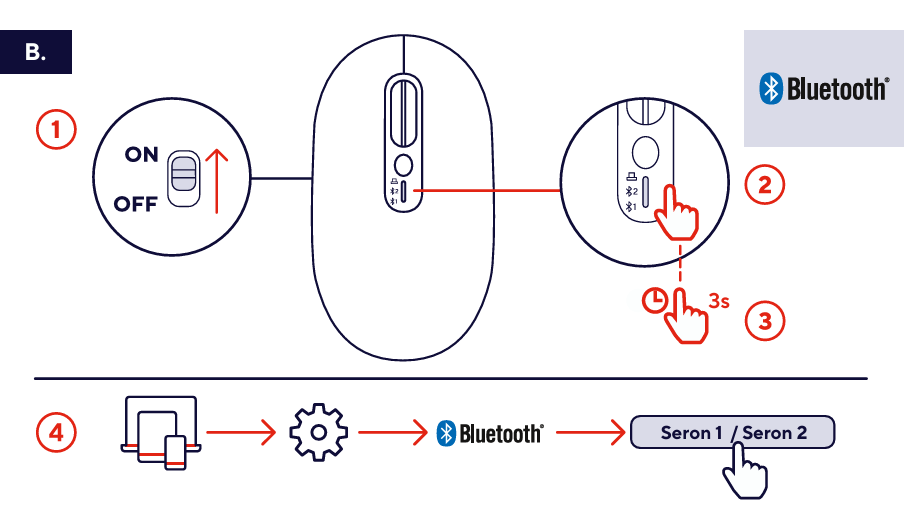
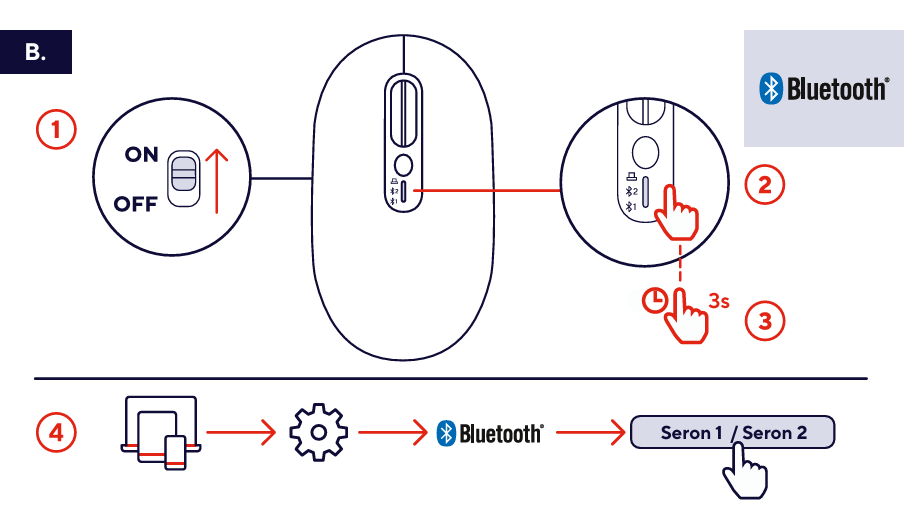
The Seron can store two separate Bluetooth connections. These connections are displayed as Seron 1 and Seron 2 in the Bluetooth settings of your device.
Connect the first Bluetooth device
- Move the power switch on the underside of the mouse to the ON position.
- Press the connection button until the first Bluetooth LED indicator is selected.
- Press and hold the connection button for 3 seconds.
- The Bluetooth LED indicator will start blinking to indicate that the mouse is in pairing mode.
- Open the Bluetooth settings on your computer, tablet, or smartphone.
- Select Seron 1 from the list of available Bluetooth devices.
- The LED indicator will stop blinking when the connection has been established.
Connect the second Bluetooth device
- Press the connection button until the second Bluetooth LED indicator is selected.
- Press and hold the connection button for 3 seconds.
- The selected Bluetooth LED indicator will start blinking.
- Open the Bluetooth settings on the second device.
- Select Seron 2 from the list of available Bluetooth devices.
- The LED indicator will stop blinking when the connection has been established.
---------------------------------------------------------------------------------------------------------------------------------------------------
Switch between connected devices
The Seron can be connected to a maximum of three devices:
- One device using the USB receiver.
- One device using the first Bluetooth connection.
- One device using the second Bluetooth connection.
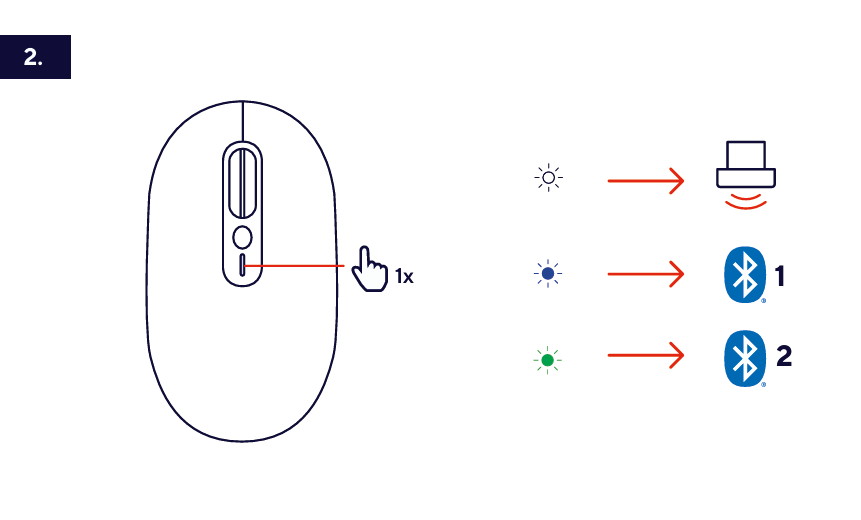
Briefly press the connection button to switch between the three available connection modes.
The LED indicators show which connection is currently selected.
The mouse will reconnect automatically to a previously paired device when the corresponding connection mode is selected and the device is available.---------------------------------------------------------------------------------------------------------------------------------------------------
Mouse controls
Left and right mouse buttons
Use the left and right buttons for standard clicking functions.
The buttons have a silent-click design to reduce clicking noise during use.
Hyperscroll wheel
Use the metal hyperscroll wheel to scroll vertically through documents, websites, and other content.
The hyperscroll function allows you to move quickly through long pages and documents.
Horizontal scrolling
Tilt the scroll wheel to the left or right to scroll horizontally in supported documents, spreadsheets, websites, and applications.
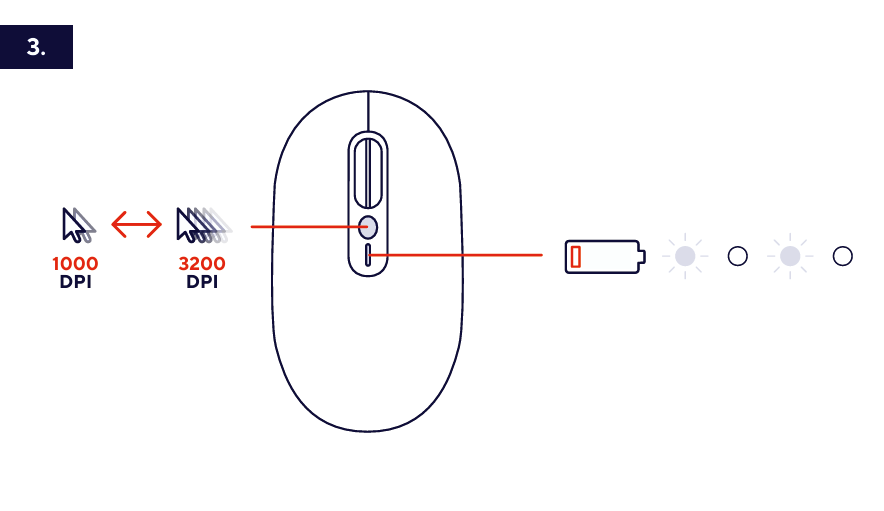
DPI button
Press the DPI button to adjust the cursor speed.
The available DPI settings are:
- 1000 DPI
- 1600 DPI
- 2400 DPI
- 3200 DPI
Select a lower DPI setting for slower and more precise cursor movement. Select a higher DPI setting for faster cursor movement.
Connection button
Use the connection button to select the USB receiver connection, Bluetooth channel 1, or Bluetooth channel 2.
- Briefly press the button to switch between connections.
- Press and hold the button for 3 seconds to start Bluetooth pairing for the selected Bluetooth channel.
Power switch
The power switch is located on the underside of the mouse.
- Move the switch to the ON position to turn the mouse on.
- Move the switch to the OFF position to turn the mouse off.
USB-C charging port
The USB-C charging port is located at the front of the mouse.
Connect the included charging cable to this port to charge the built-in battery.
The mouse can continue to be used while it is charging.
---------------------------------------------------------------------------------------------------------------------------------------------------
Troubleshooting
- The mouse does not switch on
- Check that the power switch is in the ON position.
- Charge the mouse using the included charging cable.
- Try a different compatible USB port or USB power source.
- The mouse does not respond when using the USB receiver
- Make sure that the USB receiver is correctly connected.
- If you are using the USB-A adapter, check that the receiver is correctly inserted into the adapter.
- Select the USB receiver connection using the connection button.
- Connect the receiver to another compatible USB port.
- Restart the computer or connected device.
- The mouse does not appear in the Bluetooth device list
- Make sure that the correct Bluetooth channel is selected.
- Press and hold the connection button for 3 seconds to activate pairing mode.
- Check that Bluetooth is enabled on the computer, tablet, or smartphone.
- Move the mouse closer to the device during pairing.
- Restart Bluetooth on the device and repeat the pairing procedure.
- The mouse no longer connects through Bluetooth
- Check that the previously paired Bluetooth channel is selected.
- Remove Seron 1 or Seron 2 from the Bluetooth device list.
- Place the mouse in pairing mode again.
- Select Seron 1 or Seron 2 in the Bluetooth settings to pair the mouse again.
- The cursor moves too quickly or too slowly
- Press the DPI button to select a different cursor speed.
- Adjust the pointer speed in the mouse settings of the operating system if required.
- Horizontal scrolling does not work
- Check whether the application supports horizontal scrolling.
- Open a document or spreadsheet that is wider than the visible window.
- Tilt the scroll wheel gently to the left or right.
---------------------------------------------------------------------------------------------------------------------------------------------------
Important notes
ℹ️ The availability and behaviour of horizontal scrolling may depend on the operating system and the application being used.When the mouse is not being used, switch it off to help preserve the battery.Store the USB-C receiver in the designated compartment inside the mouse to prevent it from being lost or damaged.
Was this article helpful?
That’s Great!
Thank you for your feedback
Sorry! We couldn't be helpful
Thank you for your feedback
Feedback sent
We appreciate your effort and will try to fix the article