(Compatible article number 26185)
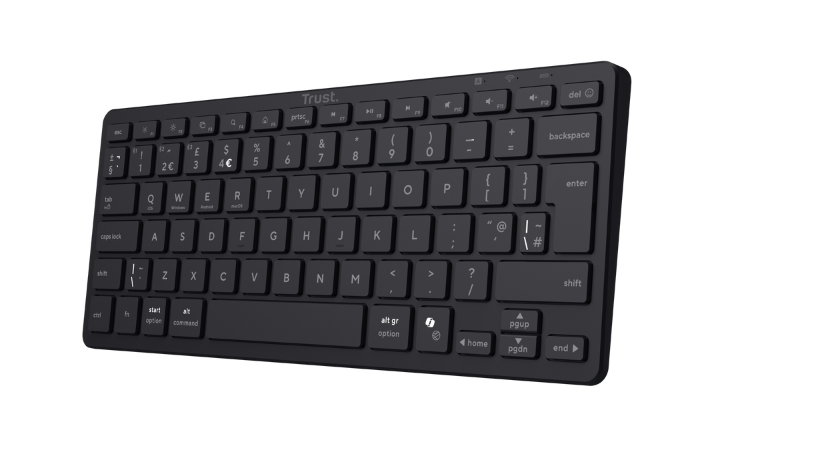
How can I set up my Vira Wireless Keyboard?
Before using the Vira Wireless Keyboard for the first time, charge the built-in battery, switch on the keyboard, select a Bluetooth channel, and connect the keyboard to a compatible device.
The keyboard provides three Bluetooth channels and supports keyboard modes for iOS, Windows, Android, and macOS.
Follow the charging, switching, Bluetooth connection, and operating-system selection instructions shown in the user guide before using the keyboard.---------------------------------------------------------------------------------------------------------------------------------------------------
Charge or recharge the keyboard
Charge the built-in battery of the keyboard before using the product for the first time.
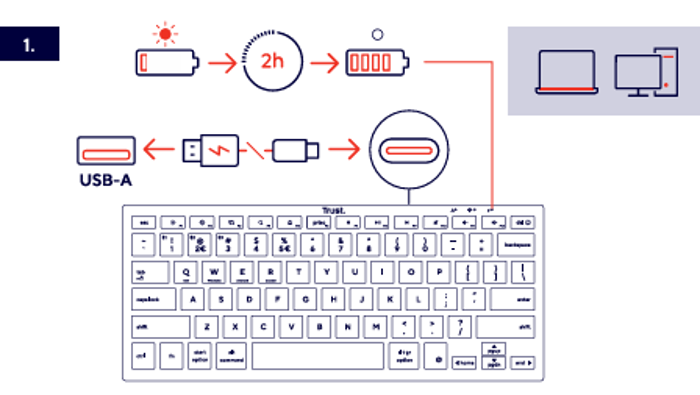
- Locate the charging port on the keyboard.
- Connect the charging cable to the charging port of the keyboard.
- Connect the USB-A connector of the charging cable to a suitable USB-A power source.
- Leave the keyboard connected while it is charging.
- A complete charge takes approximately 2 hours.
ℹ️ A complete charge of the keyboard takes approximately 2 hours.Use the USB-A charging connection shown in the user guide.---------------------------------------------------------------------------------------------------------------------------------------------------
Switch the keyboard on or off
Use the power switch on the keyboard to switch the Vira on or off.
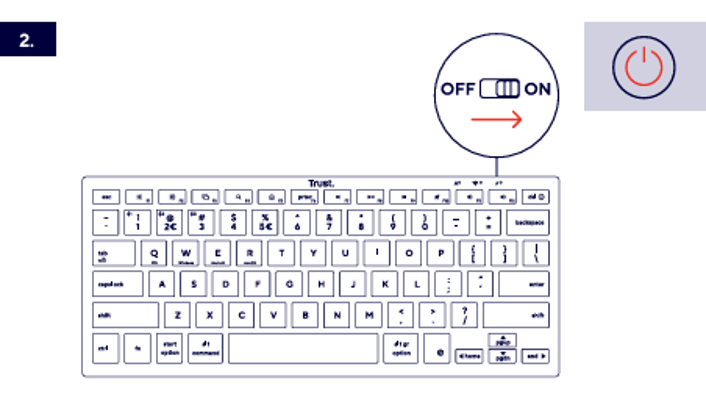
Switch the keyboard on
Move the power switch from the OFF position to the ON position.
Switch the keyboard off
Move the power switch from the ON position to the OFF position.
Switch the keyboard off when the keyboard is not being used.---------------------------------------------------------------------------------------------------------------------------------------------------
Connect the keyboard via Bluetooth
The Vira Wireless Keyboard provides three Bluetooth channels. Each channel can be used for a compatible Bluetooth device.
The keyboard appears as Trust BT1, Trust BT2, or Trust BT3 in the Bluetooth settings, depending on the selected Bluetooth channel.
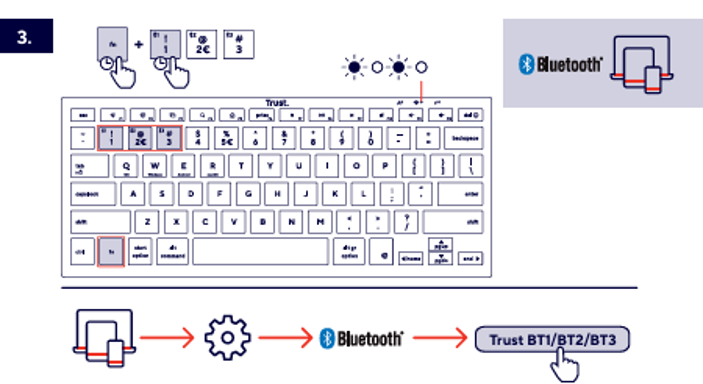
- Switch on the keyboard.
- Select Bluetooth channel 1, 2, or 3 using the Bluetooth channel keys shown in the user guide.
- Use the Fn key together with the required Bluetooth channel key.
- Open the Bluetooth settings on the compatible computer, tablet, smartphone, or other device.
- Make sure Bluetooth is enabled on the device.
- Select Trust BT1, Trust BT2, or Trust BT3, according to the selected channel.
- Wait until the Bluetooth connection has been established.
ℹ️ Use Bluetooth channel 1, 2, or 3 to connect the keyboard to a compatible Bluetooth device.Select the same Bluetooth channel on the keyboard that appears in the Bluetooth settings of the connected device.---------------------------------------------------------------------------------------------------------------------------------------------------
Select the operating-system mode
Select the keyboard mode that corresponds to the operating system of the connected device.
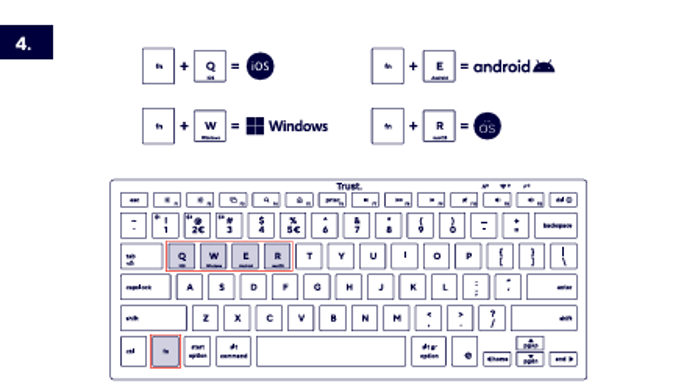
Select iOS mode
Press the Fn and Q keys together to select iOS mode.
Select Windows mode
Press the Fn and W keys together to select Windows mode.
Select Android mode
Press the Fn and E keys together to select Android mode.
Select macOS mode
Press the Fn and R keys together to select macOS mode.
ℹ️ Select the operating-system mode that corresponds to the connected device.---------------------------------------------------------------------------------------------------------------------------------------------------
Switch between function keys and shortcut functions
The top row of the keyboard can provide standard F1 to F12 functions or the shortcut functions shown by the symbols on the keys.
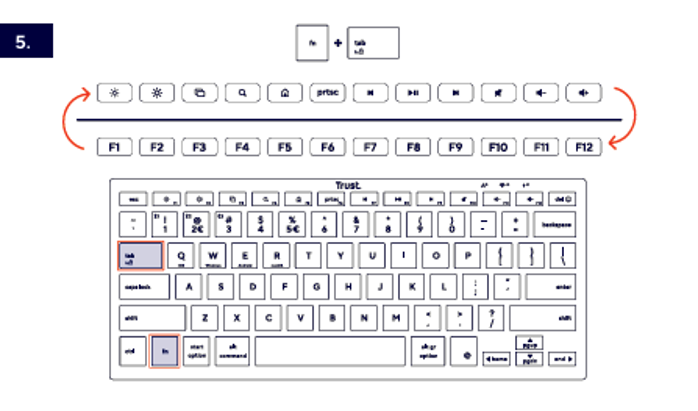
- Press the Fn and Tab keys together.
- Use the top row for the shortcut functions shown by the symbols on the keys.
- Switch the mode again when you want to use the standard F1 to F12 functions.
ℹ️ The top row includes shortcut functions for supported controls such as screen brightness, search, screenshot, media playback, and volume.The availability of individual shortcut functions may depend on the selected operating-system mode and the connected device.---------------------------------------------------------------------------------------------------------------------------------------------------
Use the emoji and navigation shortcuts
Use the Fn combinations shown in the user guide to open the emoji function and use the additional navigation commands.
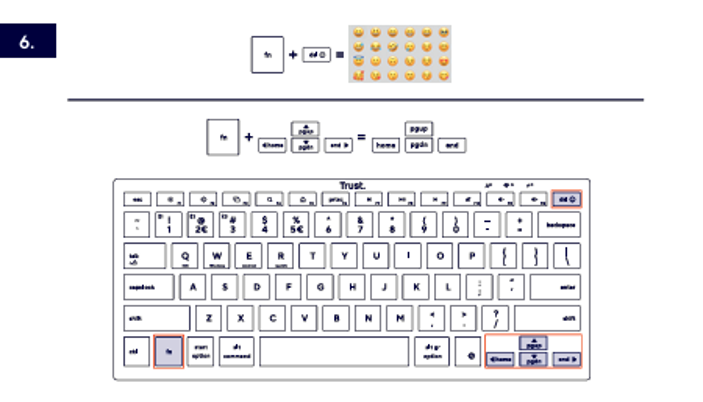
Open the emoji function
Press the Fn key together with the emoji shortcut key shown in the user guide.
Use additional navigation commands
Press the Fn key together with the indicated navigation key to use commands such as Home, End, Page Up, and Page Down.
ℹ️ Use the Fn key together with the keys highlighted in the user guide to access the additional functions.---------------------------------------------------------------------------------------------------------------------------------------------------
Troubleshooting
- The keyboard does not switch on
- Move the power switch from the OFF position to the ON position.
- Charge the keyboard using the charging connection shown in the user guide.
- Leave the keyboard connected for approximately 2 hours.
- The keyboard does not appear in the Bluetooth device list
- Make sure the keyboard is switched on.
- Make sure Bluetooth is enabled on the compatible device.
- Select Bluetooth channel 1, 2, or 3 again.
- Search again for Trust BT1, Trust BT2, or Trust BT3.
- The keys do not provide the expected functions
- Select the operating-system mode that corresponds to the connected device.
- Use Fn + Q for iOS, Fn + W for Windows, Fn + E for Android, or Fn + R for macOS.
- The top-row shortcuts do not provide the expected functions
- Press the Fn and Tab keys together to switch between the available top-row modes.
- Check that the correct operating-system mode is selected.
---------------------------------------------------------------------------------------------------------------------------------------------------
Important notes
ℹ️ The availability and behaviour of Bluetooth, shortcut, emoji, media, and navigation functions may depend on the connected device and the selected operating-system mode.Charge the keyboard before using it for the first time.Switch the keyboard off when the keyboard is not being used.
Was this article helpful?
That’s Great!
Thank you for your feedback
Sorry! We couldn't be helpful
Thank you for your feedback
Feedback sent
We appreciate your effort and will try to fix the article