(Compatible article number 26237)
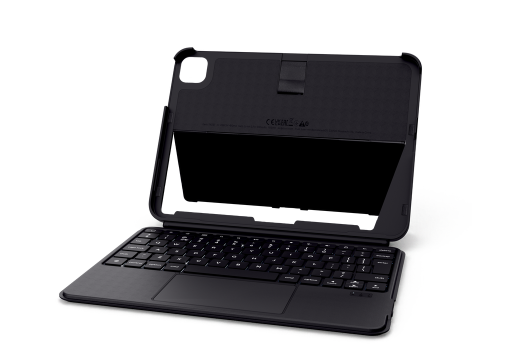
How can I set up my Lynor Keyboard Folio for iPad?
Before using the Lynor Keyboard Folio for iPad for the first time, fully charge the built-in battery of the keyboard.
After charging, switch on the keyboard and connect it wirelessly to the iPad using Bluetooth. The keyboard also allows you to adjust the illuminated key brightness, attach a compatible pen to the case, and attach or remove the keyboard magnetically.
Follow the charging, connection, adjustment, and attachment instructions shown in the user guide before using the keyboard folio.---------------------------------------------------------------------------------------------------------------------------------------------------
Charge or recharge the keyboard
Charge the built-in battery using the USB-C charging port on the keyboard.
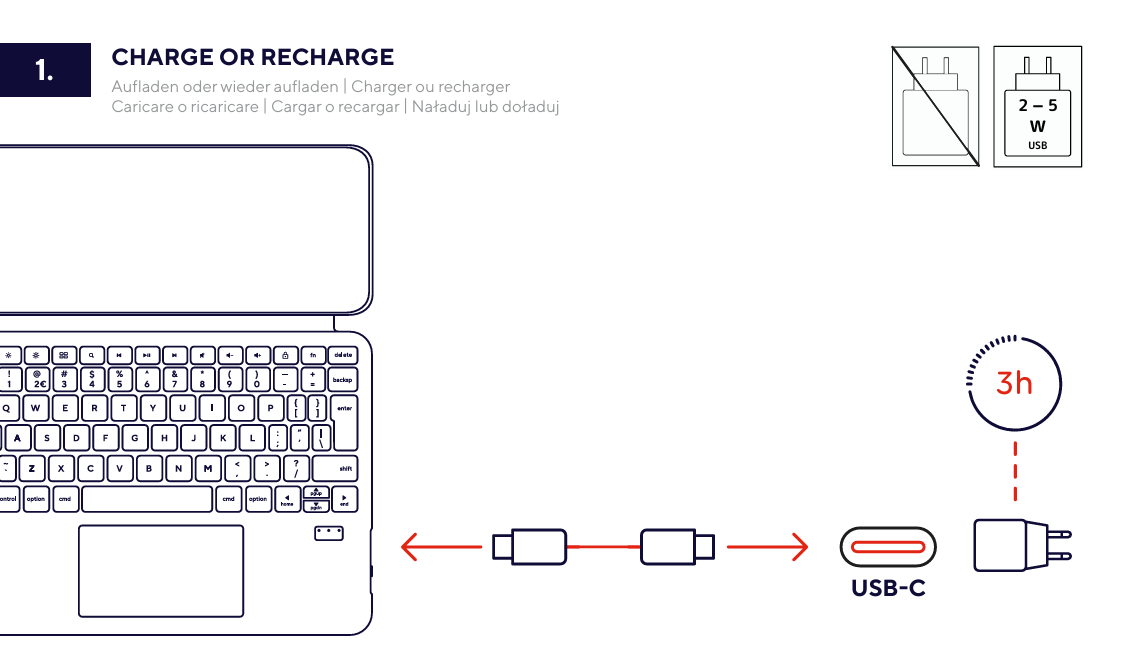
- Locate the USB-C charging port on the keyboard.
- Connect the USB-C connector of a suitable charging cable to the USB-C charging port.
- Connect the other end of the cable to a suitable USB power source.
- Use a USB power source with a power output between 2 W and 5 W.
- Leave the keyboard connected while it is charging.
- A complete charge takes approximately 3 hours.
ℹ️ Use a suitable USB power source with a power output between 2 W and 5 W.A complete charge takes approximately 3 hours.---------------------------------------------------------------------------------------------------------------------------------------------------
Low-battery indication
The keyboard provides a low-battery indication when the remaining battery level reaches approximately 20%.
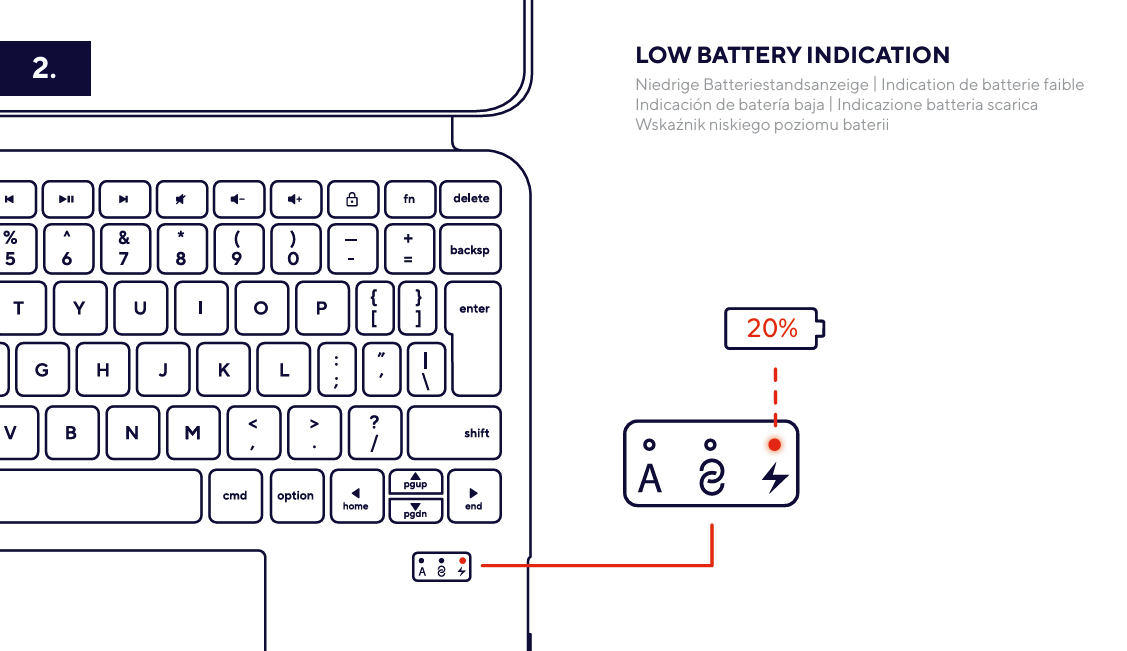
- The low-battery indicator is located on the keyboard.
- The indicator warns that the remaining battery level is approximately 20%.
- Connect the keyboard to a suitable USB power source when the low-battery indication is shown.
Recharge the keyboard when the low-battery indication is shown.---------------------------------------------------------------------------------------------------------------------------------------------------
Connect wirelessly to the iPad
Connect the Lynor keyboard wirelessly to a compatible iPad using Bluetooth.
The keyboard appears as Trust Lynor in the Bluetooth settings of the iPad.
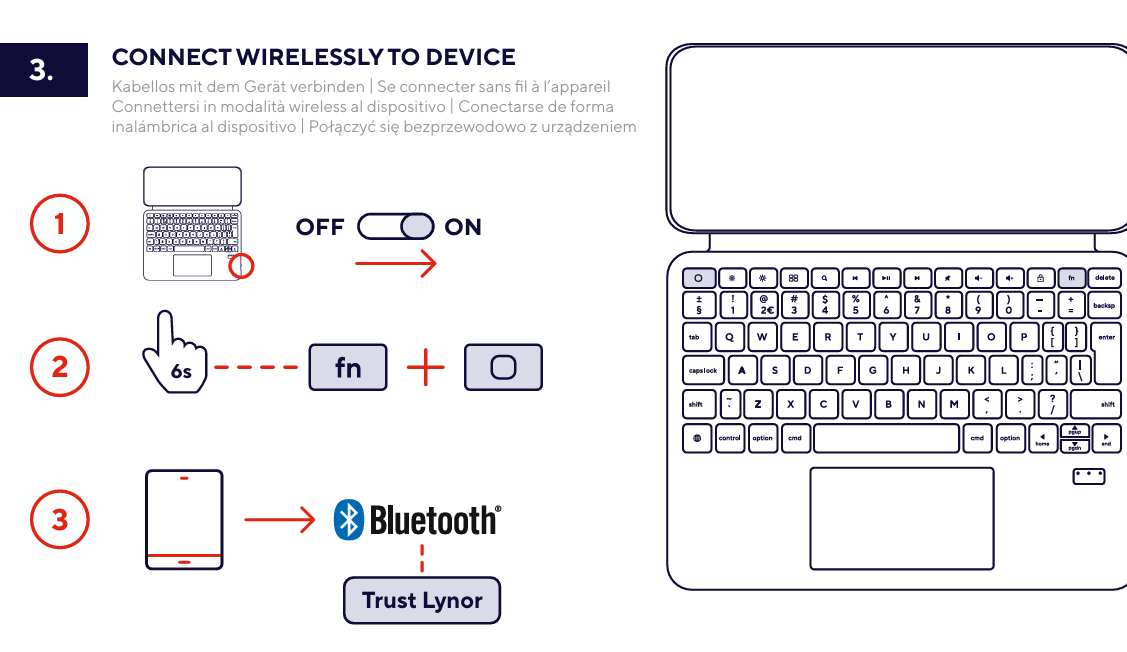
- Move the power switch on the keyboard from the OFF position to the ON position.
- Press and hold the Fn key.
- While holding the Fn key, press the Bluetooth connection key.
- Open the Bluetooth settings on the iPad.
- Make sure Bluetooth is enabled on the iPad.
- Select Trust Lynor from the list of available Bluetooth devices.
- Wait until the wireless connection has been established.
ℹ️ The keyboard appears as “Trust Lynor” in the Bluetooth settings of the iPad.Make sure the keyboard is switched on before starting the Bluetooth connection procedure.---------------------------------------------------------------------------------------------------------------------------------------------------
Adjust the illuminated key brightness
Use the keyboard shortcuts to reduce or increase the brightness of the illuminated keys.
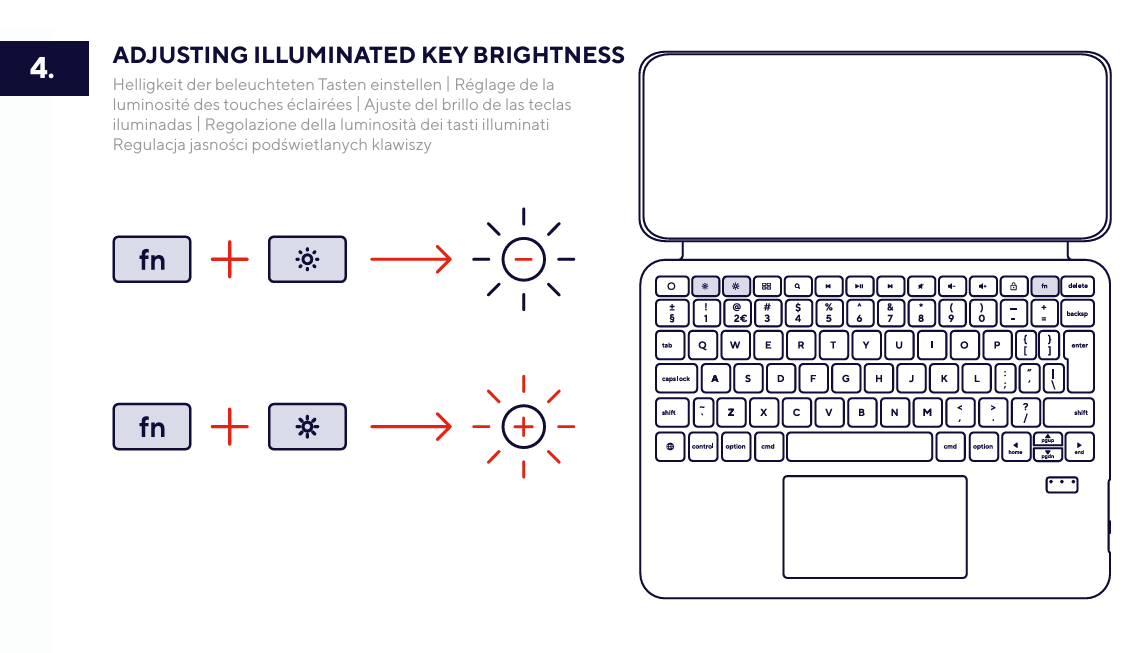
Decrease the illuminated key brightness
- Press and hold the Fn key.
- While holding the Fn key, press the brightness decrease key.
Increase the illuminated key brightness
- Press and hold the Fn key.
- While holding the Fn key, press the brightness increase key.
ℹ️ Use the brightness keys together with the Fn key to adjust the illuminated keys.---------------------------------------------------------------------------------------------------------------------------------------------------
Attach a pen to the case
The case includes a holder that can be used to secure a compatible pen.
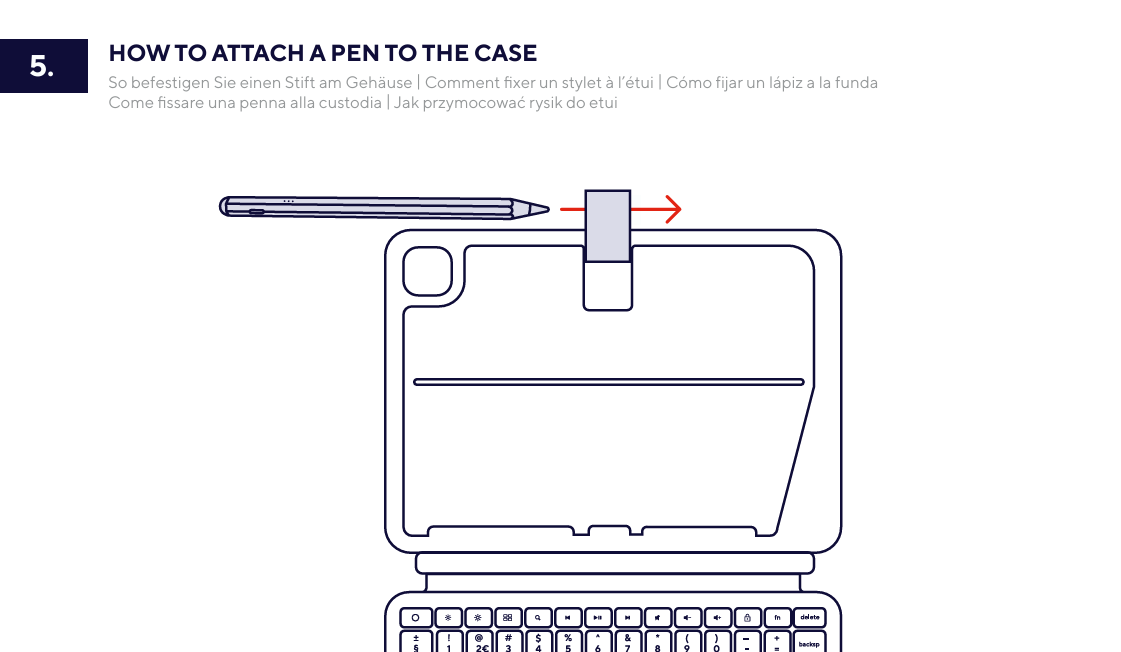
- Locate the pen holder on the upper section of the case.
- Position the compatible pen above the holder.
- Insert the pen into the holder.
- Make sure the pen is held securely before moving or carrying the case.
Check that the pen is secured correctly in the holder before carrying the case.---------------------------------------------------------------------------------------------------------------------------------------------------
Attach the keyboard magnetically
The keyboard can be attached to or removed from the case using the magnetic connection.
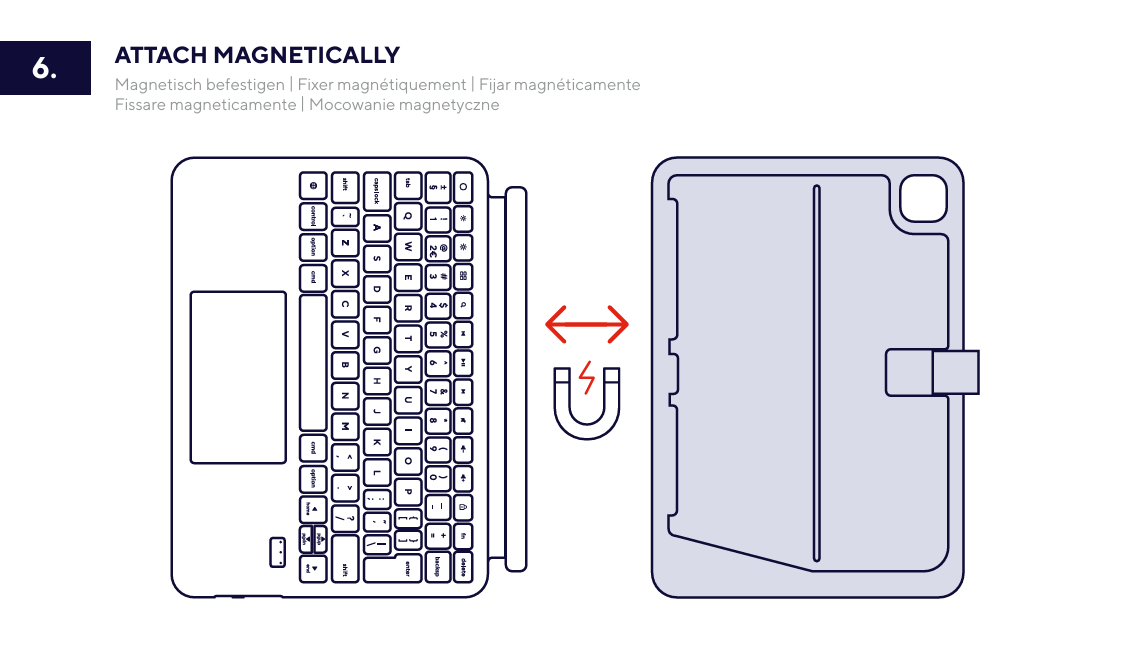
Attach the keyboard to the case
- Position the keyboard next to the magnetic attachment area of the case.
- Align the keyboard with the magnetic attachment area.
- Move the keyboard towards the case until the magnetic connection engages.
- Check that the keyboard is attached securely.
Remove the keyboard from the case
- Hold the case and keyboard securely.
- Carefully pull the keyboard away from the magnetic attachment area.
Make sure the keyboard is aligned correctly before allowing the magnetic connection to engage.---------------------------------------------------------------------------------------------------------------------------------------------------
Troubleshooting
- The keyboard does not switch on
- Move the power switch from the OFF position to the ON position.
- Charge the keyboard using the USB-C charging port.
- Leave the keyboard connected for the recommended charging time.
- Trust Lynor does not appear in the Bluetooth device list
- Make sure the keyboard is switched on.
- Make sure Bluetooth is enabled on the iPad.
- Press the Fn key and Bluetooth connection key again.
- Search for Trust Lynor again in the Bluetooth settings.
- Move the keyboard closer to the iPad during the connection procedure.
- The illuminated keys do not light up
- Make sure the keyboard is switched on.
- Press the Fn key together with the brightness increase key.
- Charge the keyboard if the battery level is low.
- The brightness cannot be adjusted
- Press and hold the Fn key while pressing the brightness key.
- Use the brightness decrease or brightness increase key shown in the user guide.
- The keyboard does not attach securely to the case
- Remove the keyboard from the case.
- Align the keyboard with the magnetic attachment area.
- Move the keyboard towards the case until the magnetic connection engages.
---------------------------------------------------------------------------------------------------------------------------------------------------
Important notes
ℹ️ The availability and behaviour of Bluetooth functions may depend on the connected iPad and its settings.Recharge the keyboard when the low-battery indication is shown.Switch the keyboard off when it is not being used.
Was this article helpful?
That’s Great!
Thank you for your feedback
Sorry! We couldn't be helpful
Thank you for your feedback
Feedback sent
We appreciate your effort and will try to fix the article