(Compatible article number 26062)
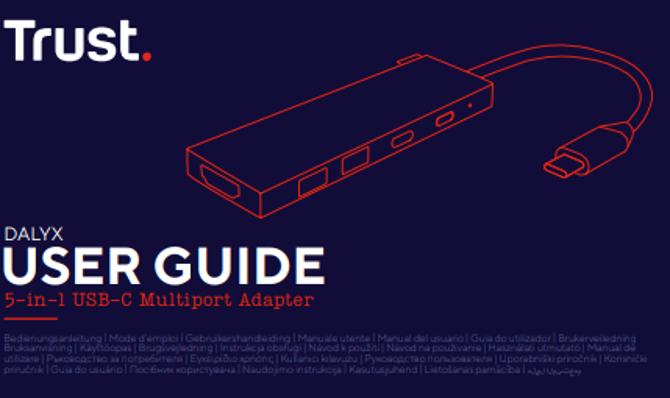
How to set up and use your Dalyx 5-in-1 USB-C Multiport Adapter
This guide explains how to connect, configure and use your Dalyx 5-in-1 USB-C Multiport Adapter. The adapter expands a single USB-C port into multiple connections, allowing you to connect displays, USB peripherals and charging devices simultaneously.
1. Connecting the Dalyx Multiport Adapter
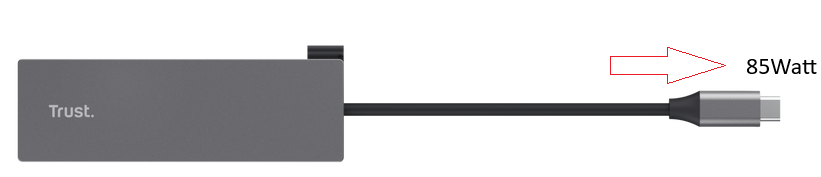
1. Locate an available USB-C port on your laptop, tablet or compatible smartphone.
2. Connect the Dalyx USB-C connector to the device.
3. Wait a few seconds while the operating system detects the adapter.
4. The adapter works as a plug-and-play device and requires no additional software for most systems.
5. Once connected, all available adapter ports become ready for use.
✅ The adapter is connected and ready for installation of connected devices.
--------------------------------------------------------------------------------------------------------------------------------------------------
2. Connecting an External Display via HDMI
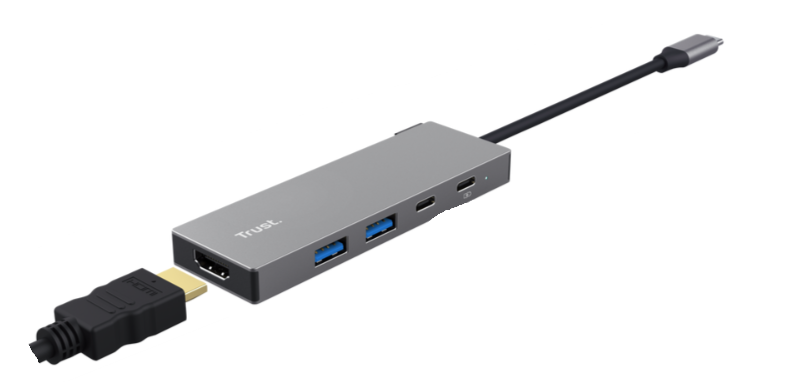
The HDMI port allows you to connect a monitor, TV or projector.
1. Connect an HDMI cable to the monitor or display device.
2. Connect the other end of the HDMI cable to the HDMI port on the Dalyx adapter.
3. Switch on the display device.
4. Your computer should automatically detect the external display.
5. If required, adjust display settings in Windows or macOS to mirror or extend your screen.
✅ The external display is connected and ready for use.
----------------------------------------------------------------------------------------------------------------------------------------------
3. Connecting USB Accessories
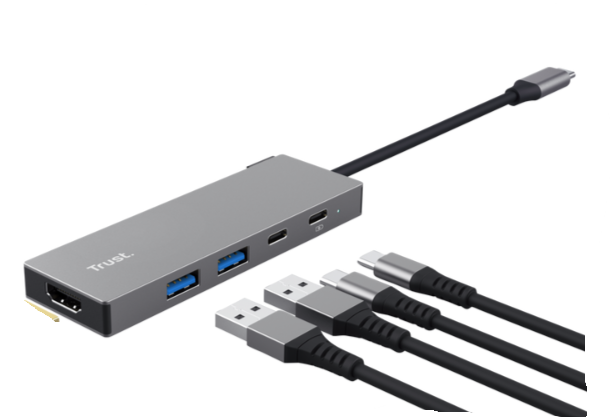
The Dalyx features two USB-A ports for connecting peripherals and storage devices.
You can connect:
• Keyboard
• Mouse
• USB flash drive
• External storage devices
• Other USB accessories
Simply connect the device to one of the available USB-A ports and wait for automatic recognition.
✅ Connected USB devices are ready for operation.
----------------------------------------------------------------------------------------------------------------------------------------------
4. Using USB-C Power Delivery Charging
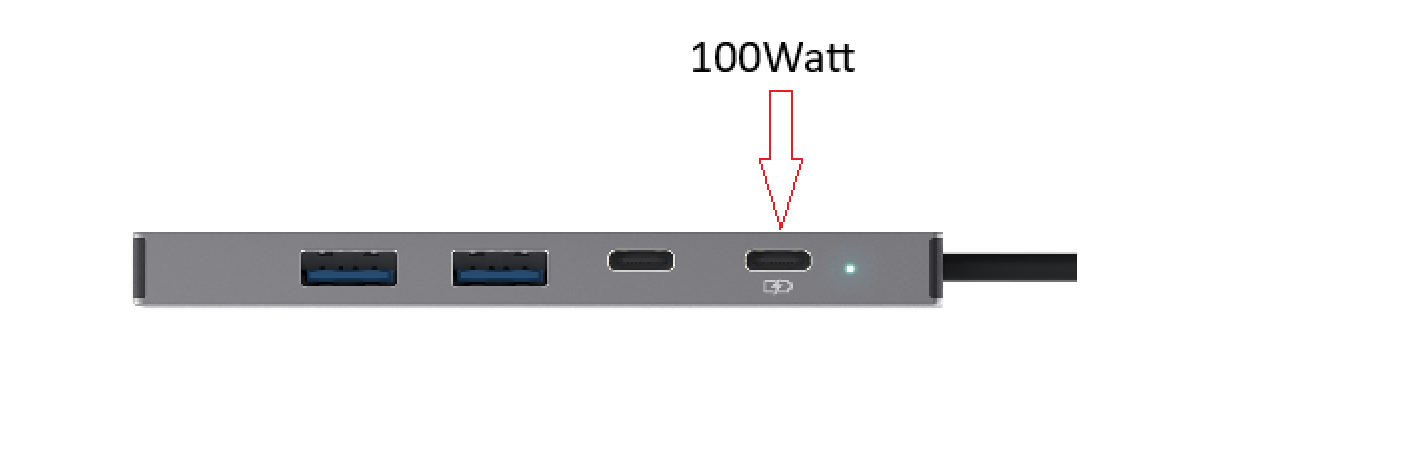
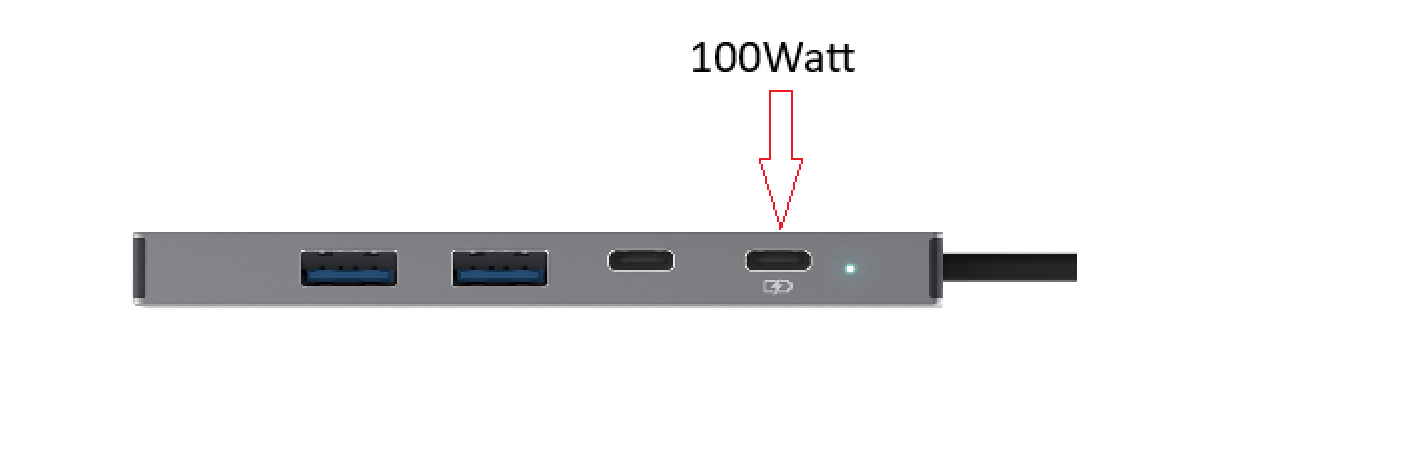
The USB-C Power Delivery port supports charging up to 100W.
1. Connect a compatible USB-C charger to the charging port on the Dalyx adapter.
2. Connect the adapter to your laptop, tablet or compatible device.
3. Charging will begin automatically if supported by the connected device.
4. Continue using all adapter functions while charging.
⚠️ To achieve maximum charging performance, use a compatible USB-C Power Delivery charger.
----------------------------------------------------------------------------------------------------------------------------------------------
5. Data Transfer Through USB Ports
The USB-A ports support USB 3.2 Gen 1 technology with transfer speeds up to 5 Gbps.
Examples of supported tasks:
• Transferring files between storage devices.
• Connecting peripherals and accessories.
• Backing up documents and media files.
• Accessing data from USB flash drives and external drives.
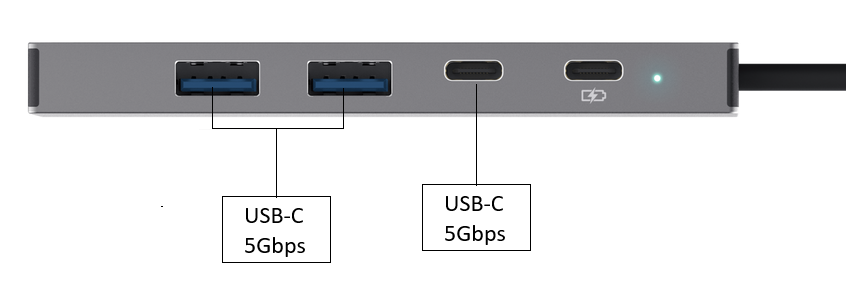
? Actual transfer performance depends on the connected device and file type.
----------------------------------------------------------------------------------------------------------------------------------------------
6. Troubleshooting
The adapter is not detected
• Reconnect the adapter.
• Verify that the USB-C port supports data connectivity.
• Restart the computer.
• Test the adapter on another compatible device.
No signal on the external display
• Check the HDMI connection.
• Verify the monitor is powered on.
• Select the correct input source on the monitor.
• Check the display settings of the connected device.
USB device is not recognized
• Reconnect the USB device.
• Try an alternative USB port.
• Test the USB accessory on another computer.
Laptop is not charging
• Verify that the charger supports USB-C Power Delivery.
• Reconnect the charging cable.
• Check that the laptop supports charging through USB-C.
Data transfer speeds are lower than expected
• Use USB 3.x compatible devices and cables.
• Avoid using damaged cables.
• Close unnecessary background applications during large file transfers.
⚠️ If a connected device is not recognized, disconnect all peripherals, reconnect the adapter and connect devices one by one.
Was this article helpful?
That’s Great!
Thank you for your feedback
Sorry! We couldn't be helpful
Thank you for your feedback
Feedback sent
We appreciate your effort and will try to fix the article