(Compatible article numbers 24910 / 25368)
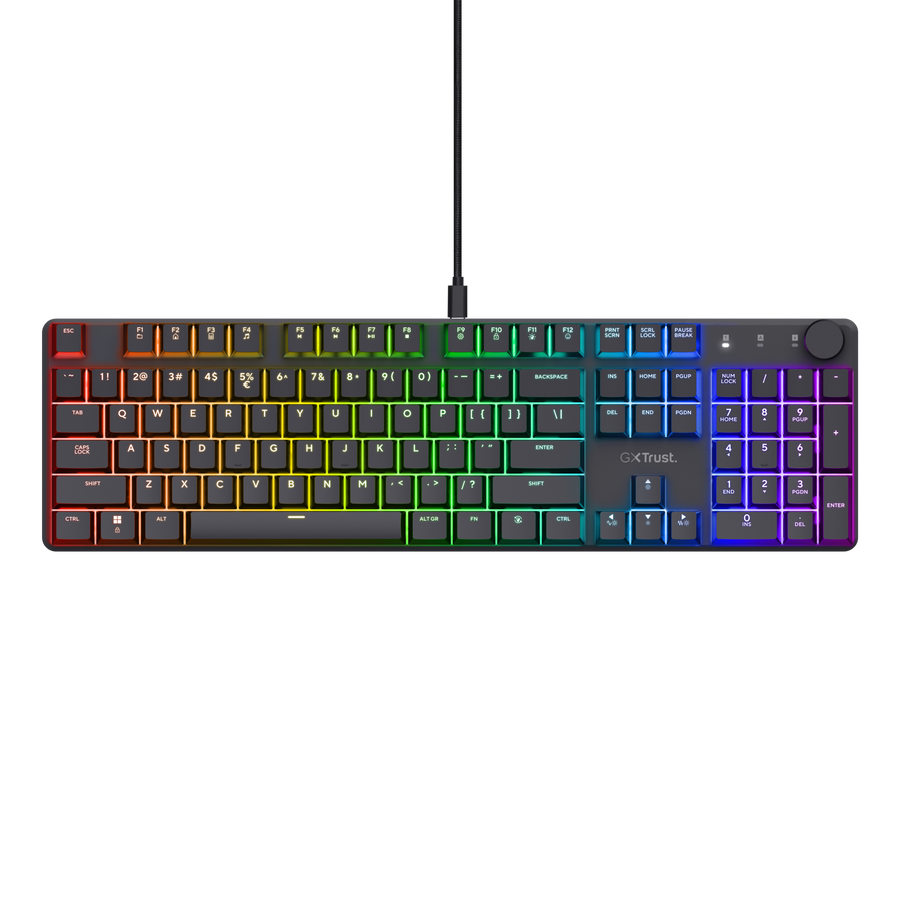
GXT 866 Torix - Wired version (24910)
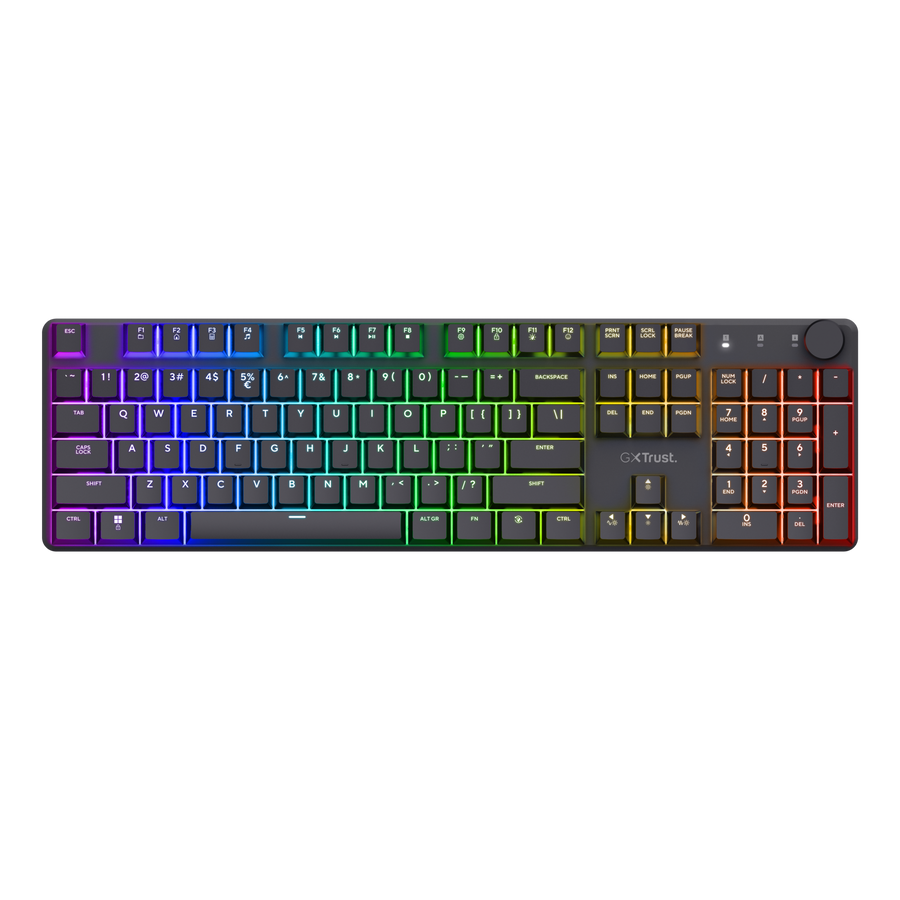
GXT 868 Torix - Wireless version (25368)
How do I set up my Torix keyboard?
The GXT 866 Torix and GXT 868 Torix Wireless use the same full-size mechanical keyboard design and share most controls and functions. The main difference is the connection method.
GXT 866 Torix - article 24910
Connect the supplied USB-A to USB-C cable between the keyboard and an available USB port on your computer. The keyboard is ready to use as soon as it is detected.
GXT 868 Torix Wireless - article 25368
The GXT 868 can be used either wirelessly through its 2.4 GHz USB receiver or in wired / Play & Charge mode using the supplied USB cable.
ℹ️ Wired mode and Play & Charge mode are the same operating mode on the GXT 868.---------------------------------------------------------------------------------------------------------------------------------------------
Keyboard overview
Both Torix models share the same main keyboard features:
- Full-size 104-key layout with numeric keypad.
- Low-profile keycaps.
- Linear Huano mechanical switches.
- Switch lifetime of up to 50 million key presses.
- Per-key RGB illumination with up to 16.8 million colour combinations.
- N-key rollover and anti-ghosting.
- Fn multimedia controls.
- Programmable keys and macro support.
- Multifunction volume knob.
- Durable aluminium top plate.
- Three-step adjustable anti-slip feet.
- Detachable 1.8 m USB-A to USB-C cable.
The GXT 868 additionally includes a rechargeable battery and a low-latency 2.4 GHz wireless receiver. It does not use Bluetooth.---------------------------------------------------------------------------------------------------------------------------------------------
Wired connection - GXT 866
- Connect the USB-C end of the supplied cable to the keyboard.
- Connect the USB-A end to an available USB port on the computer.
- Wait for the keyboard to be detected.
No additional driver is required for standard keyboard operation.
---------------------------------------------------------------------------------------------------------------------------------------------
Wireless connection - GXT 868 only
- Connect the supplied 2.4 GHz USB receiver to an available USB-A port on the computer.
- Move the power switch on the keyboard to ON.
- The keyboard will automatically attempt to connect to the receiver.
ℹ️ The GXT 868 uses a dedicated 2.4 GHz USB receiver for wireless operation. Bluetooth is not supported.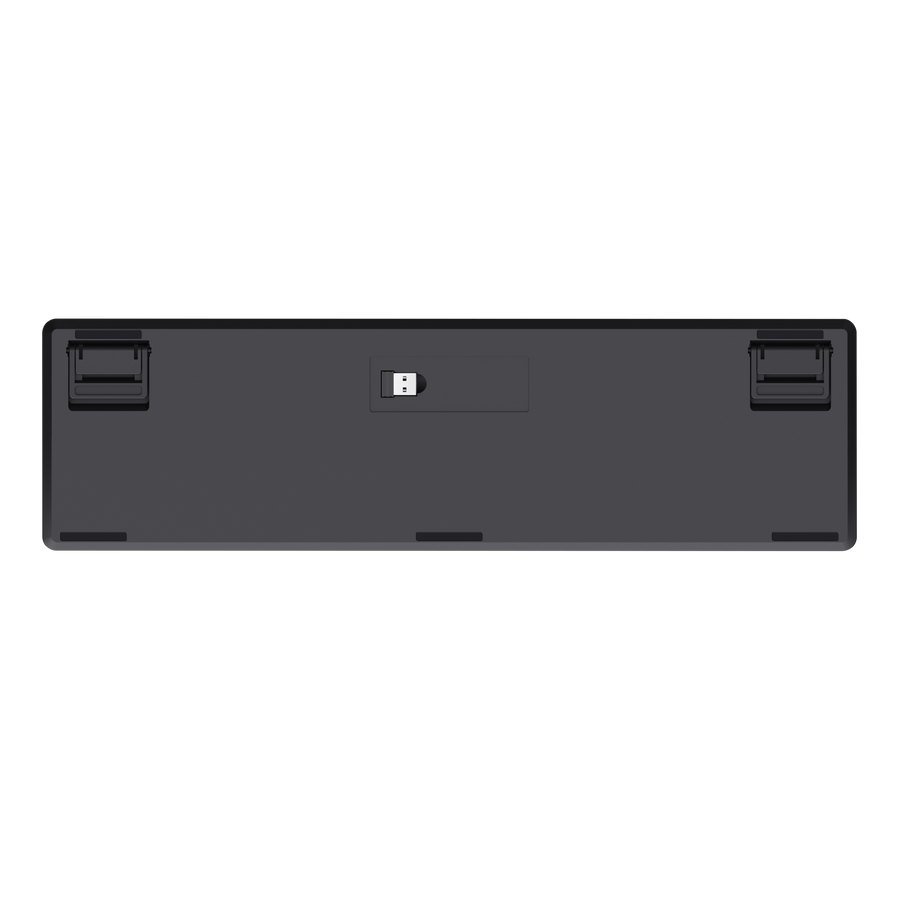
---------------------------------------------------------------------------------------------------------------------------------------------
Wired / Play & Charge mode - GXT 868 only
To use the GXT 868 in wired mode, use the following procedure:
- Switch the keyboard OFF.
- Connect the USB-C end of the supplied cable to the keyboard.
- Connect the USB-A end to the computer.
- The keyboard will now operate through the cable while simultaneously charging its internal battery.
---------------------------------------------------------------------------------------------------------------------------------------------
Charging and battery - GXT 868 only
The GXT 868 contains a built-in rechargeable battery.
- Connect the supplied USB-A to USB-C cable to charge the keyboard.
- A complete charge takes approximately 4 hours.
- Battery life is up to approximately 100 hours depending on usage and lighting settings.
- Using RGB illumination will reduce battery runtime.
You can continue using the keyboard normally while it is connected and charging.---------------------------------------------------------------------------------------------------------------------------------------------
Function keys
Hold the Fn key and press the corresponding key to use its secondary function. The icons printed on the keycaps indicate the available shortcuts.
The Torix includes shortcuts for multimedia playback, lighting control and gaming functions.
Multimedia-key compatibility may vary depending on the operating system.---------------------------------------------------------------------------------------------------------------------------------------------
RGB lighting controls
The built-in Fn shortcuts allow you to adjust the RGB lighting without opening the software.
- Fn + lighting-effect key - cycle through the available RGB effects.
- Fn + Tab - cycle through the available preset colours.
- Fn + F11 - switch the lighting on or off.
- Fn + brightness up - increase RGB brightness.
- Fn + brightness down - decrease RGB brightness.
- Fn + ▶ - increase lighting animation speed.
- Fn + ◀ - decrease lighting animation speed.
Additional RGB effects, colours and settings can be configured using the Torix software.
---------------------------------------------------------------------------------------------------------------------------------------------
Volume knob
The multifunction knob in the upper-right corner controls the system volume.
- Rotate clockwise - increase volume.
- Rotate counter-clockwise - decrease volume.
- Press the knob - mute or unmute audio.
---------------------------------------------------------------------------------------------------------------------------------------------
Gaming mode and Windows-key lock
Press Fn + Windows to lock the Windows key during gaming.
Press the same combination again to restore normal Windows-key operation.
This helps prevent the Start menu from opening accidentally during a game.---------------------------------------------------------------------------------------------------------------------------------------------
Software installation
GXT 866 Torix - 24910
- Connect the keyboard to the computer using the USB cable.
- Download the Torix software from the Trust support page.
- Extract the downloaded ZIP file if required.
- Run the installer and follow the on-screen instructions.
ℹ️ Downloads for the GXT 866 are available at www.trust.com/24910/download.GXT 868 Torix Wireless - 25368
- Switch the keyboard OFF and connect it to the computer using the USB-C to USB-A cable.
- Download the software ZIP package.
- Unpack the ZIP file.
- Install the ANSI version for US or Dutch keyboard layouts.
- Install the ISO version for other European keyboard layouts.
- Launch the software and configure the keyboard.
- Save your settings to the keyboard.
- You may then disconnect the cable and continue using the keyboard wirelessly.
ℹ️ Downloads for the GXT 868 are available at www.trust.com/25368/download.---------------------------------------------------------------------------------------------------------------------------------------------
Key reprogramming and profiles - GXT 868
The GXT 868 software allows individual keys to be reprogrammed on two separate layers.
- Standard Layer - press the key normally to execute the assigned function.
- FN Layer - hold Fn and press the key to execute the assigned function.
- Open the software and select Device.
- Select Key.
- Choose the Standard Layer or FN Layer.
- Select an existing profile or create a new one.
- Select the key you want to reprogram.
- Open Key Set and choose the required function.
- Click the save icon to store the settings on the keyboard.
---------------------------------------------------------------------------------------------------------------------------------------------
RGB customisation in the software - GXT 868
- Select Device.
- Select Light.
- Choose a Light Mode from the dropdown menu.
- Depending on the selected effect, adjust brightness, speed and direction.
- Enable Colorful for a rainbow effect, or disable it to select custom colours.
- Choose a colour using the colour wheel, RGB values or preset colours.
---------------------------------------------------------------------------------------------------------------------------------------------
Creating macros - GXT 868
- Select Macro in the software.
- Click Add Macro.
- Click Record.
- Press the keys that you want the macro to perform.
- Click Stop.
- Go to Device > Key Set > Macro and assign the recorded macro to the desired key.
The GXT 866 also supports programmable keys, macros and software-controlled lighting. The exact software interface may differ from the GXT 868 software shown above.---------------------------------------------------------------------------------------------------------------------------------------------
GXT 866 firmware update
A firmware update is recommended if the volume knob causes the volume to continue changing by itself after you turn the knob by only one step.
How to update the firmware
- Connect the keyboard to the computer.
- Download the firmware updater for article 24910.
- Extract the downloaded file.
- Select the correct firmware version for your keyboard.
- ANSI - use this for US or Dutch layouts with the smaller Enter key.
- ISO - use this for layouts with the larger Enter key, including French, Italian, Spanish, Nordic, UK, Belgian, Polish and German layouts.
- Open the correct firmware updater.
- The tool will automatically detect the keyboard and display Burning while the firmware is being installed.
- When the update is complete, the firmware tool will close automatically.
- Disconnect and reconnect the keyboard after the update.
If the wrong ANSI or ISO firmware is installed, some keys may stop responding correctly. Run the updater again and install the correct version.---------------------------------------------------------------------------------------------------------------------------------------------
Troubleshooting
The keyboard is not detected through USB
- Disconnect and reconnect both ends of the USB cable.
- Try another USB port.
- Connect the keyboard directly to the computer rather than through a USB hub.
- Restart the computer.
The GXT 868 does not connect wirelessly
- Make sure the USB receiver is connected to the computer.
- Move the keyboard power switch to ON.
- Try another USB-A port for the receiver.
- Keep the receiver away from other wireless USB receivers where possible.
The + indicator is blinking on the GXT 868
The keyboard is trying to establish a connection through the USB cable. Check the cable connection, try another USB port or test another compatible USB cable.
The - indicator is blinking on the GXT 868
The keyboard is trying to establish a connection with the 2.4 GHz receiver.
To re-pair the keyboard and receiver:
- Connect the receiver to a USB-A port and keep the keyboard nearby.
- Press and hold Fn + - until the indicator begins blinking rapidly.
- Wait until the - indicator stops blinking.
The RGB lighting is off
- Press Fn + F11 to switch the lighting on.
- Increase the brightness using the Fn brightness control.
- Open the Torix software and check the current lighting configuration.
The GXT 866 volume keeps changing by itself
If the volume continues to change after moving the knob by only one step, install the latest GXT 866 firmware using the procedure described above.
---------------------------------------------------------------------------------------------------------------------------------------------
Important notes
 The GXT 866 is the wired Torix version.
 The GXT 868 adds 2.4 GHz wireless operation and an internal rechargeable battery.
Use the correct ANSI or ISO software / firmware version for your keyboard layout when a download provides both versions.---------------------------------------------------------------------------------------------------------------------------------------------
Frequently asked questions
What is the difference between the GXT 866 and GXT 868 Torix?
Both keyboards share the same basic full-size mechanical design, RGB lighting, low-profile keys, volume knob and software functionality. The GXT 868 additionally supports 2.4 GHz wireless operation and contains a rechargeable battery.
Can I use the GXT 868 as a wired keyboard?
Yes. Switch the keyboard OFF first and then connect the USB cable. The keyboard will operate through the cable and charge at the same time.
Are wired mode and Play & Charge different modes on the GXT 868?
No. They are the same mode: the keyboard communicates through the USB cable while its internal battery is being charged.
Why does the GXT 868 lighting look slightly brighter when connected by cable?
The RGB illumination can appear slightly brighter while the keyboard is operating through its USB connection. This is normal.
Does the GXT 868 support Bluetooth?
No. Wireless operation uses the supplied 2.4 GHz USB receiver.
How long does the GXT 868 battery last?
Battery life is rated at up to approximately 100 hours depending on use. RGB lighting and other operating conditions can reduce the total runtime.
Can I save software settings and then use the GXT 868 wirelessly?
Yes. Configure and save the settings while the keyboard is connected through USB. You can then disconnect the cable and continue using the keyboard wirelessly.
How do I lock the Windows key?
Press Fn + Windows. Press the same combination again to unlock it.
How do I mute the audio?
Press the multifunction volume knob. Press it again to unmute.
Which software or firmware version should I use: ANSI or ISO?
Use ANSI for US or Dutch layouts with a smaller Enter key. Use ISO for European layouts with the larger Enter key.
Where can I download the software and support files?
For the GXT 866, visit www.trust.com/24910/download. For the GXT 868, visit www.trust.com/25368/download.
Was this article helpful?
That’s Great!
Thank you for your feedback
Sorry! We couldn't be helpful
Thank you for your feedback
Feedback sent
We appreciate your effort and will try to fix the article