(Compatible article number 26236)
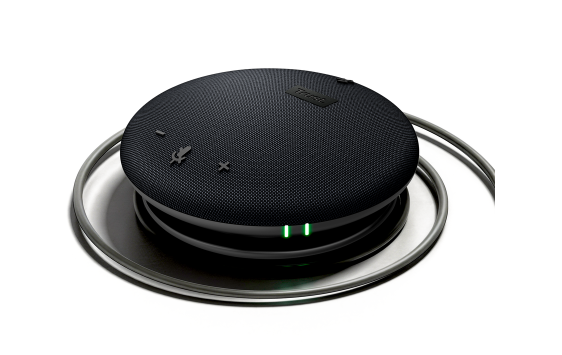
How can I set up my Leyon Conference Bluetooth® Speaker Phone?
The Leyon Conference Bluetooth® Speaker Phone can be connected to a compatible device using a USB-C or USB-A connection. It can also be connected wirelessly using Bluetooth.
Choose the connection method that is compatible with your computer, tablet, smartphone, or other supported device.
The available functions may depend on the connected device and the application being used.---------------------------------------------------------------------------------------------------------------------------------------------------
Connect using USB-C or USB-A
The Leyon can be connected directly to an available USB-C port. If the device does not have a USB-C port, use the USB-A connection.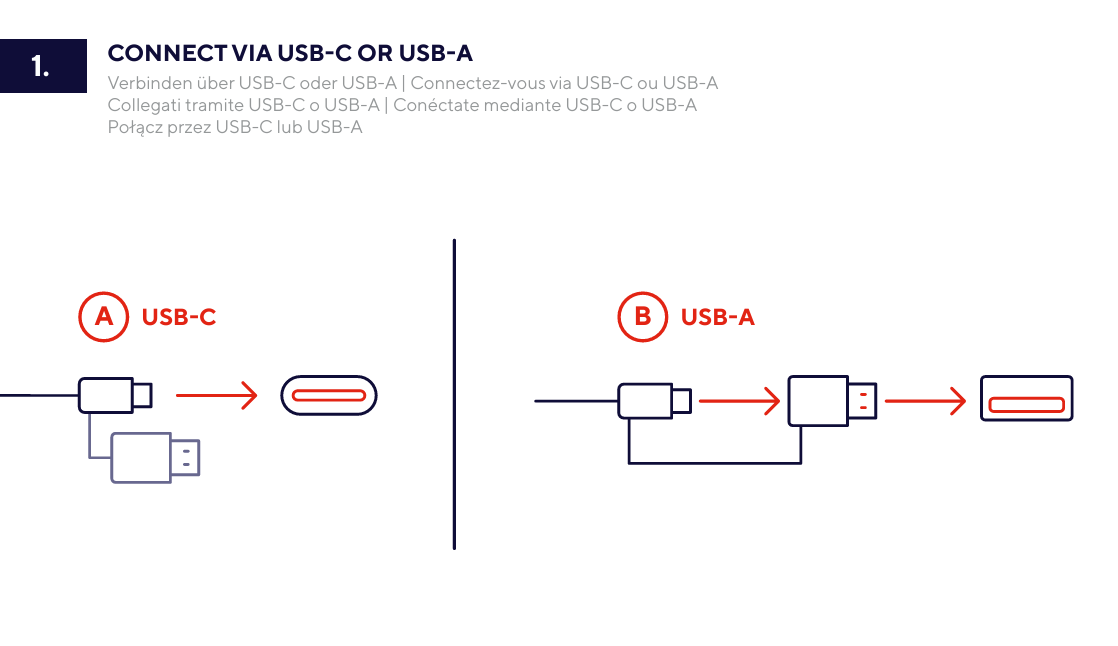
Connect to a USB-C port
- Locate an available USB-C port on the device.
- Connect the USB-C connector directly to the USB-C port.
- Wait for the device to recognise the speakerphone.
Connect to a USB-A port
- Connect the USB-C connector to the USB-A adapter.
- Insert the USB-A adapter into an available USB-A port on the device.
- Wait for the device to recognise the speakerphone.
ℹ️ Use either the USB-C connection or the USB-A connection shown in the user guide.---------------------------------------------------------------------------------------------------------------------------------------------------
Connect wirelessly using Bluetooth
The Leyon can be connected wirelessly to a compatible computer, tablet, smartphone, or other Bluetooth device.
The speakerphone is displayed as Trust Leyon in the Bluetooth settings of the device.
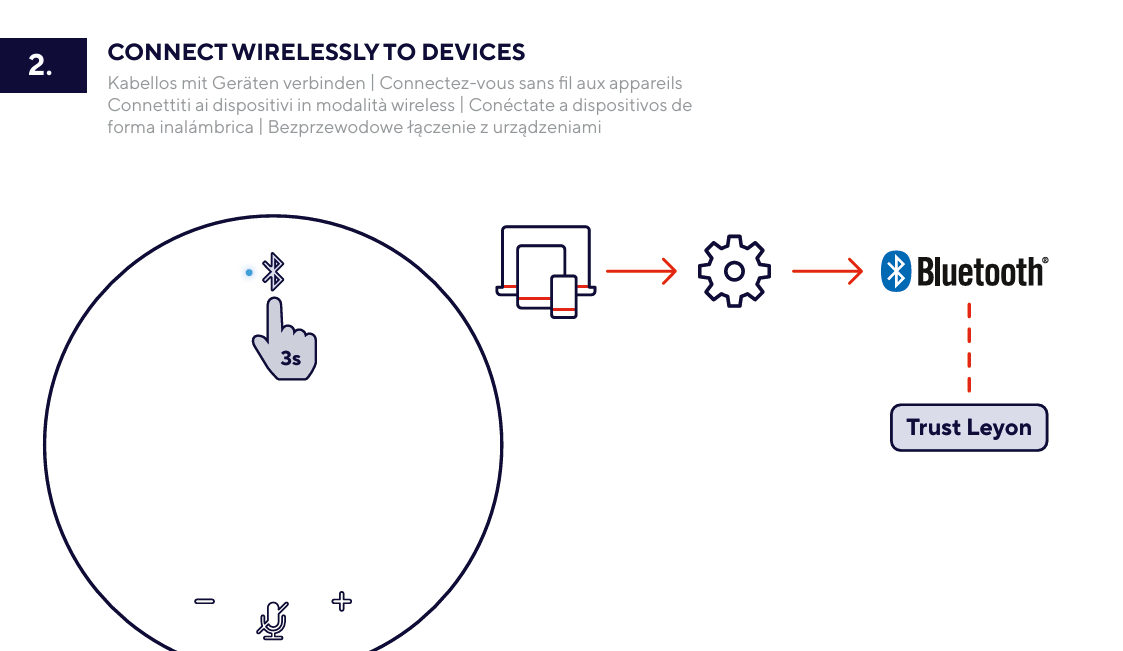
- Switch on the Leyon.
- Press and hold the Bluetooth button for 3 seconds.
- Open the Bluetooth settings on the computer, tablet, smartphone, or other compatible device.
- Make sure Bluetooth is enabled on the device.
- Select Trust Leyon from the list of available Bluetooth devices.
- Wait until the Bluetooth connection has been established.
ℹ️ Press and hold the Bluetooth button for 3 seconds to start the wireless connection procedure.---------------------------------------------------------------------------------------------------------------------------------------------------
Controls and indicators
The buttons on the Leyon allow you to switch the speakerphone on or off, adjust the volume, mute the microphone, and control calls.
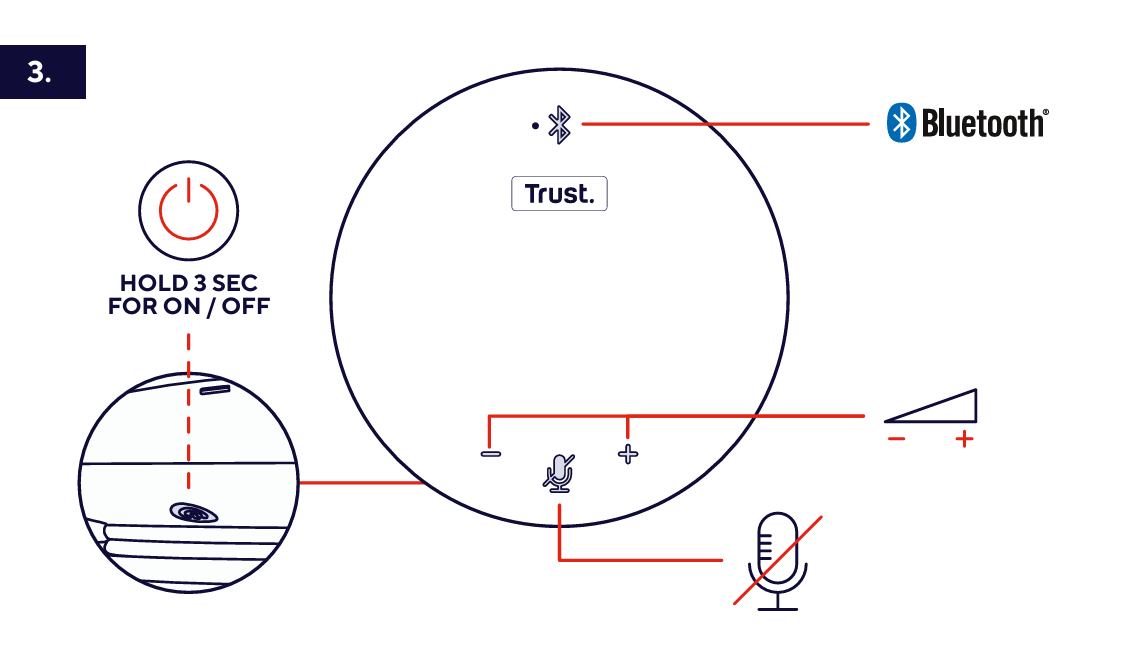
Switch the Leyon on or off
Press and hold the power button for 3 seconds to switch the speakerphone on or off.
Increase the volume
Press the plus button to increase the speaker volume.
Decrease the volume
Press the minus button to decrease the speaker volume.
Mute or unmute the microphone
Press the microphone mute button to mute the microphone. Press the button again to unmute the microphone.
Bluetooth indicator
The Bluetooth indicator shows the status of the wireless Bluetooth function.
Press and hold the power button for 3 seconds when switching the Leyon on or off.---------------------------------------------------------------------------------------------------------------------------------------------------
Microphone mute indicator
The Leyon has a microphone mute indicator on the side of the speakerphone.
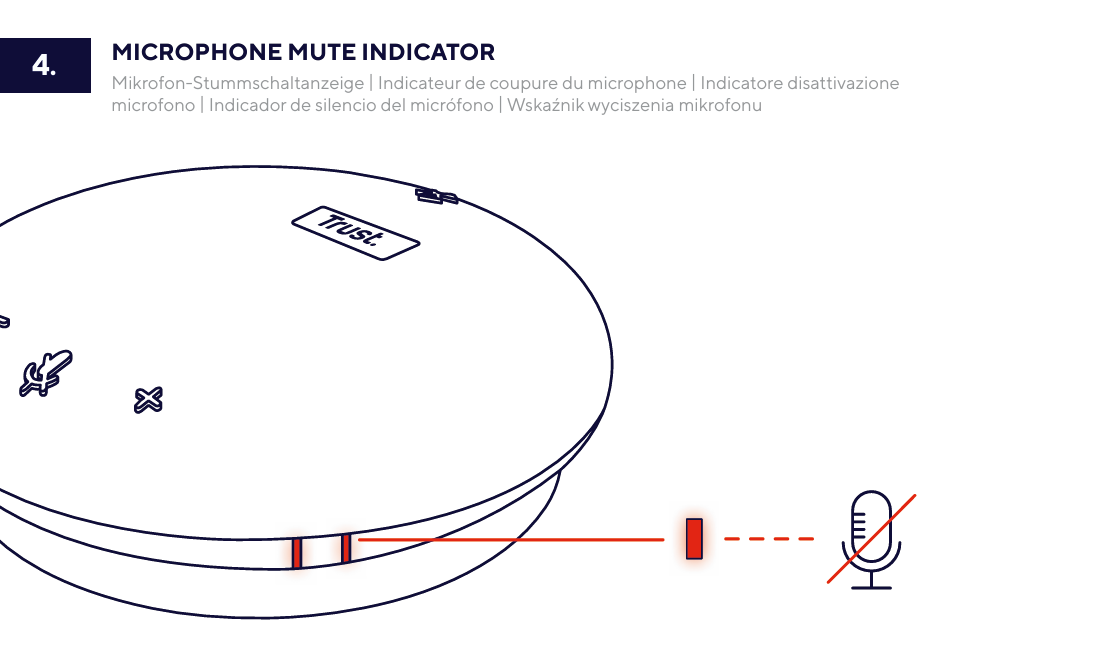
- Press the microphone mute button to mute the microphone.
- The microphone mute indicator shows that the microphone is muted.
- Press the microphone mute button again to unmute the microphone.
ℹ️ Check the microphone mute indicator before speaking during a call.---------------------------------------------------------------------------------------------------------------------------------------------------
Call controls
Use the call control button on the Leyon to answer, end, or reject a call.
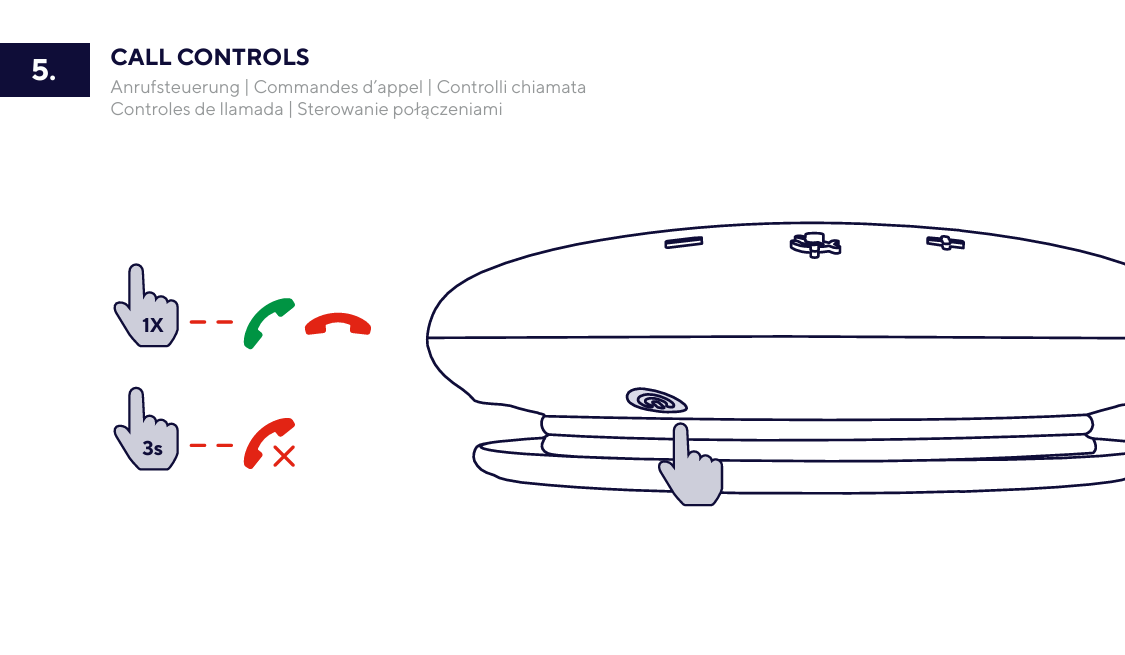
Answer or end a call
Press the call control button once to answer an incoming call or end the current call.
Reject an incoming call
Press and hold the call control button for 3 seconds to reject an incoming call.
The availability of call control functions may depend on the connected device and the application being used.---------------------------------------------------------------------------------------------------------------------------------------------------
Troubleshooting
- The Leyon does not switch on
- Press and hold the power button for 3 seconds.
- Check the USB-C or USB-A connection.
- The device does not recognise the USB connection
- Check that the USB-C connector is fully inserted.
- If you are using USB-A, check the connection between the USB-C connector and the USB-A adapter.
- Connect the Leyon to another available USB port.
- Trust Leyon does not appear in the Bluetooth device list
- Make sure Bluetooth is enabled on the device.
- Press and hold the Bluetooth button for 3 seconds.
- Search for Trust Leyon again in the Bluetooth settings.
- The microphone is not transmitting sound
- Check whether the microphone mute indicator is active.
- Press the microphone mute button to unmute the microphone.
- The call control buttons do not respond
- Check that the Leyon is connected to the device.
- Check whether the connected device and application support call controls.
---------------------------------------------------------------------------------------------------------------------------------------------------
Important notes
ℹ️ The available functions may depend on the connected device and the communication application being used.Press and hold the power button for 3 seconds to switch the Leyon on or off.Check the microphone mute indicator before speaking during a call.
Was this article helpful?
That’s Great!
Thank you for your feedback
Sorry! We couldn't be helpful
Thank you for your feedback
Feedback sent
We appreciate your effort and will try to fix the article