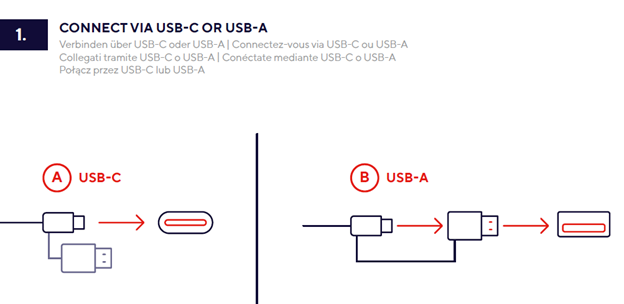
Step 1: Connect via USB-C or USB-A
Option A: USB-C Connection
- Connect the USB-C cable to an available USB-C port on your computer, laptop, or compatible device.
Option B: USB-A Connection
- Attach the included USB-A adapter to the USB-C cable.
- Insert the USB-A connector into an available USB-A port on your computer, laptop, or compatible device.
Note: Once the connection is established, the device is connected and ready for installation.
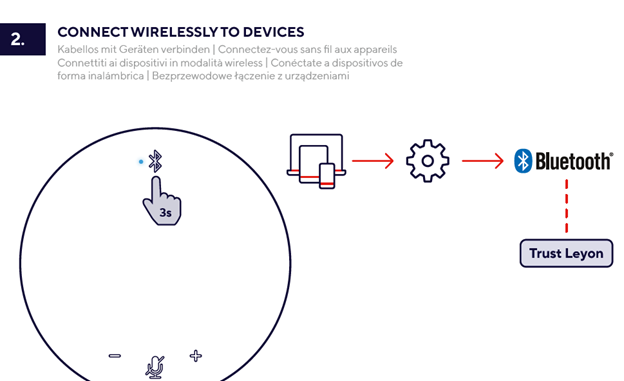
Step 2: Bluetooth Pairing
- Press and hold the Bluetooth button for 3 seconds until the Bluetooth indicator starts flashing.
- Open the Bluetooth settings on the device you want to connect.
- Ensure that Bluetooth is enabled.
- Search for available Bluetooth devices.
- Select Trust Leyon from the list of detected devices.
- Wait until the pairing process is completed.
Note: Pairing completed successfully. The device is now ready for use.
Troubleshooting
If Trust Leyon does not appear in the list of available Bluetooth devices:
- Verify that the Bluetooth indicator is flashing. If not, press and hold the Bluetooth button for 3 seconds to re-enter pairing mode.
- Move the Conference speaker phone closer to the device and ensure there are no major obstructions between them.
- Turn Bluetooth off and on again on the device, then start a new search for nearby devices.
- If the Conference speaker phone is already connected to another device, disconnect it before attempting to pair.
- Restart both the Conference speaker phone and the device, then repeat the pairing process.
Note: If the issue persists, remove any existing Trust Leyon pairing records from the device's Bluetooth settings and pair the Conference speaker phone again.
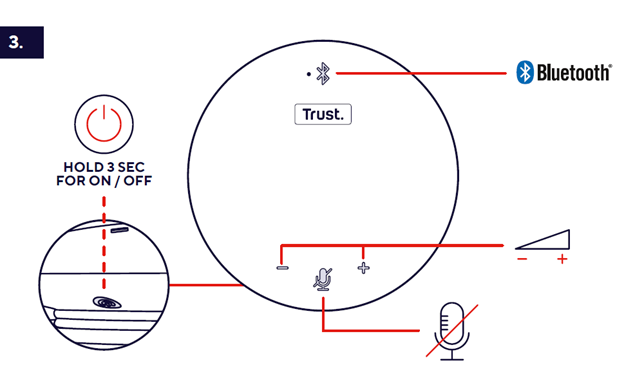
Step 3: Basic Controls
Power On
- Press and hold the Power button for 3 seconds to switch on the conference speaker phone.
- The Bluetooth indicator will illuminate, indicating that the device is powered on.
Power Off
- Press and hold the Power button for 3 seconds to switch off the conference speaker phone.
Adjust Volume
- Press the Volume (+) button to increase the speaker volume.
- Press the Volume (-) button to decrease the speaker volume.
Mute / Unmute the Microphone
- Press the Microphone Mute button once to mute the microphone.
- Press the Microphone Mute button again to unmute the microphone.
Note: When the microphone is muted, participants in the call will not be able to hear audio captured by the conference speaker phone.
Troubleshooting
If the conference speaker phone does not respond as expected:
- Ensure the device is properly connected to a power source.
- If the device does not power on, press and hold the Power button for at least 3 seconds.
- Verify that the conference speaker phone is connected to the desired device via Bluetooth or USB.
- If no sound is heard, increase the volume using the Volume (+) button and check the audio settings on the connected device.
- If others cannot hear you during a call, verify that the microphone is not muted.
Note: If the issue persists, restart both the conference speaker phone and the connected device, then reconnect and try again.
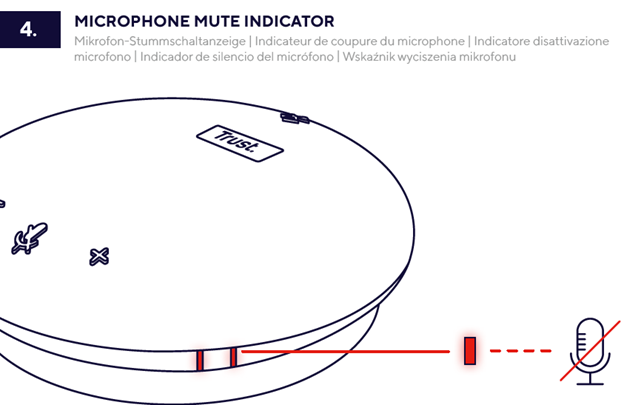
Step 4: Microphone Mute Indicator
Mute the Microphone
- Press the Microphone Mute button once to mute the microphone.
- The mute indicator light will illuminate red, confirming that the microphone is muted.
Unmute the Microphone
- Press the Microphone Mute button again to unmute the microphone.
- The red mute indicator light will turn off, indicating that the microphone is active again.
Note: When the microphone is muted, participants in the call will not be able to hear audio captured by the conference speaker phone.
Troubleshooting
If the microphone mute function does not work as expected:
- Verify that the conference speaker phone is properly connected to the host device.
- Check whether the mute indicator light is illuminated to confirm the microphone status.
- Ensure that the microphone is not muted in the operating system or conferencing application.
- Confirm that the conference speaker phone is selected as the active microphone device in the audio settings.
- Restart the conference speaker phone and reconnect it to the device if the issue persists.
Note: Some conferencing applications may display a separate mute status that operates independently from the conference speaker phone's microphone mute function.
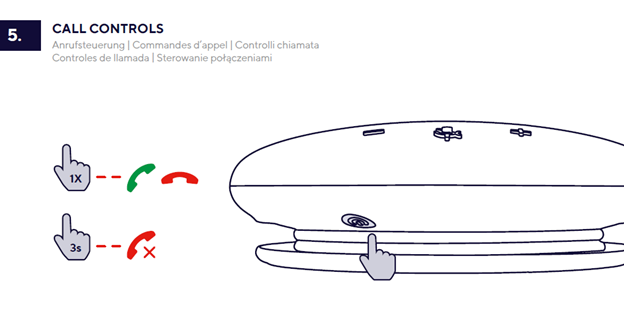
Step 5: Call Controls
Answer an Incoming Call
- Press the multifunction button once to answer an incoming call.
End a Call
- Press the multifunction button once during a call to end the conversation.
Reject an Incoming Call
- Press and hold the multifunction button for 3 seconds to reject an incoming call.
Note: Call functions are available only when the conference speaker phone is connected to a device that supports Bluetooth calling.
Troubleshooting
If the call controls do not function as expected:
- Verify that the conference speaker phone is connected to your device via Bluetooth.
- Ensure that the device has granted Bluetooth calling and audio permissions to the conference speaker phone.
- Check whether the conference speaker phone is selected as the active audio device during the call.
- If the controls remain unresponsive, disconnect and reconnect the Bluetooth connection.
- Restart both the conference speaker phone and the connected device, then try again.
Note: Some call control functions may vary depending on the connected device and operating system.
Was this article helpful?
That’s Great!
Thank you for your feedback
Sorry! We couldn't be helpful
Thank you for your feedback
Feedback sent
We appreciate your effort and will try to fix the article