(Compatible article numbers 26314/26315)
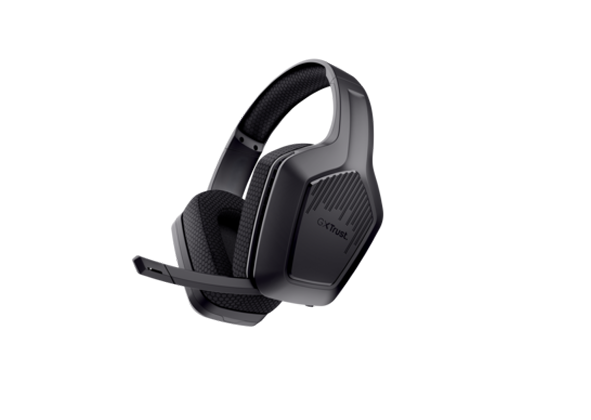
How do I set up my GXT Zirox II Dual Wireless Headset?
Before using the headset for the first time, fully charge its built-in battery.
Connect the charging cable to the headset and to a USB-A power source rated between 2 W and 5 W.
A complete charge takes approximately 3 hours.
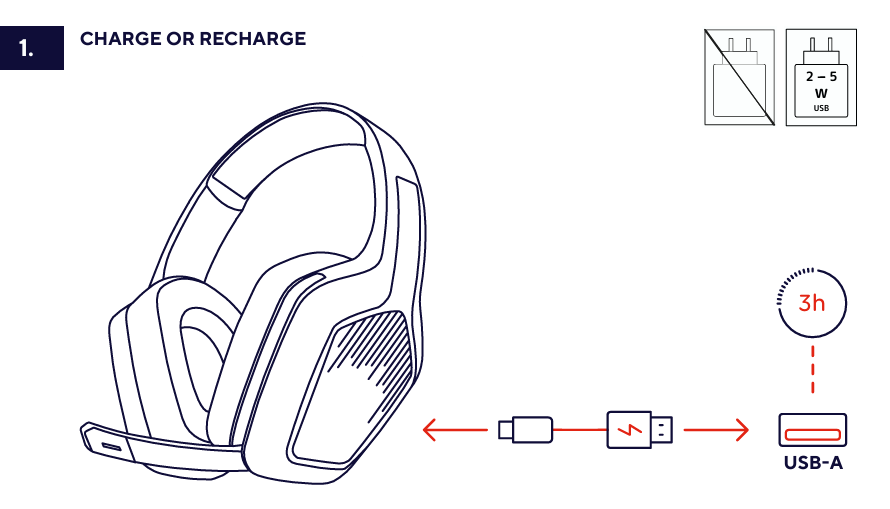
Charging LED
- The LED on the headset lights up red while the headset is charging.
- The red LED goes out when charging is complete.
Allow the headset to charge fully before using it for the first time.---------------------------------------------------------------------------------------------------------------------------------------------------
Low-battery indication
The headset provides a low-battery indication when the remaining battery level reaches approximately 20%.
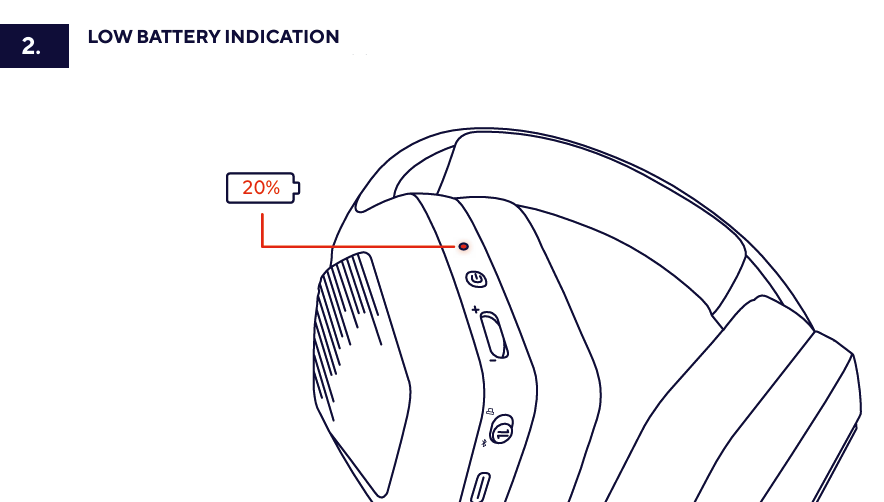
ℹ️ Recharge the headset when the low-battery indication is activated.---------------------------------------------------------------------------------------------------------------------------------------------------
On-ear controls
The multifunction control is located on the earcup.
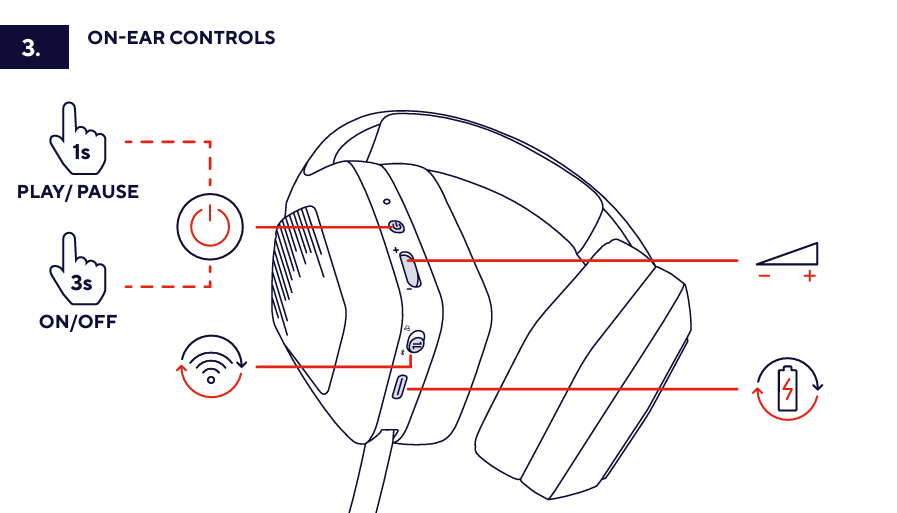
Play or pause audio
Press the multifunction button for approximately 1 second to play or pause audio.
Switch the headset on
Press and hold the on/off button for approximately 3 seconds to switch the headset on.
Switch the headset off
Press and hold the on/off button for approximately 3 seconds to switch the headset off.
When the headset switches off, you will hear a slightly longer beep.
The LED on the headset briefly lights up red and then goes out immediately.
If the USB-C receiver is connected, its white LED starts flashing again after the headset is switched off.
The response of the play or pause function may depend on the connected device and the application being used.---------------------------------------------------------------------------------------------------------------------------------------------------
Flip-to-mute microphone
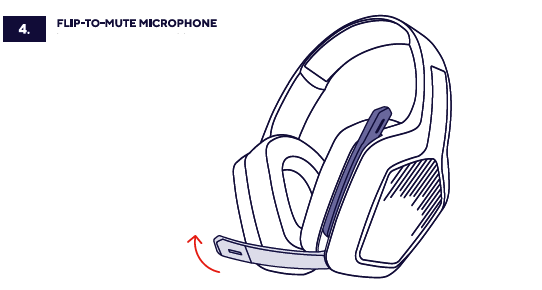
The headset has a flip-to-mute microphone.
- Pull the microphone boom down to unmute the microphone.
- Push the microphone boom up to mute the microphone.
Microphone notification sounds
- When you pull the microphone boom down, you will hear a beep indicating that the microphone has been unmuted.
- When you push the microphone boom up, you will hear a beep through the headset indicating that the microphone has been muted.
ℹ️ Make sure that the microphone boom is fully lowered before speaking.---------------------------------------------------------------------------------------------------------------------------------------------------
Connect via Bluetooth
The headset can be connected wirelessly to a compatible device through Bluetooth.
- Make sure that the headset is switched off.
- Press and hold the on/off button for approximately 3 seconds to switch the headset on.
- Wait approximately 10 seconds, or wait until the LED on the headset starts flashing rapidly. The headset is now in Bluetooth pairing mode.
- Open the Bluetooth settings on the device that you want to connect.
- Select Zirox II from the list of available Bluetooth devices.
- Tap or select Connect on your device.
- The LED on the headset turns blue and stops flashing when the Bluetooth connection has been established.
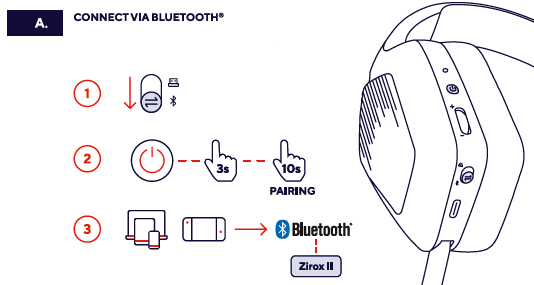
ℹ️ The headset appears as “Zirox II” in the Bluetooth settings of the connecting device.
Bluetooth disconnection sound
When the headset disconnects from Bluetooth, you will hear two beeps.
---------------------------------------------------------------------------------------------------------------------------------------------------
Connect via the USB-C receiver
The headset can also be connected wirelessly using the included USB-C receiver.
- Insert the USB-C receiver into a compatible USB-C port on your device.
- The white LED on the USB-C receiver starts flashing.
- Press and hold the on/off button on the headset for approximately 3 seconds to switch it on.
- The LED on the headset briefly flashes and turns white while the connection is being established.
- Wait for the headset and USB-C receiver to connect.
- Once connected, the LEDs on the USB-C receiver and the headset stop flashing and remain steadily lit.
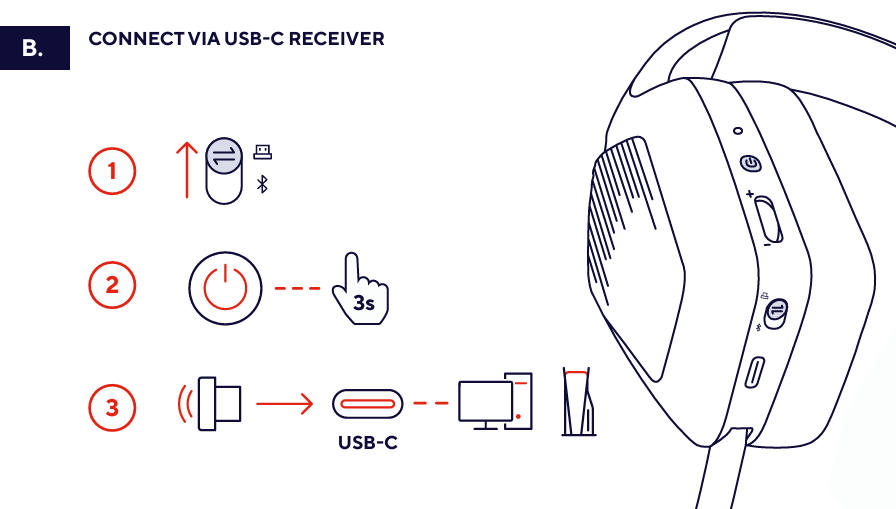
A steadily lit white LED on both the headset and the USB-C receiver indicates that the wireless connection has been established.
When the headset is switched off, its LED briefly lights up red and then goes out. The LED on the connected USB-C receiver starts flashing again.---------------------------------------------------------------------------------------------------------------------------------------------------
LED and sound indications
Charging
- Red headset LED: the headset is charging.
- Red headset LED goes out: charging is complete.
USB-C receiver connection
- Flashing white receiver LED: the USB-C receiver is waiting for the headset connection.
- Briefly flashing white headset LED: the headset is establishing the receiver connection.
- Steady white LEDs on the headset and receiver: the connection has been established.
Bluetooth connection
- Rapidly flashing headset LED: Bluetooth pairing mode is active.
- Steady blue headset LED: the Bluetooth connection has been established.
- Two beeps: the headset has disconnected from Bluetooth.
Microphone and power sounds
- Beep after lowering the microphone boom: the microphone has been unmuted.
- Beep after raising the microphone boom: the microphone has been muted.
- Slightly longer beep: the headset is switching off.
- Brief red headset LED followed by the LED going out: the headset has switched off.
---------------------------------------------------------------------------------------------------------------------------------------------------
Troubleshooting
- The headset does not switch on
- Charge the headset for approximately 3 hours.
- Check whether the red charging LED lights up after connecting the charging cable.
- Press and hold the on/off button for approximately 3 seconds.
- The headset does not appear in the Bluetooth device list
- Make sure that Bluetooth is enabled on the connecting device.
- After switching on the headset, wait approximately 10 seconds.
- Make sure that the headset LED is flashing rapidly before searching for available devices.
- Check the list of available Bluetooth devices for Zirox II.
- The Bluetooth connection has not been established
- Select Zirox II in the Bluetooth settings of your device.
- Tap or select Connect on the device.
- Wait until the headset LED turns blue and stops flashing.
- The USB-C receiver connection does not work
- Make sure that the USB-C receiver is fully inserted into the USB-C port.
- Check whether the white LED on the USB-C receiver is flashing.
- Switch the headset on by pressing and holding the on/off button for approximately 3 seconds.
- Wait until the LEDs on the headset and receiver stop flashing and remain steadily lit.
- The microphone does not work
- Pull the microphone boom completely down.
- Listen for the beep confirming that the microphone has been unmuted.
------------------------------------------------------------------------------------------------------------------------------------------------
Important notes
Charge the headset when the battery level reaches approximately 20%.Raise the microphone boom to mute the microphone. Lower it completely to unmute the microphone.The USB-C receiver connection is established when the white LEDs on the receiver and headset remain steadily lit.---------------------------------------------------------------------------------------------------------------------------------------------------
Frequently asked questions
Charging
- How long does it take to charge the headset?
A complete charge takes approximately 3 hours.
- How do I know when charging is complete?
The headset LED lights up red while charging. The red LED goes out when charging is complete.
- When does the headset indicate that the battery is low?
The low-battery indication is activated when the remaining battery level reaches approximately 20%.
Connectivity
- How does the headset appear in the Bluetooth menu?
The headset appears as Zirox II in the list of available Bluetooth devices.
- How do I know when Bluetooth pairing is complete?
The LED on the headset turns blue and stops flashing when the headset has been paired successfully.
- What do the two beeps mean when using Bluetooth?
Two beeps indicate that the headset has disconnected from Bluetooth.
- Can I connect the headset without Bluetooth?
Yes. The headset can also be connected wirelessly using the included USB-C receiver.
- How do I know when the USB-C receiver connection is established?
The white LEDs on the USB-C receiver and the headset stop flashing and remain steadily lit.
Features
- How do I mute or unmute the microphone?
Push the microphone boom up to mute it. Pull the microphone boom down to unmute it. A beep confirms each action.
Was this article helpful?
That’s Great!
Thank you for your feedback
Sorry! We couldn't be helpful
Thank you for your feedback
Feedback sent
We appreciate your effort and will try to fix the article