(Compatible article numbers 25729/25871/25872/25873/25874/25875/26176)
How do I set up the GXT 872 Xyra TKL Mechanical Gaming Keyboard?
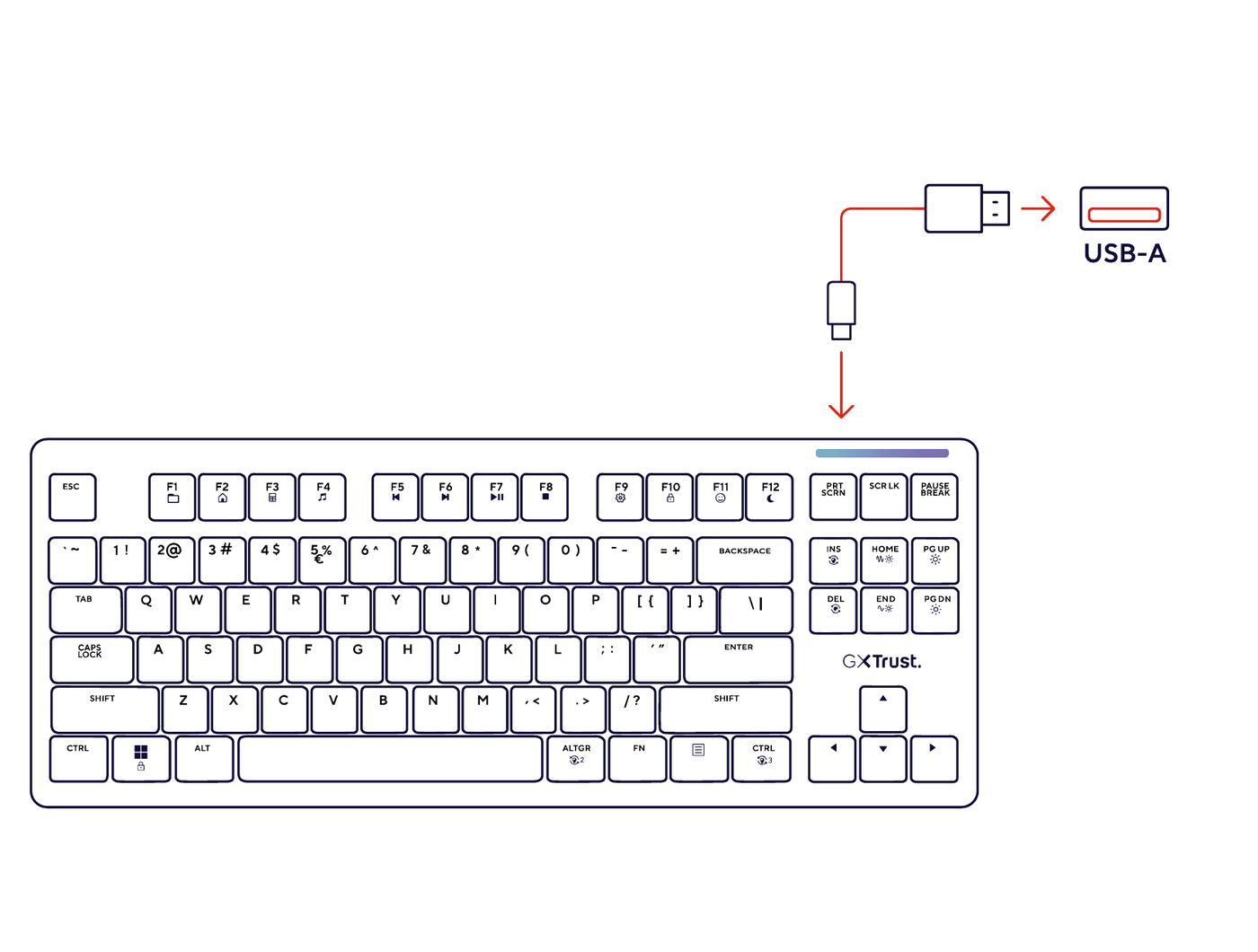
Connect the USB-C end of the supplied coiled cable to the keyboard, then connect the USB-A plug to an available USB port on your computer.
The keyboard is ready for normal use as soon as it is detected by the computer. The dedicated software is only required for advanced key assignments, macros and lighting customisation.
---------------------------------------------------------------------------------------------------------------------------------------------
Keyboard overview
The GXT 872 Xyra is a tenkeyless mechanical gaming keyboard. Its compact TKL layout keeps the navigation and arrow keys but does not include a numeric keypad.
- Hot-swappable design compatible with 3-pin and 5-pin mechanical switches.
- 5-pin LEOBOG Seiya linear switches.
- Switch lifetime of up to 60 million presses.
- Gasket-mounted construction for softer keystrokes and dampened sound.
- North-facing, per-key RGB lighting with up to 16.8 million colour combinations.
- Twelve Fn shortcuts for media, system and lighting functions.
- Detachable coiled USB-A to USB-C cable.
- Included 2-in-1 keycap and switch puller.
---------------------------------------------------------------------------------------------------------------------------------------------
Function keys
Hold the Fn key and press the relevant function key to use the secondary shortcut printed on the keycap.
The Fn shortcuts provide quick access to media and system functions such as previous track, next track, play/pause and other controls shown by the icons on the F1-F12 keys.
The exact function of each shortcut is indicated by the icon printed on the corresponding keycap.---------------------------------------------------------------------------------------------------------------------------------------------
Lighting controls
Main key lighting
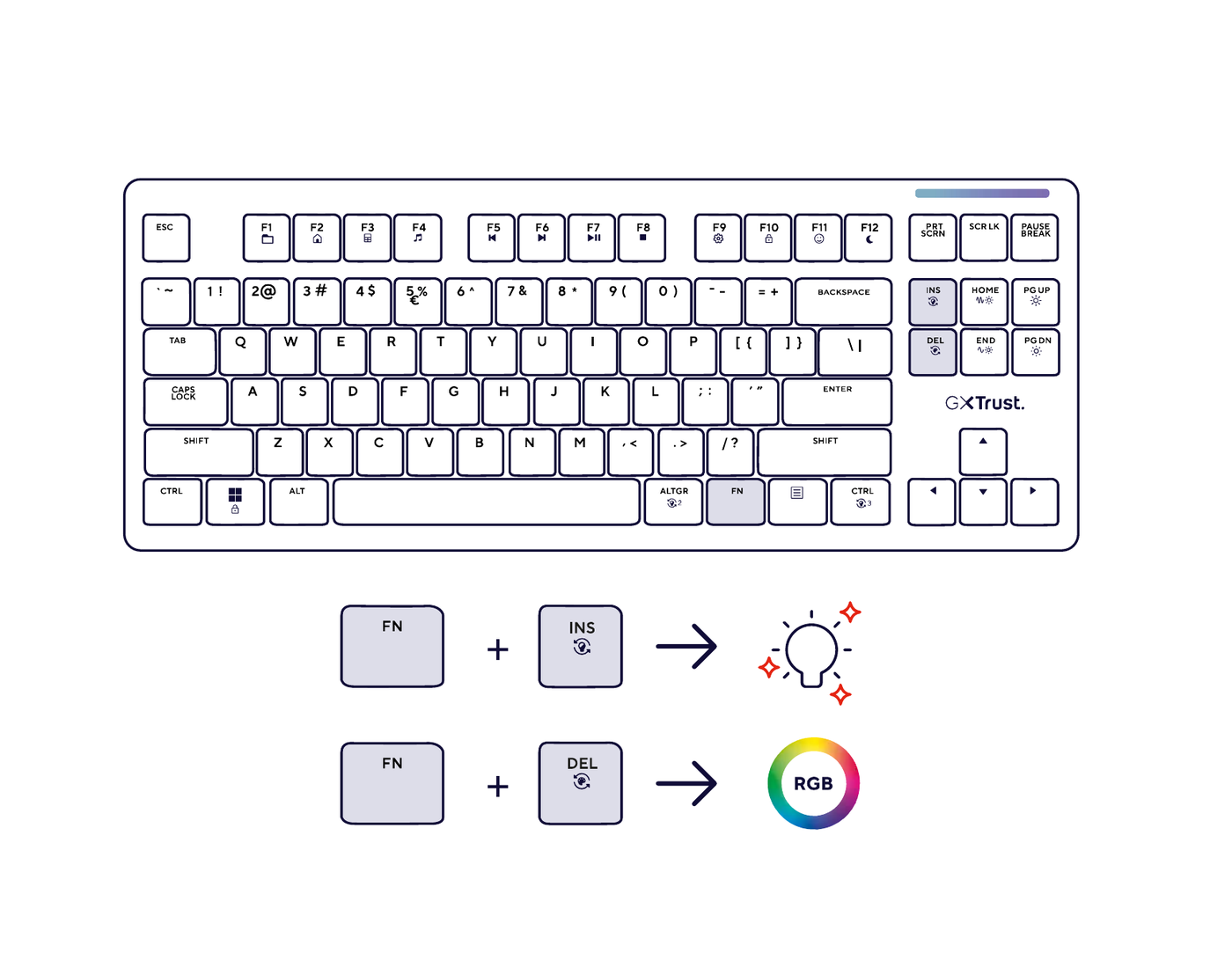
- Fn + Insert - cycle through the lighting effects.
- Fn + Delete - change the colour.
- Fn + Home - increase the animation speed.
- Fn + End - decrease the animation speed.
- Fn + Page Up - increase the brightness.
- Fn + Page Down - decrease the brightness.
Secondary RGB zone
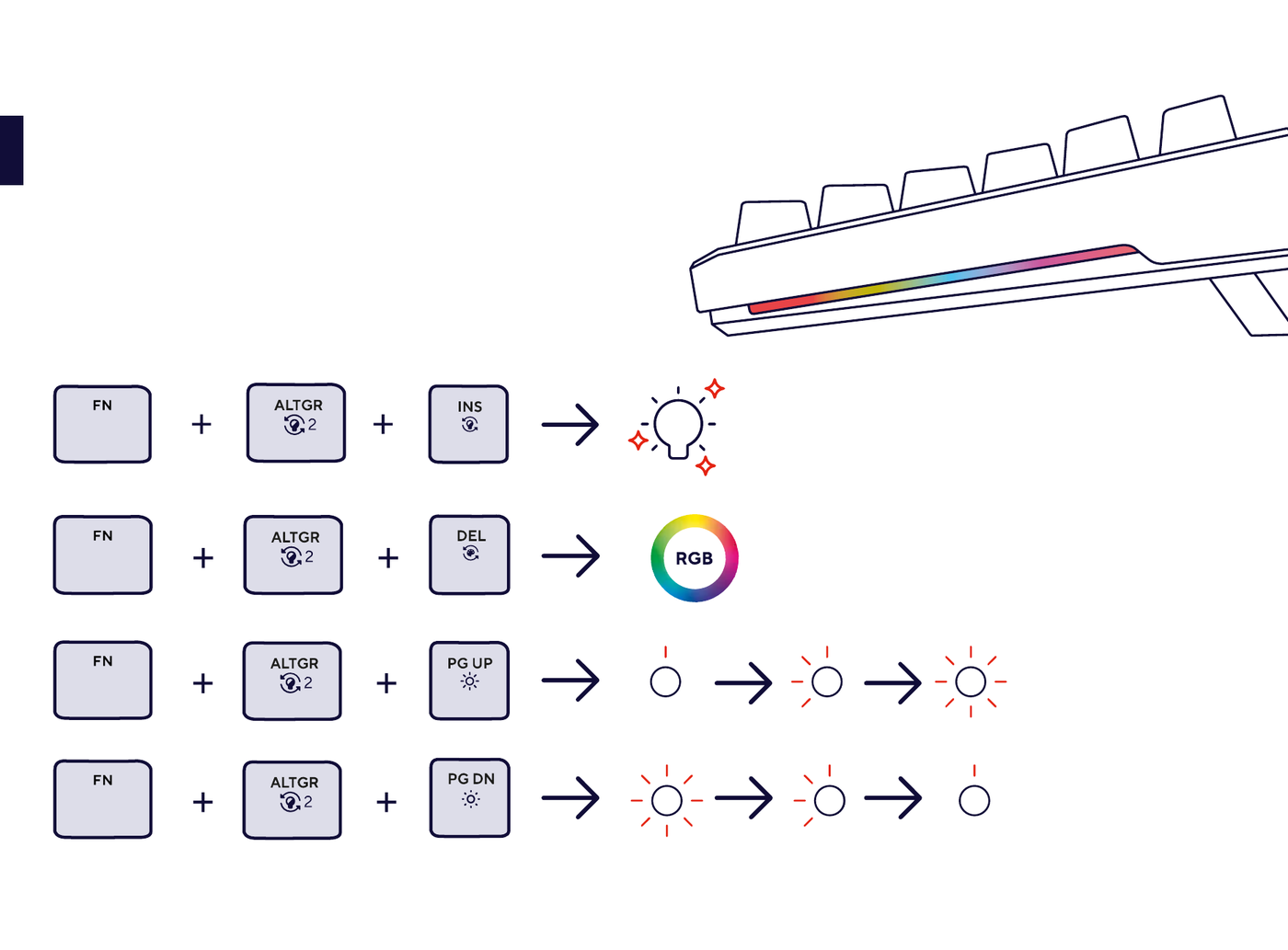
- Fn + Right Alt (AltGr) + Insert - cycle through the lighting effects.
- Fn + Right Alt (AltGr) + Delete - change the colour.
- Fn + Right Alt (AltGr) + Page Up - increase the brightness.
- Fn + Right Alt (AltGr) + Page Down - decrease the brightness.
Top light bar
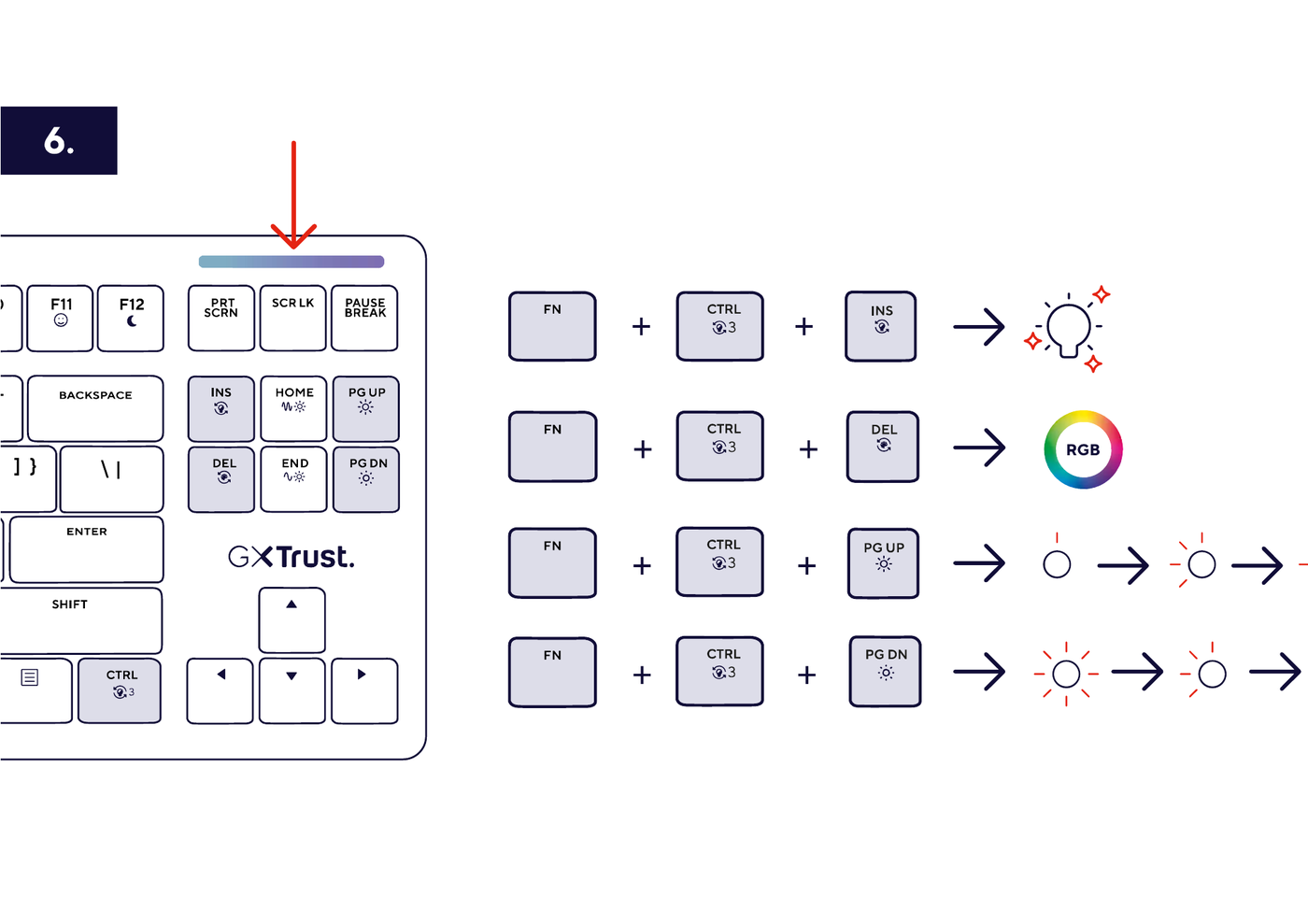
- Fn + Right Ctrl + Insert - cycle through the lighting effects.
- Fn + Right Ctrl + Delete - change the colour.
- Fn + Right Ctrl + Page Up - increase the brightness.
- Fn + Right Ctrl + Page Down - decrease the brightness.
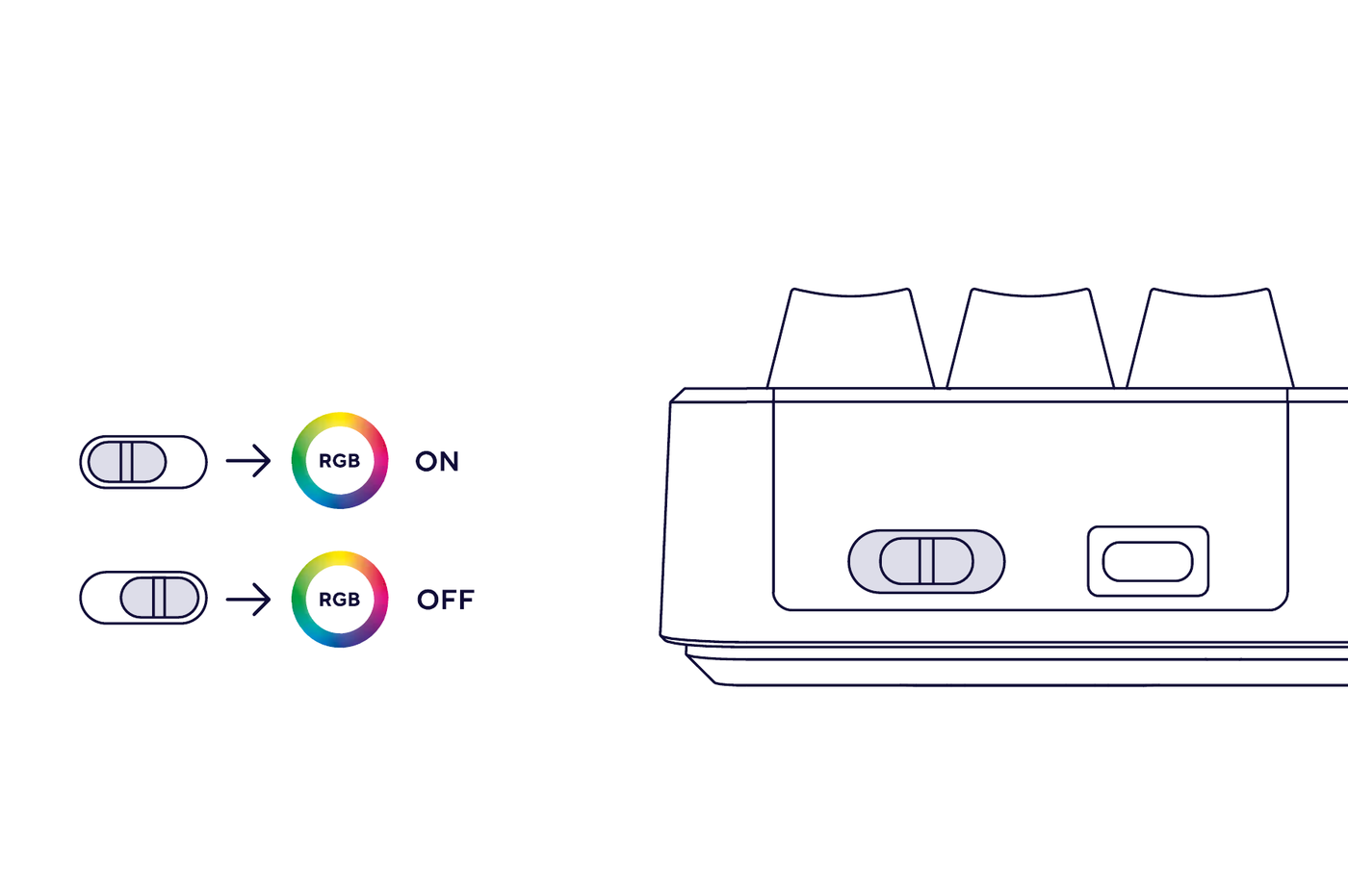
RGB on/off switch
Use the physical RGB switch on the keyboard to turn the lighting on or off.
---------------------------------------------------------------------------------------------------------------------------------------------
Software installation
Download the GXT 872 Xyra software from the Downloads section of the Trust support page for article 25729.
- Download the software package and extract the ZIP file.
- Start the installation.
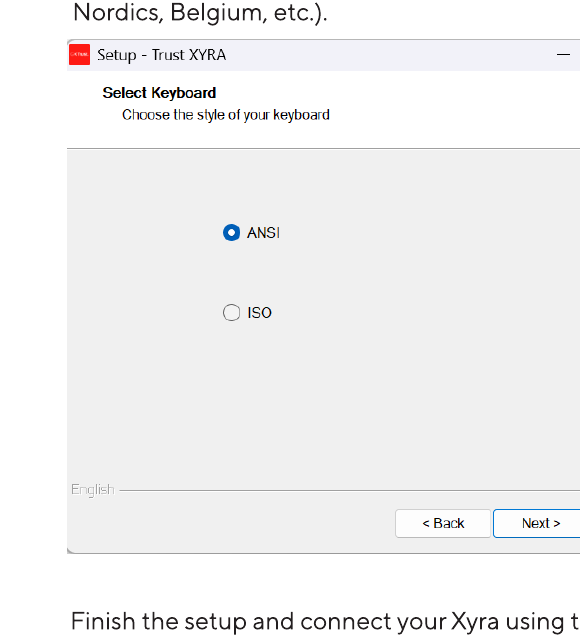
- Select ANSI if your keyboard has a small Enter key, as used by the US and Dutch layouts.
- Select ISO if your keyboard has a large Enter key, as commonly used by European layouts.
- Complete the installation, connect the keyboard with the supplied USB cable and open the software.
ℹ️ Download the software from www.trust.com/25729/download.---------------------------------------------------------------------------------------------------------------------------------------------
Key assignments and macros
The official software manual documents a Main layer and an FN1 layer. It does not describe separate named profiles.Programming keys
Open the keyboard section in the software. A key can be assigned to one of the following categories:
- Keyboard - standard keyboard functions.
- Mouse - mouse functions assigned to a keyboard key.
- Multimedia - media shortcuts such as volume and play/pause.
- Macro - a macro previously created in the macro editor.
- Commands - system commands such as Show Desktop or Task Manager.
- Key combination - a custom shortcut using Ctrl, Windows, Alt or Shift.
Choose whether you want to program the Main layer or the FN1 layer. Functions on the Main layer work by pressing the key directly. Functions on the FN1 layer work only while holding the Fn key.
- Select the key you want to program.
- Choose the required function.
- Click the Save icon.
- Assigned keys are shown in blue.
- To reset a key, select it, use the Reset icon and save the configuration again.
Lighting customisation in the software
Open the LED section to select an effect and, where available, adjust its speed, brightness and colour. Select a single colour or enable the colourful RGB option, then click Save.
To customise individual keys, select Custom, choose a colour and click the keys you want to change. Multiple keys can be selected by holding the mouse button and dragging across them. Click Save when finished.
Creating and assigning a macro
- Open the macro editor using the </> icon.
- Create a new macro, enter a name and confirm it.
- Click Record and enter the required key sequence.
- Adjust the delays in milliseconds if the macro needs to run faster or slower.
- Add or edit actions if required, then save the macro.
- Return to the keyboard section and assign the saved macro to the required key.
---------------------------------------------------------------------------------------------------------------------------------------------
Gaming mode and key lock
Use the Fn + Windows key combination to lock or unlock the Windows key. This helps prevent the Start menu from opening accidentally during gameplay.
Press Fn + Windows again to restore normal Windows-key operation.---------------------------------------------------------------------------------------------------------------------------------------------
Replacing keycaps and switches
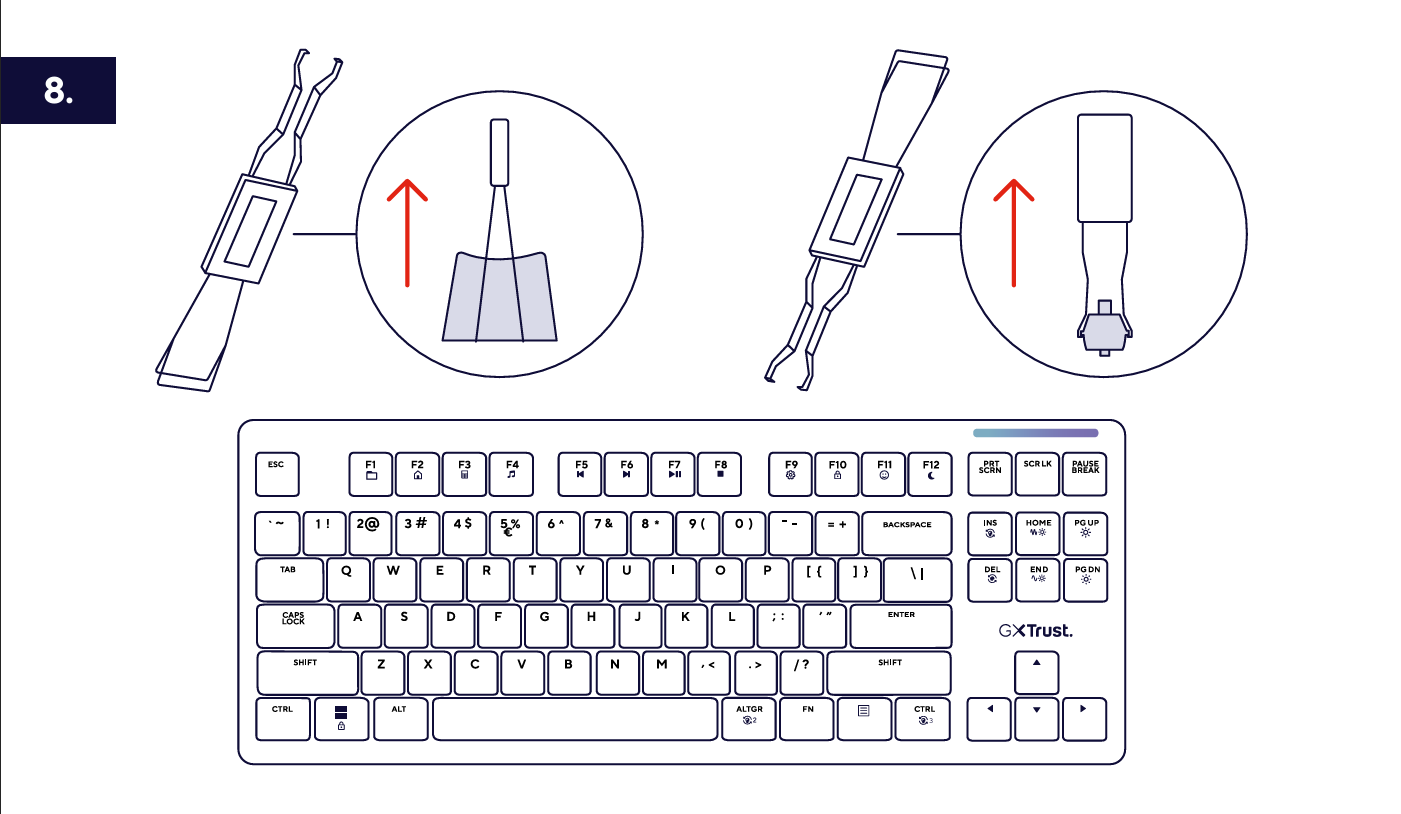
The Xyra has hot-swappable switch sockets and supports both 3-pin and 5-pin mechanical switches.
- Use the keycap side of the included 2-in-1 puller to pull the keycap straight upward.
- Use the switch side of the tool to grip and pull the mechanical switch straight upward.
- Insert the replacement switch and reinstall the keycap.
---------------------------------------------------------------------------------------------------------------------------------------------
Troubleshooting
The supplied manuals do not include a separate troubleshooting chapter. The checks below are standard USB-keyboard support steps.The keyboard is not detected
- Disconnect and reconnect both ends of the USB cable.
- Try another USB port on the computer.
- Connect the keyboard directly to the computer rather than through a USB hub.
- Restart the computer.
The lighting is off
- Check the physical RGB on/off switch.
- Increase the brightness with Fn + Page Up.
- Select another lighting effect with Fn + Insert.
- Open the software and save the active lighting configuration again.
The wrong RGB zone changes
- Use Fn alone for the main key lighting.
- Add Right Alt (AltGr) for the secondary RGB zone.
- Add Right Ctrl for the top light bar.
The software does not detect the keyboard
- Connect the keyboard before opening the software.
- Connect it directly to the computer rather than through a USB hub.
- Close and reopen the software.
- Reinstall the software and select the correct ANSI or ISO keyboard version.
-------------------------------------------------------------------------------------------------------------------------------------------------
Important notes
ℹ️ The Xyra is a wired USB keyboard and is powered through its USB connection.The TKL layout does not include a numeric keypad.Use a USB cable that supports data transfer. A charging-only cable may not transmit keyboard input.ℹ️ The hot-swap sockets support both 3-pin and 5-pin mechanical switches.---------------------------------------------------------------------------------------------------------------------------------------------
Frequently asked questions
Does the GXT 872 Xyra have a numeric keypad?
No. The Xyra uses a compact tenkeyless layout, so the separate numeric keypad is not included.
Is the Xyra wireless?
No. It connects to the computer with the supplied detachable USB-A to USB-C cable.
Can I use the keyboard without installing the software?
Yes. Normal keyboard use and the built-in Fn shortcuts work without the software. Install the software for advanced key assignments, macros and detailed RGB customisation.
Which replacement switches are compatible?
The hot-swap sockets are compatible with both 3-pin and 5-pin mechanical switches.
How do I turn the RGB lighting on or off?
Use the physical RGB switch on the keyboard. If the lighting is on but too dim, increase the brightness with Fn + Page Up.
How do I lock the Windows key while gaming?
Press Fn + Windows to lock the Windows key. Press the same combination again to unlock it.
Should I select ANSI or ISO during software installation?
Select ANSI for a keyboard with a small Enter key. Select ISO for a keyboard with the larger European-style Enter key.
How do I assign a macro to a key?
Create and save the macro in the macro editor. Then return to the keyboard section, select a key, choose Macro and assign the saved macro.
Why does only one lighting zone change?
The Xyra uses different shortcuts for each zone: Fn for the main keys, Fn + Right Alt for the secondary zone and Fn + Right Ctrl for the top light bar.
Where can I find downloads and additional support?
Visit www.trust.com/25729/download for the software and manuals, or www.trust.com/25729/faq for additional support information.
Was this article helpful?
That’s Great!
Thank you for your feedback
Sorry! We couldn't be helpful
Thank you for your feedback
Feedback sent
We appreciate your effort and will try to fix the article