(Compatible article number 25491)
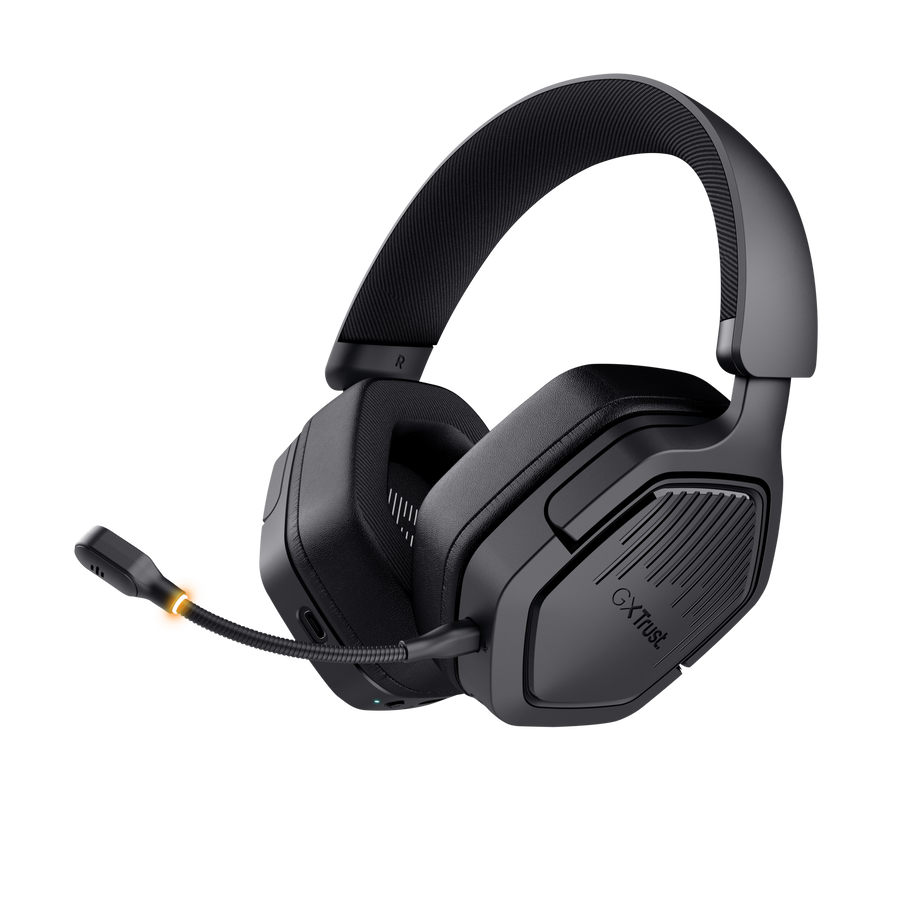
How do I set up the GXT 493 Carus Wireless headset?
The GXT 493 Carus can be connected using the supplied 2.4 GHz USB receiver, Bluetooth or the included 3.5 mm audio cable.
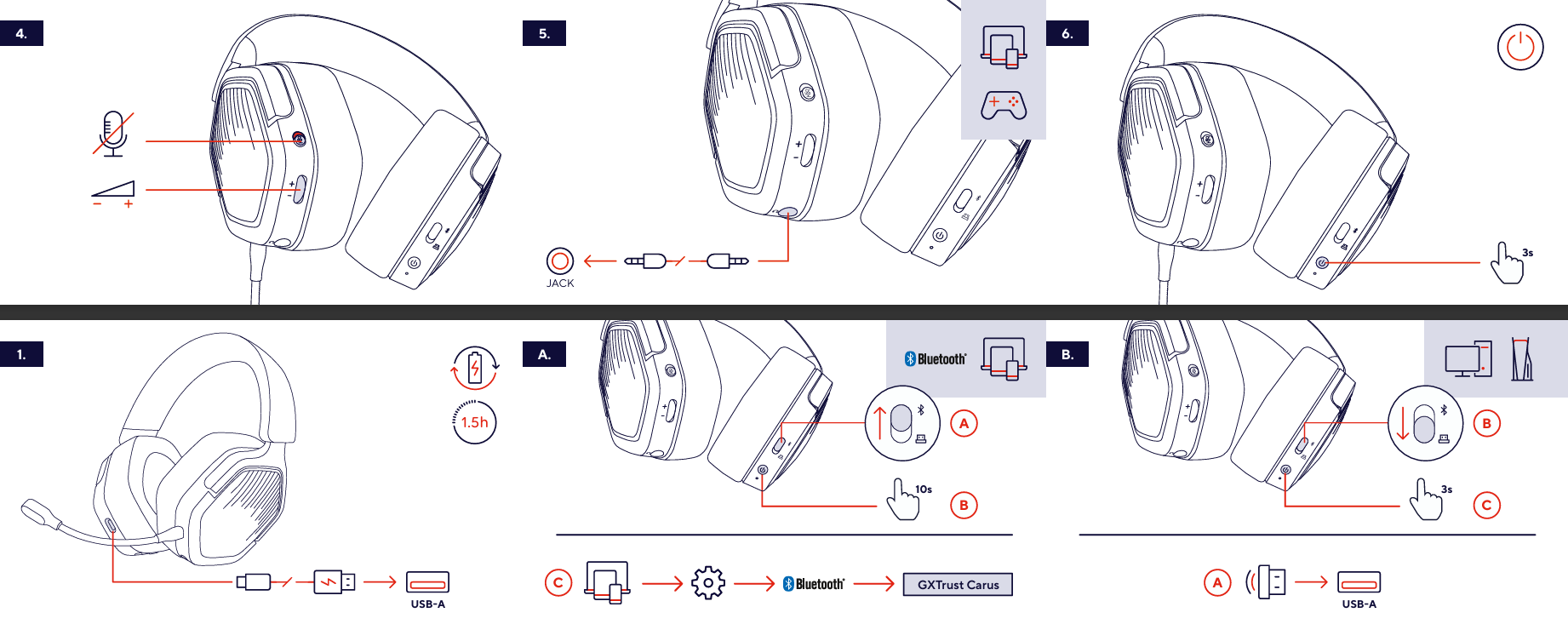
Charge the headset
- Connect the supplied USB-A to USB-C charging cable to the headset.
- Connect the USB-A end to a USB power source.
- A complete charge takes approximately 1.5 hours.
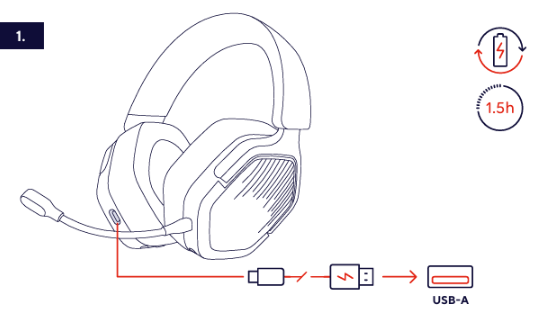
Connect using the 2.4 GHz USB receiver
- Connect the supplied USB receiver to an available USB-A port.
- Move the connection-mode switch towards the USB receiver symbol.
- Press and hold the power button for approximately 3 seconds.
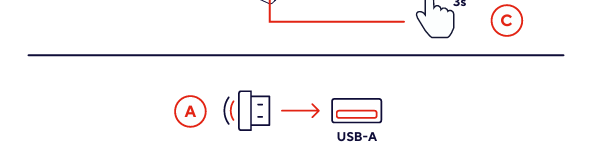
Connect using Bluetooth
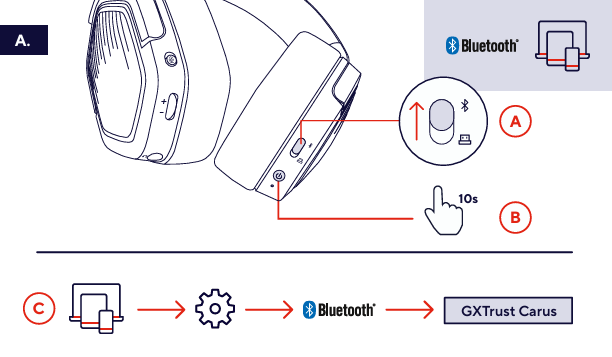
- Move the connection-mode switch towards the Bluetooth symbol.
- Press and hold the power button for approximately 10 seconds to enter Bluetooth pairing mode.
- Open the Bluetooth settings on your device.
- Select GXTrust Carus from the list of available Bluetooth devices.
Connect using the 3.5 mm audio cable
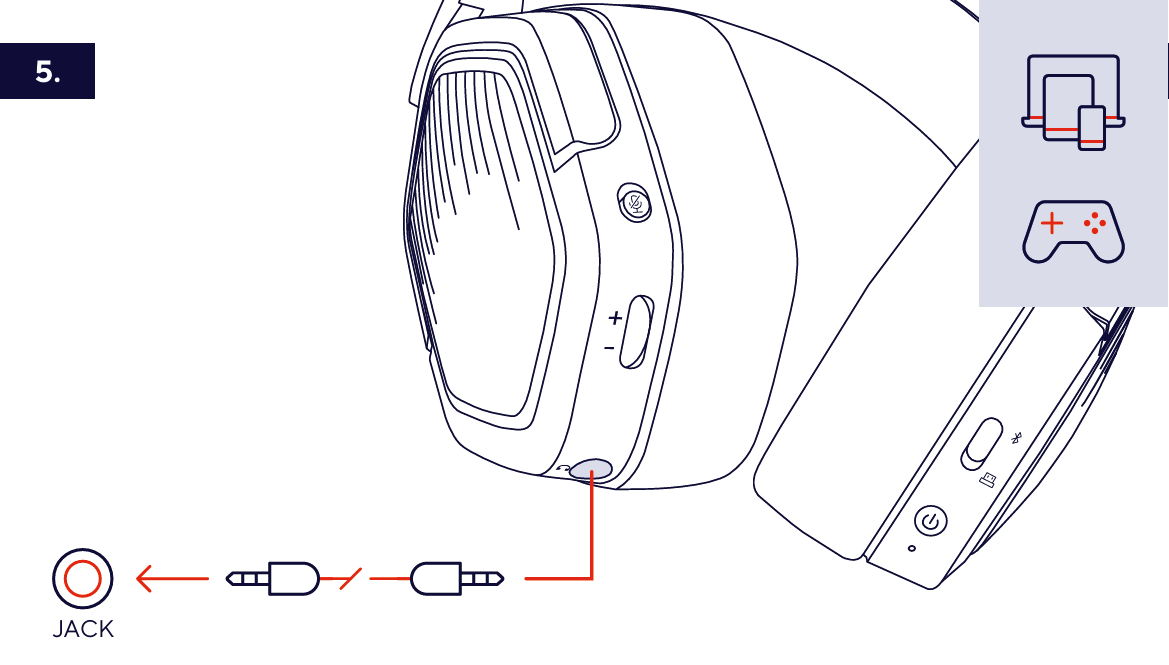
- Connect the supplied 1.2 m audio cable to the 3.5 mm jack on the headset.
- Connect the other end to a compatible 3.5 mm audio connection, such as a console controller or other audio device.
---------------------------------------------------------------------------------------------------------------------------------------------
Headset overview
- Low-latency 2.4 GHz wireless connection through the supplied USB receiver.
- Bluetooth connectivity.
- Wired 3.5 mm audio connection.
- 50 mm drivers.
- Over-ear design with tilting earcups.
- Adjustable padded headband.
- Detachable microphone with pop filter.
- On-ear volume and microphone controls.
- Rechargeable battery with up to 70 hours of use per charge.
---------------------------------------------------------------------------------------------------------------------------------------------
Headset controls
- Microphone mute button - mute or unmute the microphone.
- Volume + / - control - increase or decrease the headset volume.
- Connection-mode switch - select Bluetooth or USB-receiver operation.
- Power / multifunction button - power and Bluetooth multimedia controls.
Bluetooth multimedia controls
- Press once - play or pause.
- Press twice - next track.
- Press three times - previous track.
- Press and hold - activate the voice assistant on the connected Bluetooth device.
Bluetooth call controls
- Press once - answer or end a call.
- Press and hold - reject an incoming call.
---------------------------------------------------------------------------------------------------------------------------------------------
Microphone
Insert the detachable microphone into the microphone connection on the headset and place the supplied pop filter over the microphone tip. Use the microphone mute button on the earcup to mute or unmute the microphone. The microphone can be removed when it is not required.
---------------------------------------------------------------------------------------------------------------------------------------------
Battery and charging
The built-in rechargeable battery provides up to approximately 70 hours of use on a single charge.
Actual battery runtime depends on usage and operating conditions.For charging instructions and charging time, refer to How do I set up the GXT 493 Carus Wireless headset?
(Image1) above.
---------------------------------------------------------------------------------------------------------------------------------------------
Compatibility
The GXT 493 Carus is compatible with:
- PC - Windows 10 or 11.
- PlayStation 4.
- PlayStation 5.
- Nintendo Switch.
- Nintendo Switch 2.
- Compatible Bluetooth devices.
- Devices with a compatible 3.5 mm audio connection.
---------------------------------------------------------------------------------------------------------------------------------------------
Troubleshooting
The headset does not connect through the USB receiver
- Make sure the receiver is connected to an available USB-A port.
- Check that the connection-mode switch is set to the USB-receiver position.
- Turn the headset off and repeat the Connect using the 2.4 GHz USB receiver procedure above.
- Try another USB-A port.
The headset does not appear in the Bluetooth device list
- Check that the connection-mode switch is set to Bluetooth.
- Repeat the Connect using Bluetooth procedure above.
- Make sure Bluetooth is enabled on the device you want to connect.
The microphone is not working
- Make sure the detachable microphone is fully inserted into the headset.
- Make sure the microphone is not muted using the microphone mute button.
- Check the microphone or input-device settings on the connected device.
There is no sound through the 3.5 mm connection
- Make sure both ends of the audio cable are fully inserted.
- Check the volume level on the headset and connected device.
- Check that the connected device is using the correct audio output.
---------------------------------------------------------------------------------------------------------------------------------------------
Frequently asked questions
Connectivity
-How do I switch between Bluetooth and the USB receiver?
Use the connection-mode switch on the headset. See Image A and B.
Compatibility
-Which platforms are supported?
Refer to the Compatibility section above.
-Can I connect the headset using a 3.5 mm audio cable?
Yes. Refer to Connect using the 3.5 mm audio cable above.
Battery and charging
-How long does the battery last and how long does charging take?
Refer to Battery and charging and the charging procedure in the setup section above.
Microphone and controls
-Can I remove the microphone?
Yes. Refer to the Microphone section above.
-How do I control music or calls over Bluetooth?
Refer to the Headset controls section above.
Was this article helpful?
That’s Great!
Thank you for your feedback
Sorry! We couldn't be helpful
Thank you for your feedback
Feedback sent
We appreciate your effort and will try to fix the article