(Compatible article numbers 25977/25978/26209)
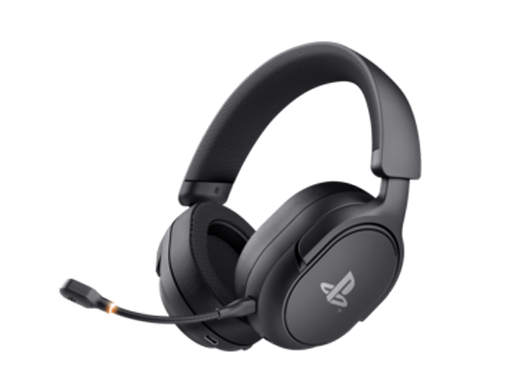
How can I set up my Forta Wireless Gaming Headset?
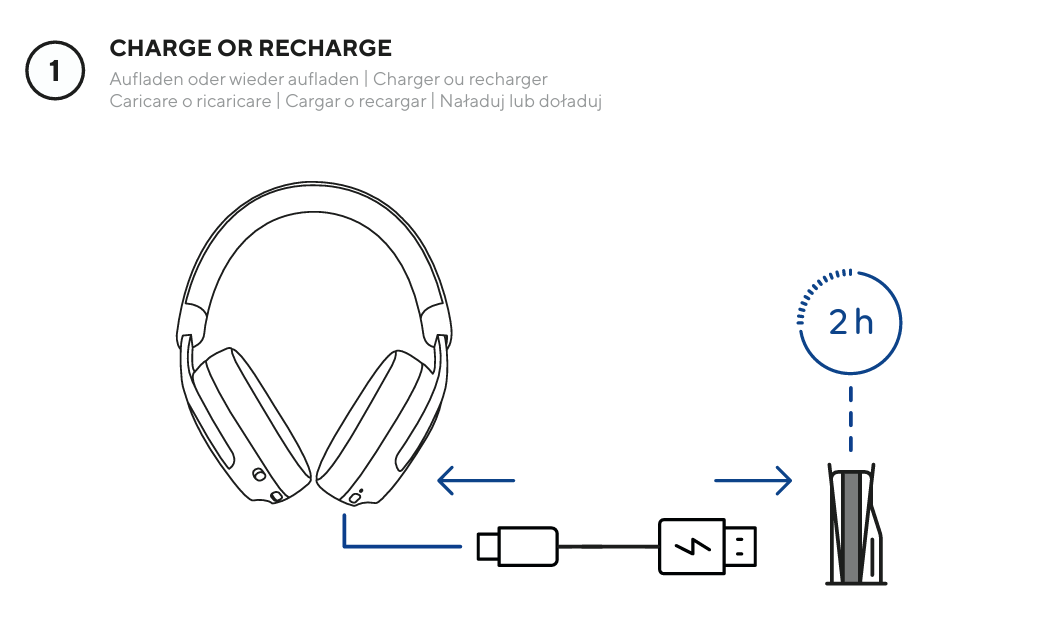
First, fully charge the battery of your Forta Wireless headset. During charging, the LED on the right side will show a steady red light. Once the battery is fully charged, the LED will switch off. When the battery is low, the LED will blink red.
---------------------------------------------------------------------------------------------------------------------------------------------------
Wireless connection to PS5
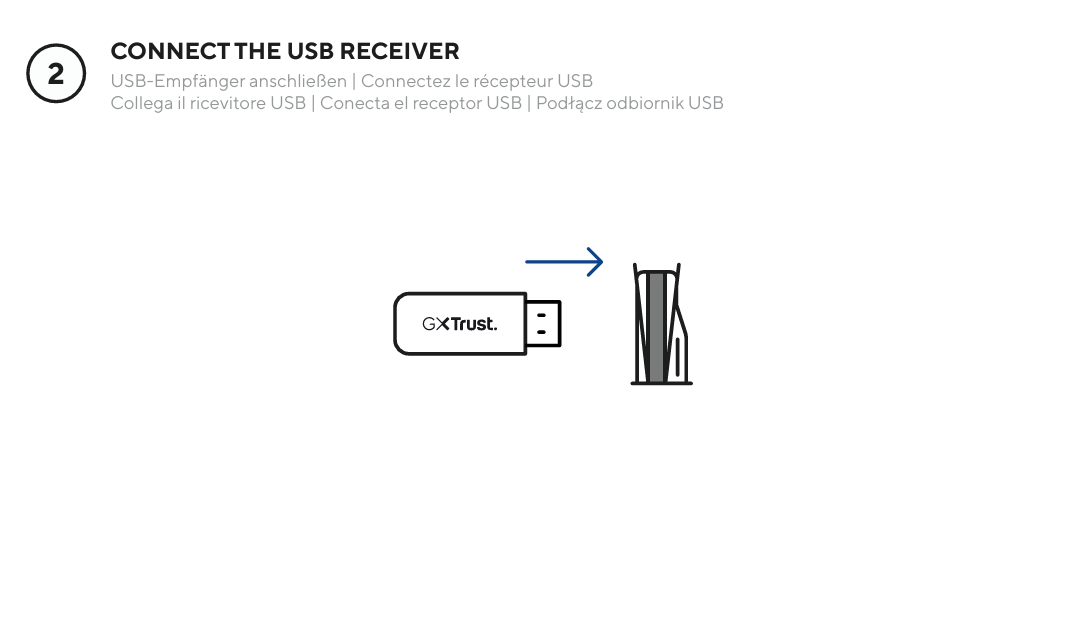
Remove the cap from the USB receiver and insert it into a USB-A port on the PS5 console. The LED on the USB receiver will start to blink.
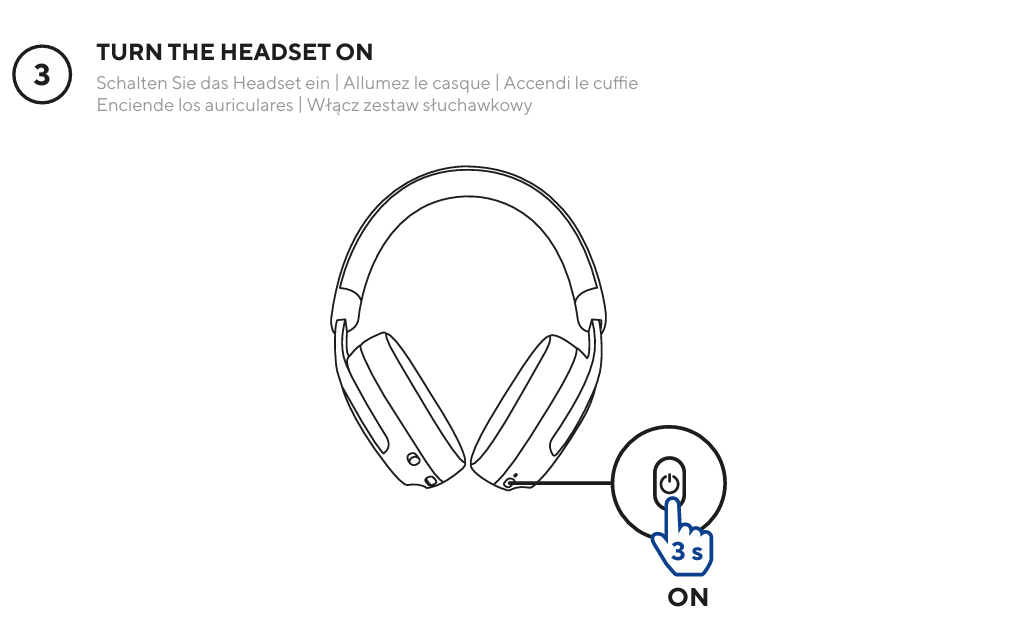
Press the on/off button (right side headset) for three seconds. The LED on the headset will start blinking every 3-5 seconds.
---------------------------------------------------------------------------------------------------------------------------------------------------
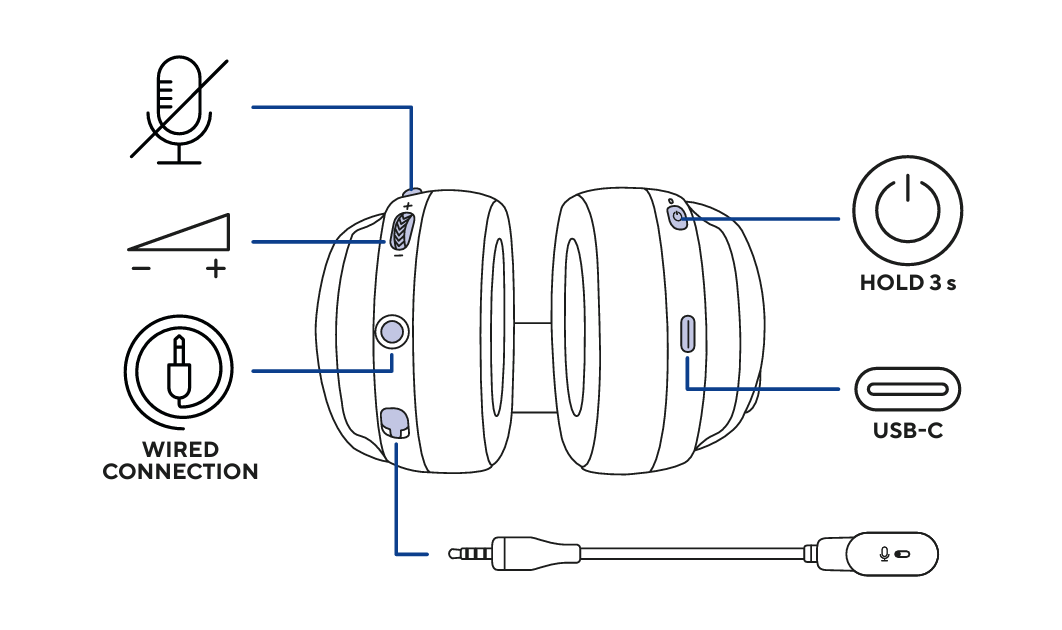
Left earcup (the one on the left in the picture)
The top button controls the microphone.
- Press it to mute/unmute the microphone.
- The crossed-out microphone icon means “mute”.
Volume control
The long horizontal control adjusts the sound volume.
- – = lower volume
- + = raise volume
Wired connection
The round port at the bottom is for a wired audio cable.
You can connect the included cable here to use the headset in wired mode, rubber cap must be removed first.
Included microphone (bottom of image)
The microphone shown has a 3.5mm audio connection.
Right earcup (the one on the right in the picture)
⏻ Power button
The small button at the top powers the headset on/off.
The “HOLD 3 s” note means:
- Press and hold the button for 3 seconds to switch the headset on or off.
USB-C charging port
The vertical slot is the USB-C connector.
Use it to:
- charge the headset.
---------------------------------------------------------------------------------------------------------------------------------------------------
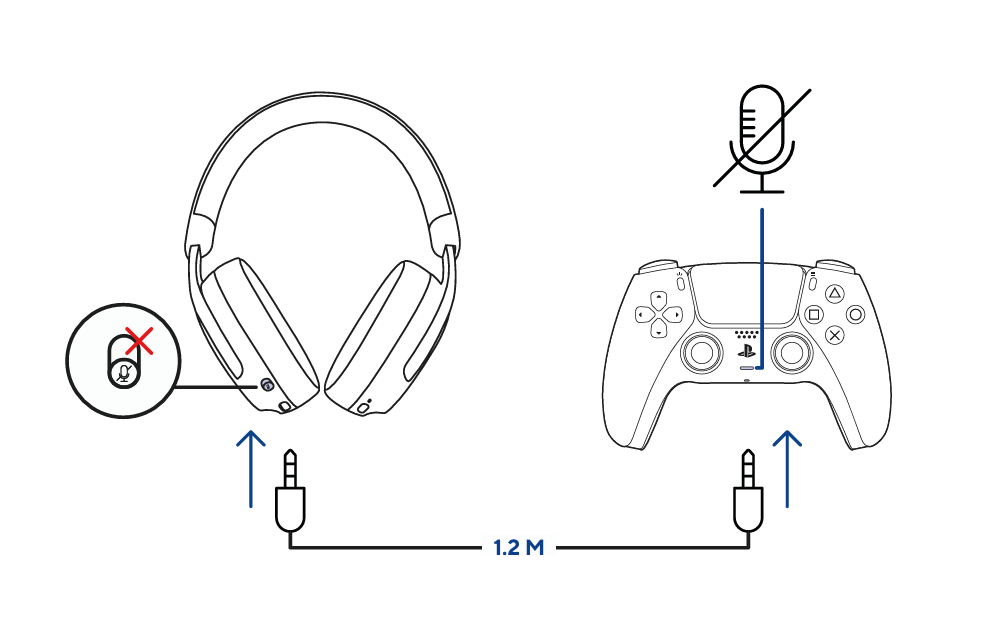
To use the headset in wired mode with a game controller, connect the included audio cable between the headset and the controller. Once connected, the sound is transmitted directly through the cable instead of via the wireless connection.
In this mode, the microphone control on the headset may not function. The microphone is then usually managed via the controller or the console/PC audio settings. In this case, use the controller’s mute/unmute function or adjust the device’s audio settings.
Connect the included 3.5 mm cable
Plug the cable:
- into the headset on one side.
- and into the controller on the other side.
The cable length is 1.2 meters.
---------------------------------------------------------------------------------------------------------------------------------------------------
Notes:
❌ When the headset is in wired mode, it is not possible to mute or unmute the microphone using the control button on the headset. Please use the mute/unmute button on the PS5 controller instead.Always set both the headset audio output and microphone as the default devices in the audio settings of the PlayStation or computer.Was this article helpful?
That’s Great!
Thank you for your feedback
Sorry! We couldn't be helpful
Thank you for your feedback
Feedback sent
We appreciate your effort and will try to fix the article